
Template Enricher
The Template Enricher module is a tool for adapting the data and data structure of received messages. The uniform data structure supports further data processing. The template language Scriban [1] is supported.
Configuration Parameters
The configuration of the Template Enricher includes the parameters described below.
| Parameter | Description |
|---|---|
Settings |
|
Headers | Adaptation of the metadata (Scope, Source) of the received message. |
Body | Definition of the contents of the new message body. |
Library | Management of reusable template parts. |
Modules | Collection of reusable templates. |
Environment | Definition of a static object (JSON) that the body can access. |
Test | The configuration of the Template Enricher can be tested. |
Message Output | Template to forward messages to defined topics/modules based on conditions. |
Configuration in the UI
The Template Enricher module can be accessed and configured by selecting the module on the start page or via the left menu bar of the RoboGate Edge UI.
Settings
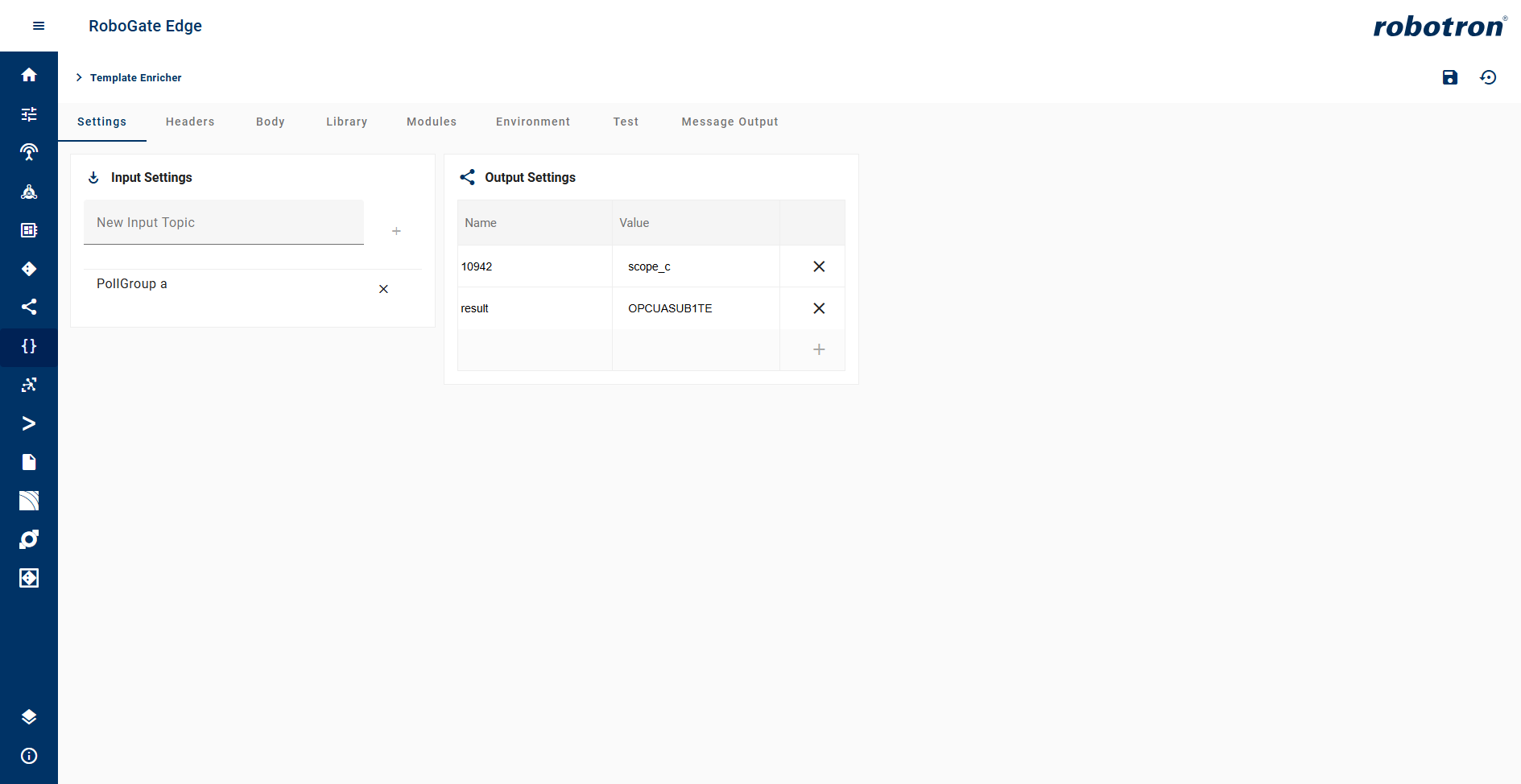
To use the module, at least one output topic defined in another module must be specified as input (e.g. from the OPC UA module). The messages to be manipulated are assigned to this topic. Furthermore, at least one new output topic must be defined, to which the messages manipulated by the Template Enricher are assigned. This new output topic can then be added, for example, for data output in Azure or Splunk (Figure 1).
The configurations described for input and output are to be made under Settings. The entry of input and output topic is confirmed by clicking on  .
Clicking on
 deletes the topic of the corresponding row. Changes are applied when saved.
All entries and changes only take effect when saved with
 .
Header
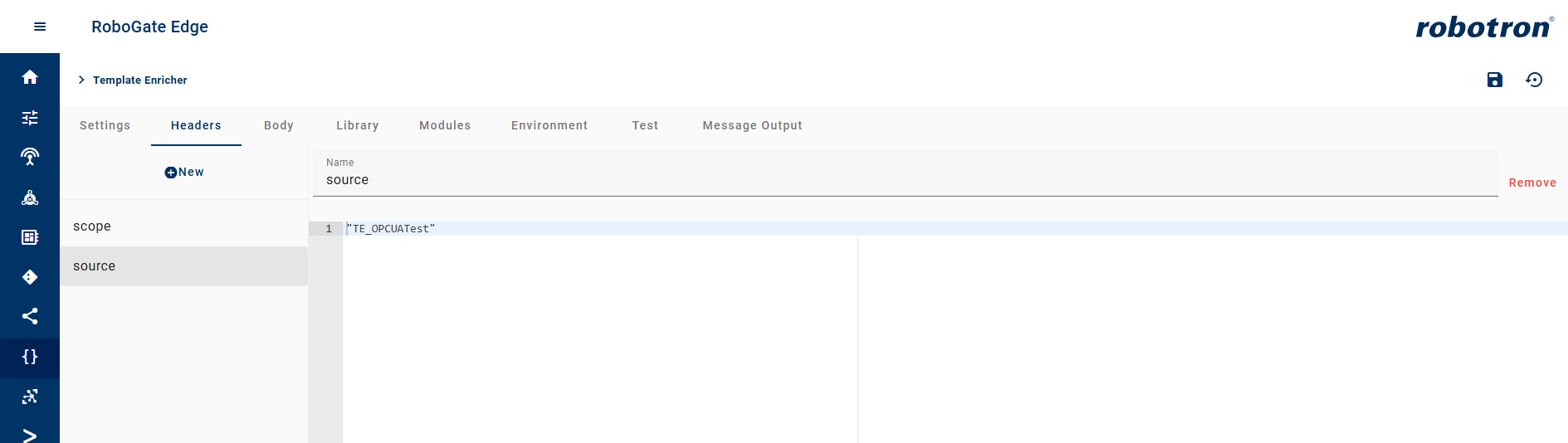
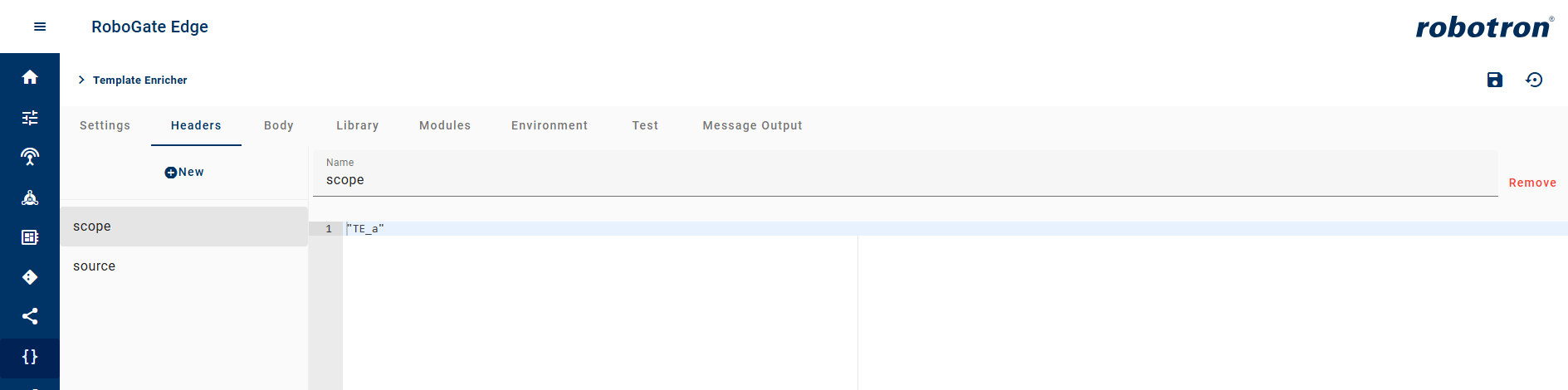
In the Header tab, metadata of the message, such as Source and Scope, can be adjusted. If the key value already exists, it is overwritten with the specified value; if the key value does not yet exist, it is added to the header of the message.
Figure 3 and Figure 2 show an example configuration. In the example, the source "PollGroup a" (see Figure 1) is overwritten with the label "TE_a".
Body
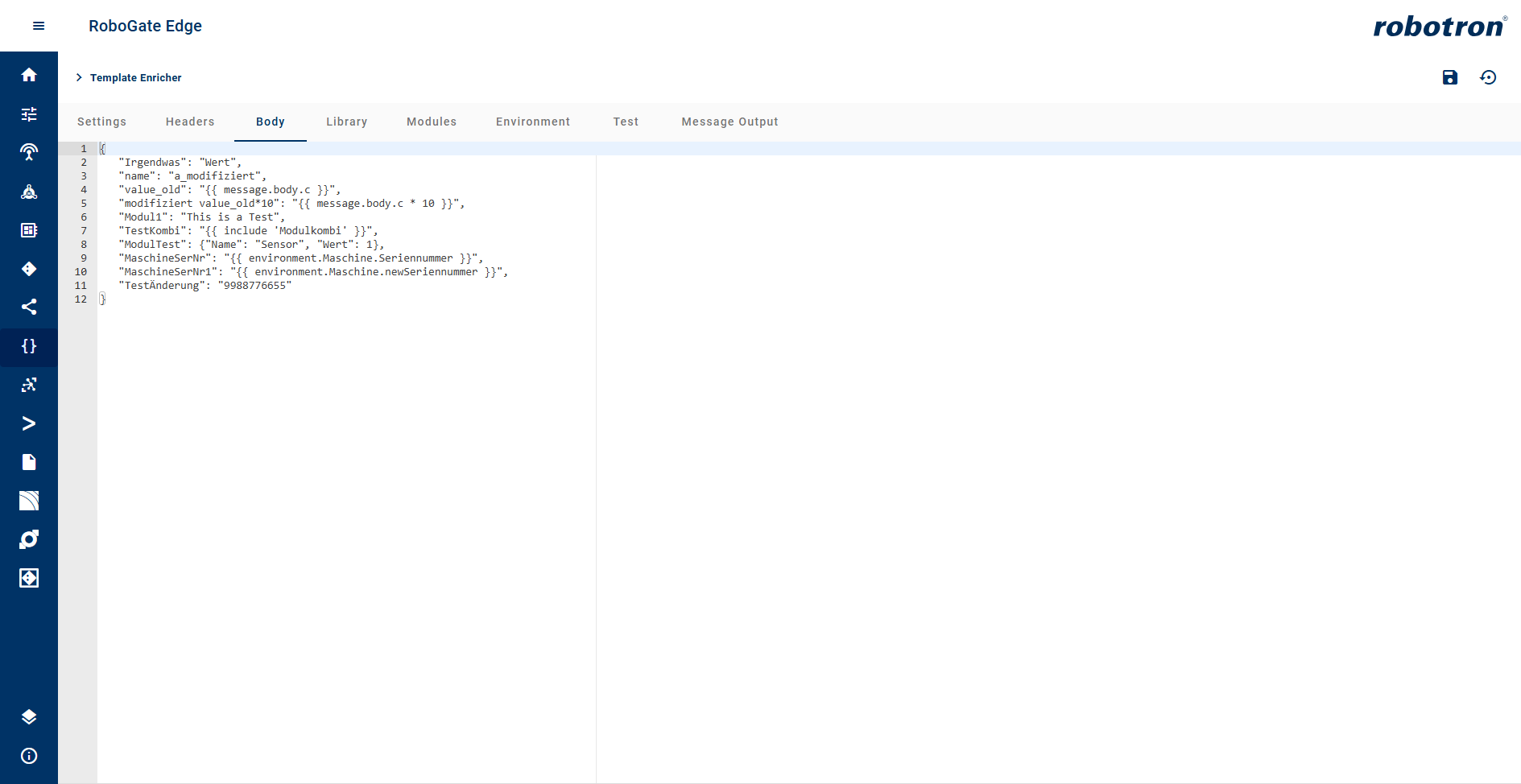
To adapt the raw data structure, the source code for the transformation must be inserted in the Body tab.
If the key value already exists, it is overwritten with the specified value; if the key value does not yet exist, it is added to the header of the message.
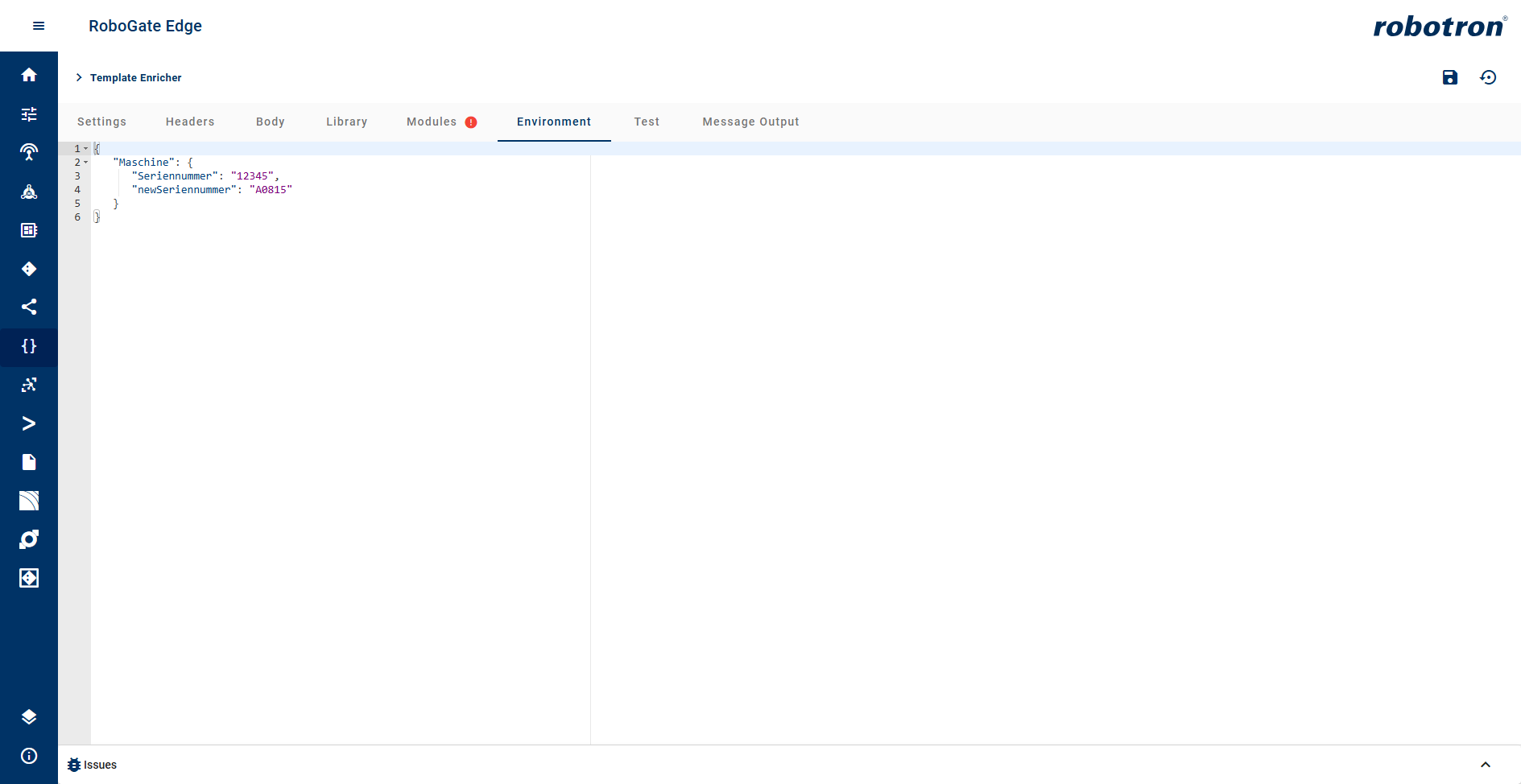
In the body, objects in the Environment tab can be referenced. This is useful, for example, to include machine-specific static data in the body. (Figure 4)
Library
In the "Library" tab, reusable template sections that must be available in every template definition can be managed.
Modules
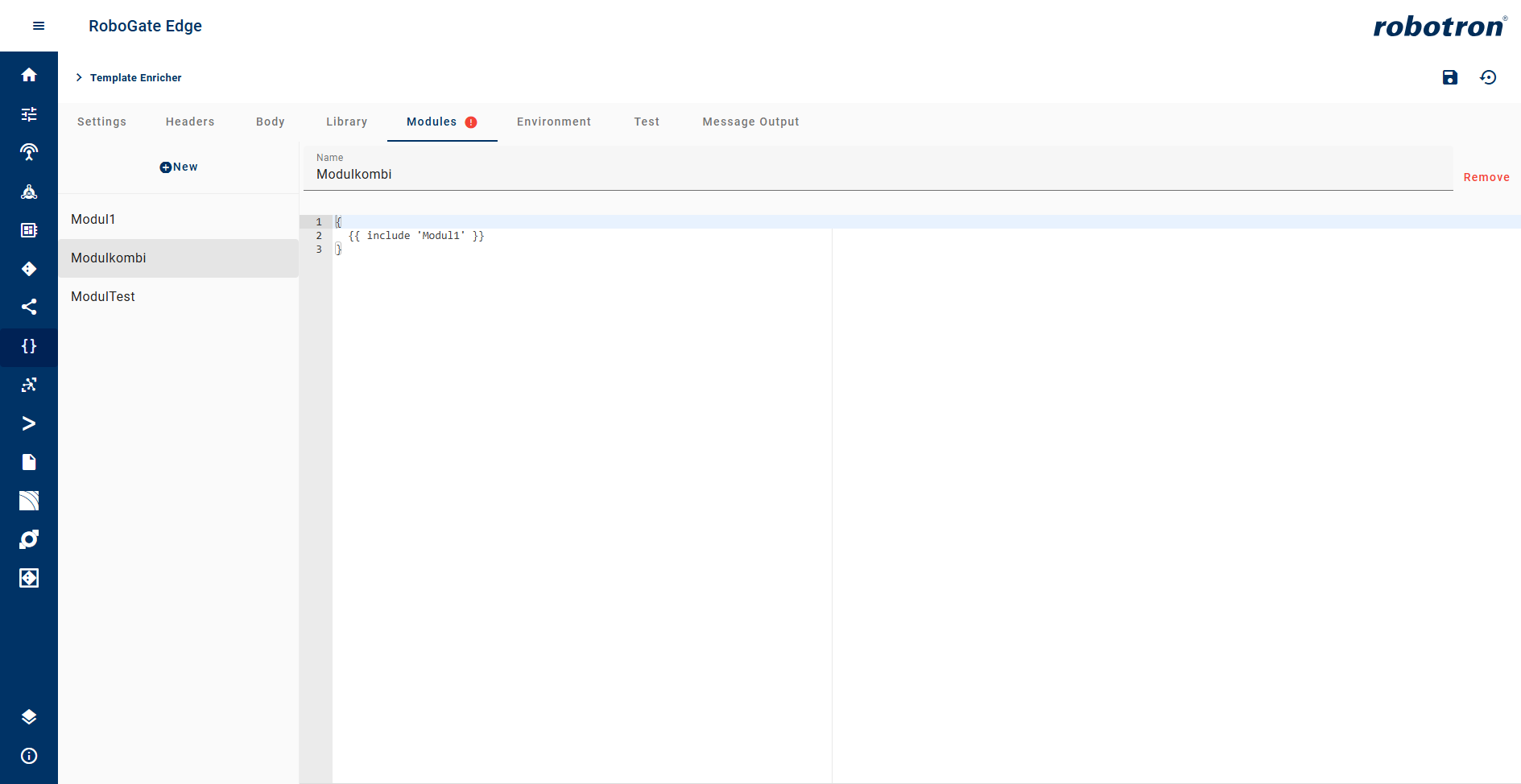
Modules are a collection of reusable templates. They serve to break down a large template into smaller templates if necessary, in order to improve readability and maintainability. Modules can be accessed from every template (Body, other modules). When a module is referenced, its content is inserted at that position. Access is done via the "include" directive in the template. The syntax of the "include" directive is as follows:
{{ include 'Test' }}In place of 'Test' is the name of the module that should be "inserted" at that position. Figure 5 shows an example configuration.
Environment
In the Environment area, a static object (JSON) can be defined that can be accessed from the body. Figure 6 shows an example configuration.
Test
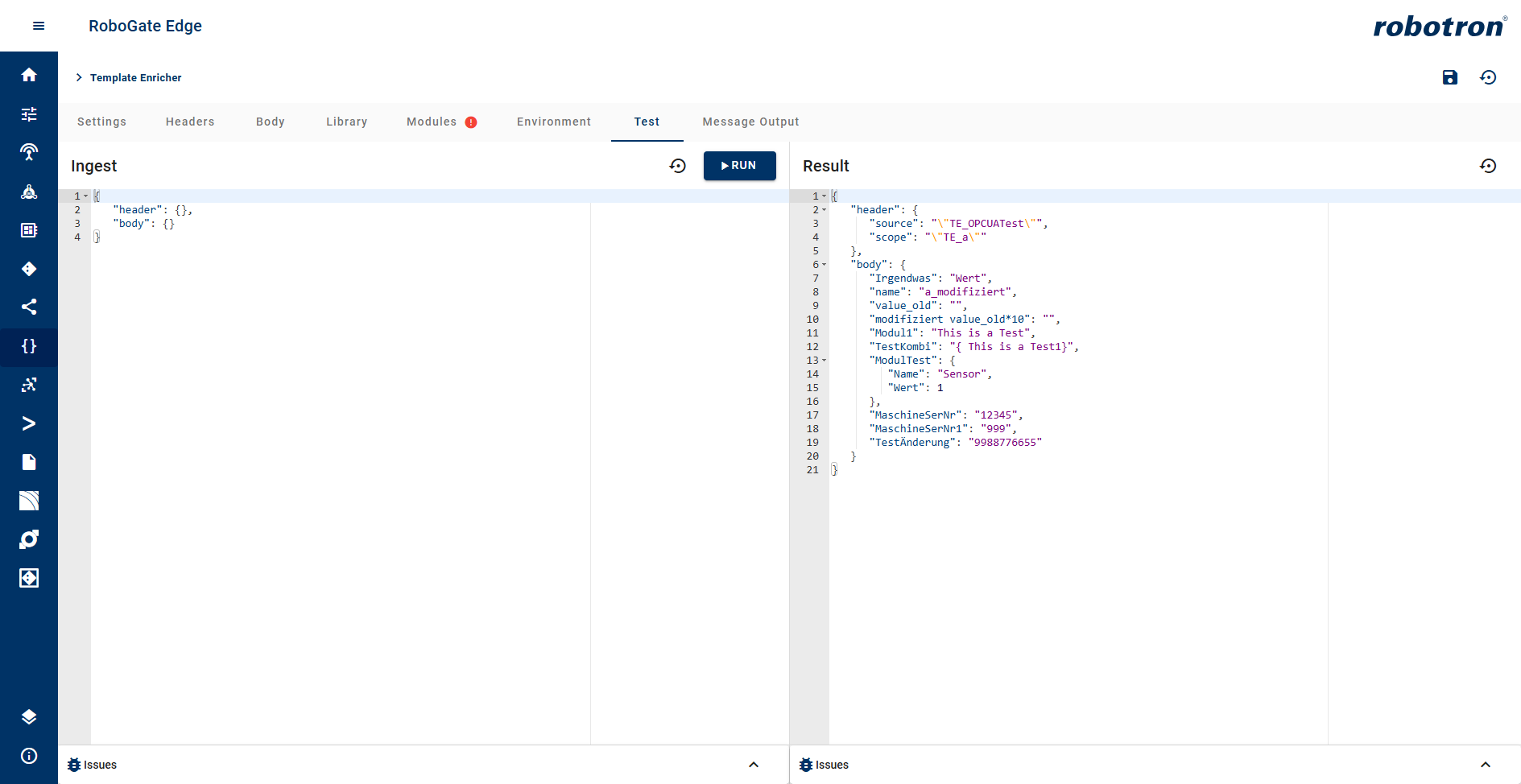
In the Test tab, the function of the configured Template Enricher can be tested. For this purpose, an expected message is defined in the "Ingest" area, to which the configured templates are applied. After clicking the "Run" button, the transformed message is returned in the result (Result). Figure 7 shows an example.
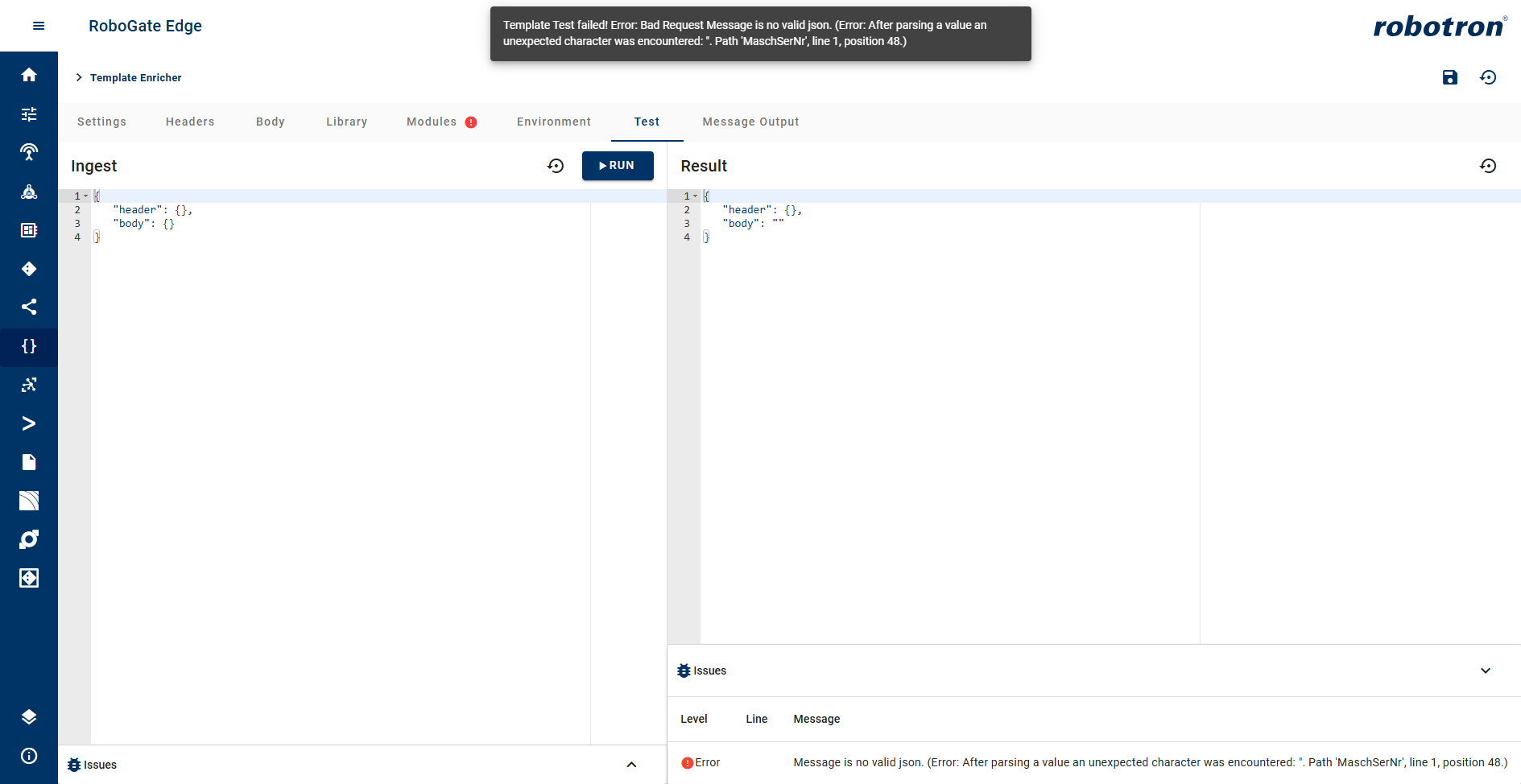
If, for example, the body of the Template Enricher is not in a valid JSON format, an error message is displayed (Figure 8).
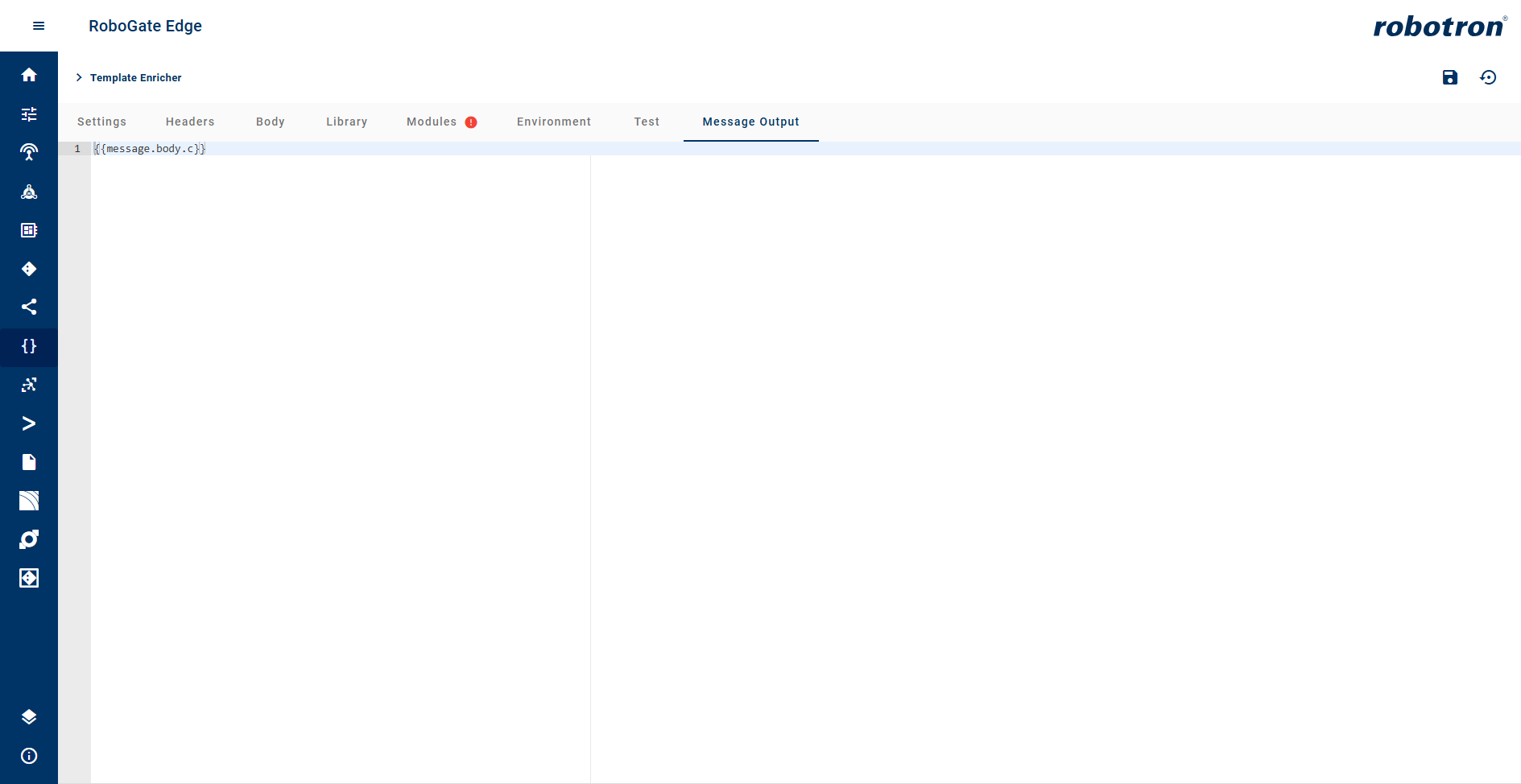
Message Output
To send the results of the Template Enricher to different modules of the RoboGate Edge based on conditions, a Message Output template can be defined that produces the Message Output as a result. By configuring the mapping between Message Output and topic, the message can be correctly forwarded.
The calculated Message Output is output at the level of header and body. If the Message Output template is empty, a default/fallback Message Output (result) is selected. The output topic "result" and further output topics must be specified accordingly in the Settings area under Output Settings.
Line breaks and indentations outside the Scriban brackets are not retained in the final result.
Reset Configuration
The  button in the horizontal menu bar can be used to reset the complete module configuration to factory settings.
After clicking the button, a confirmation dialog with "Yes" and "No" appears asking whether the operation should really be executed.
This also deletes the entire history at the RoboGate Edge level!
Configuration in JSON
{
    "templates": {
        "body": "{{ if message.headers.type == \"Started\" }} \n
        {{ include 'Started' }}\n
        {{ end }}\n
        {{ if message.headers.type == \"Completed\" }} \n
         {{ include 'Completed' }}\n
         {{ end }}\n
         {{ if message.headers.type == \"Changed\" }} \n
         {{ end }}"
        "headers": {},
        "modules": {
            "Started": "{\n  \"name\": \"{{ message.body.name }}\",\n  \"parameters\": {\"Konstant\":123}",
            "Completed": "{\n  \"name\": \"{{ message.body.name }}\",\n  \"parameters\": {\"Konstant\":456}",
            "Changed": "{\n  \"name\": \"{{ message.body.name }}\",\n  \"parameters\": {\"Konstant\":789}"
             },
        "library": ""
    },
    "$messageInputs": {
        "raw_notify": "raw"
    },
    "$messageOutputs": {
        "result": "mdb_notify"
    },
    "environment": {}
}