
RuleEngine
Function Description and Usage
The RuleEngine block is used to describe state transitions based on incoming messages depending on preconditions. The form and content of the output message can be freely defined.
There is a context in which information can be stored that can be used when evaluating conditions or in the output message. The context can be pre-populated with information.
There is a set of "RuleSets" which contain (pre-)conditions.
Each RuleSet can contain a set of "Rules" that also have conditions.
Additionally, a "defaultRuleSet" as well as "defaultRules" within RuleSets can be created that contain no conditions.
Every condition must return a boolean state. Every condition that does not return a boolean state is automatically "False" (false). Conditions can access the contents of the context and the incoming message (header & body & context). For a "Rule" to apply, all of its conditions must be fulfilled.
The conditions table has been replaced by the Condition Builder.
The Condition Builder enables configuration via the Visual Editor. The following values can be configured:
Source (header, body, context)
Property
Operator
Comparison value
The configured conditions are displayed in the Text Editor.
First, the conditions of the defined RuleSets are checked in sequence, starting from RuleSet-1. As soon as a RuleSet fulfills the conditions, that RuleSet is selected for further processing of the message. If no RuleSet fulfills the condition, the defaultRuleSet is chosen if one is specified; otherwise processing is aborted.
Subsequently, the Rules within the selected RuleSet are checked. The order of checking depends on the defined order of the Rules in the tree structure. Accordingly, checking of further Rules contained in the RuleSet can be skipped, and either the "most applicable" or the last applicable Rule can be used. If no Rule fulfills the conditions, processing is aborted. Consequently, the RuleEngine block processes only one RuleSet and within it only one Rule.
The result of a "Rule" is stored in the context; the content of the context is patched. Specific contents can be selectively removed from the context after patching.
If the specified Message Template is not found, the Message Template "default" is used.
The output message is generated based on the Message Template.
If no header is defined in the Message Template, the "source" and "scope" information is taken from the input message.
If no "source" and/or "scope" is defined in the Message Template header, the information is taken from the input message.
If no body is defined in the Message Template, the output message contains no information in the body.
After a "Rule" is fulfilled, an output message is sent to all assigned Input and Output Topics.
Names and Syntax
The parameters explained in the following tables can be found in an example configuration and its figures in the following section.
| Parameter | Description |
|---|---|
Name | Name of the block instance |
Context | Optional area in which variables are initialized with or without initial content. Each context element can be used in the conditions. |
RuleSets | Collection of condition paths/state monitors. Any number can be created. The created RuleSets appear as tabs below the input area. The names "RuleSets-n" cannot be changed, where n represents a sequential number. A "DefaultRuleSet" can also be defined here. |
Message Templates | Any number of templates for the output of messages and data. All elements from the message area Header and Body can be edited here. |
| Parameter | Description |
|---|---|
Name | optional, name of the context element |
Value | optional, content of the context element |
| Parameter | Description |
|---|---|
DefaultRuleSet | To be filled like a normal RuleSet with Rules – but without conditions. Rules with various conditions can in turn be created in this RuleSet. |
Conditions | optional, global condition(s) for the Rules in this RuleSet to be checked for matches. |
Rules | Tabs can be switched between using the arrow keys. Collection of condition paths/state monitors for refining the condition paths. Any number can be created. The created Rules appear as tabs below the input area. The names cannot be changed – Rules-n, where n represents a sequential number. A "DefaultRule" can also be defined here. |
Rules – Context | Any number of context elements |
Rules – Context – Name | Name of the context element |
Rules – Context – Value | Content of the context element |
Rules – Obsolete context | Context elements can be removed here. |
Rules – Message Template | Optional entry of a name for the Message Template for creating the output message |
| Parameter | Description |
|---|---|
Header – Name | optional, name of the key to be created |
Header – Value | optional, if no name/key was defined, value from the Context, Body, Header, or self-defined |
Body – Name | optional, name of the key to be created |
Body – Value | optional, if no name was defined, value from the Context, Body, Header, or self-defined |
Usage of elements from Header, Body, and Context:
Case sensitivity must be observed
To obtain the element source from the message area Header, header_ must be entered for the area to be used and source for the element. → header_scope
Usage of a string
A string is marked with a leading " ' " and a closing " ' ". Example: 'Time elapsed'
If these characters are not used, the input is treated as a variable.
Example Configuration
The step-by-step configuration in the Stream Processor is illustrated using the following example. Data from an OPC UA server is processed. The order should be followed as described, since all displayed selection options are available during configuration this way. Selection options are only available after a save operation.
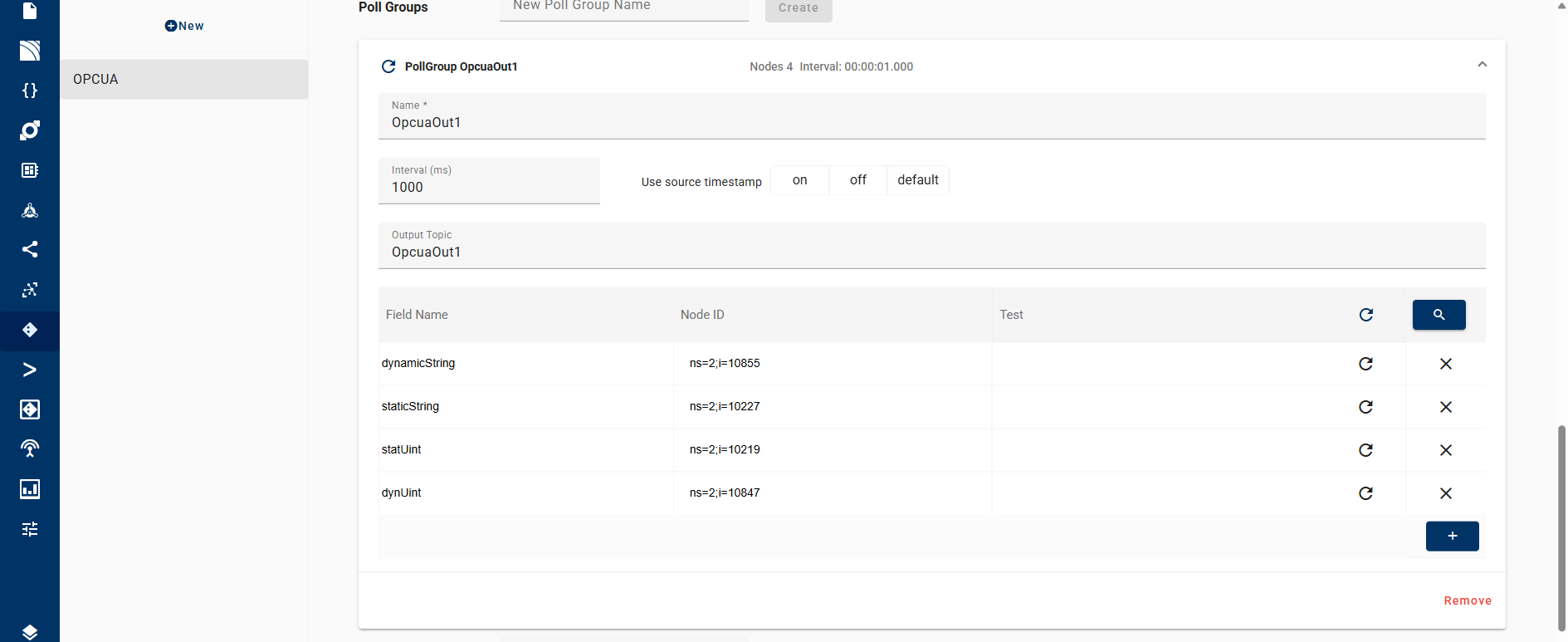
Prerequisite: In the OPC UA module, an OPC UA server with the Output Topic "OpcuaOut1" has been configured (Figure 1).
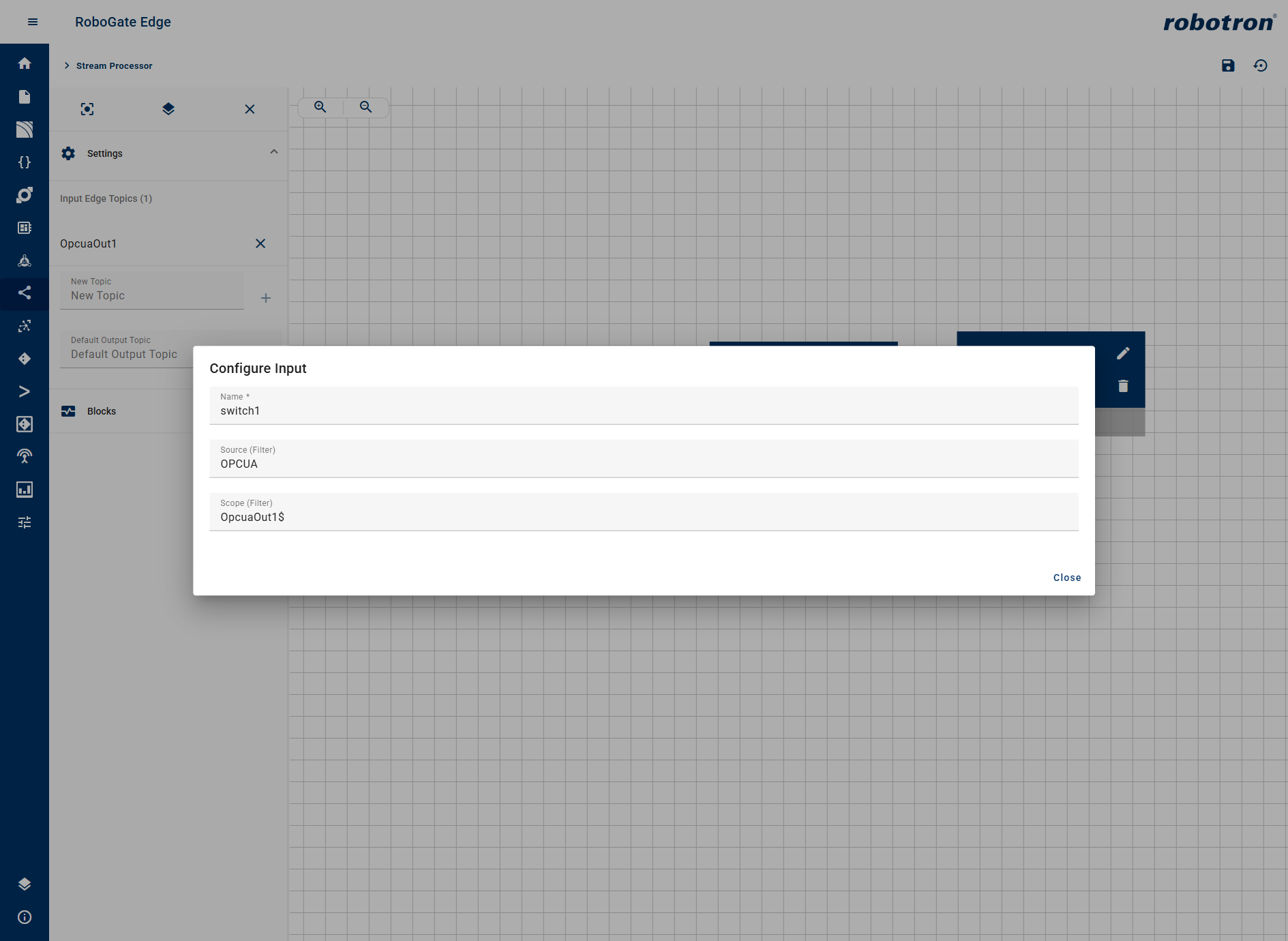
Now the basic elements in the Stream Processor are created and configured (Figure 2):
Add Topic "OpcuaOut1" under "Settings" as an Input Edge Topic
Create Input block "switch1" and configure Source (OPCUA) and Scope (OpcuaOut1$)
Create RuleEngine block with name "UsingRules"
Create Output block "OUTBlock"
The RuleEngine is configured under Context, RuleSets, and Message Templates.
In the RuleSets and Message Templates tabs, a tree structure is available. To change the order of elements in the tree structure, they can be moved via drag & drop.
New sub-elements can be created via a "+" in the tree next to the parent element.
Sub-elements can be removed using the button  .
To apply the configuration, it must be saved using the button  .
Continuing with the example configuration of the RuleEngine block:
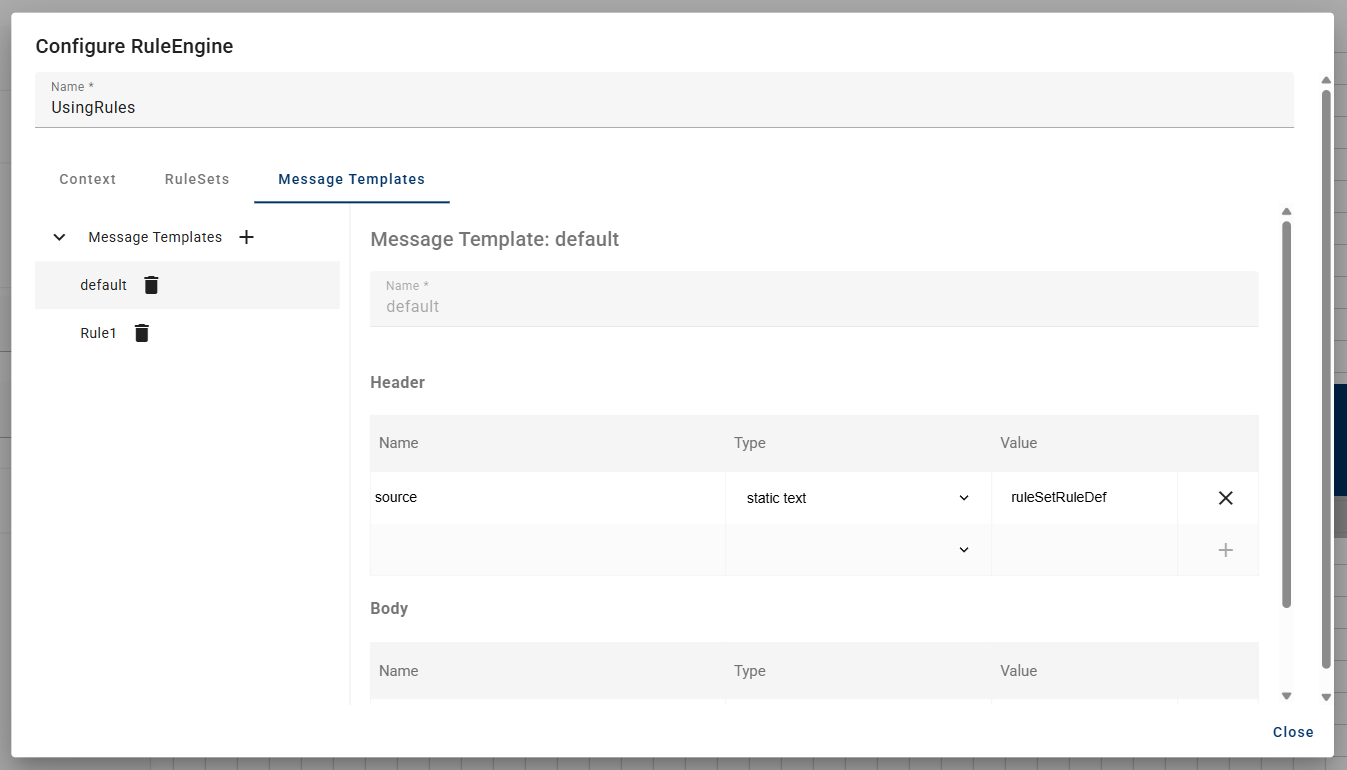
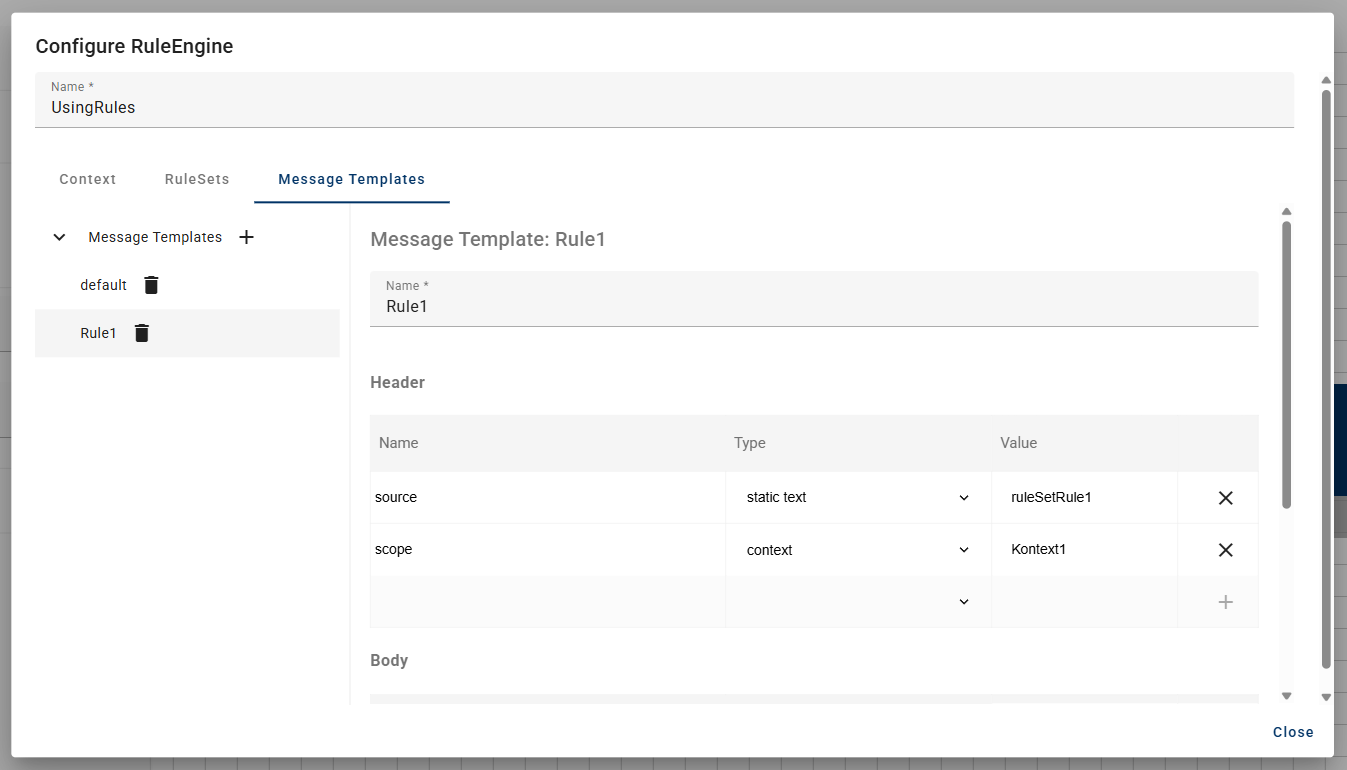
The definition of Message Templates "default" and "Rule1" in the RuleEngine block follows:
default: Changing the content of the Header’s Source with a string and the content of Additional Information with a string in the Body (Figure 3)
Rule1: Changing the content of the Header’s Source with a string and Scope with the content of a Context element. The Body is populated with values from the original body – statUint and dynUint – and with values generated during Rule processing – Kontext1 and Zusatz (Figure 4).
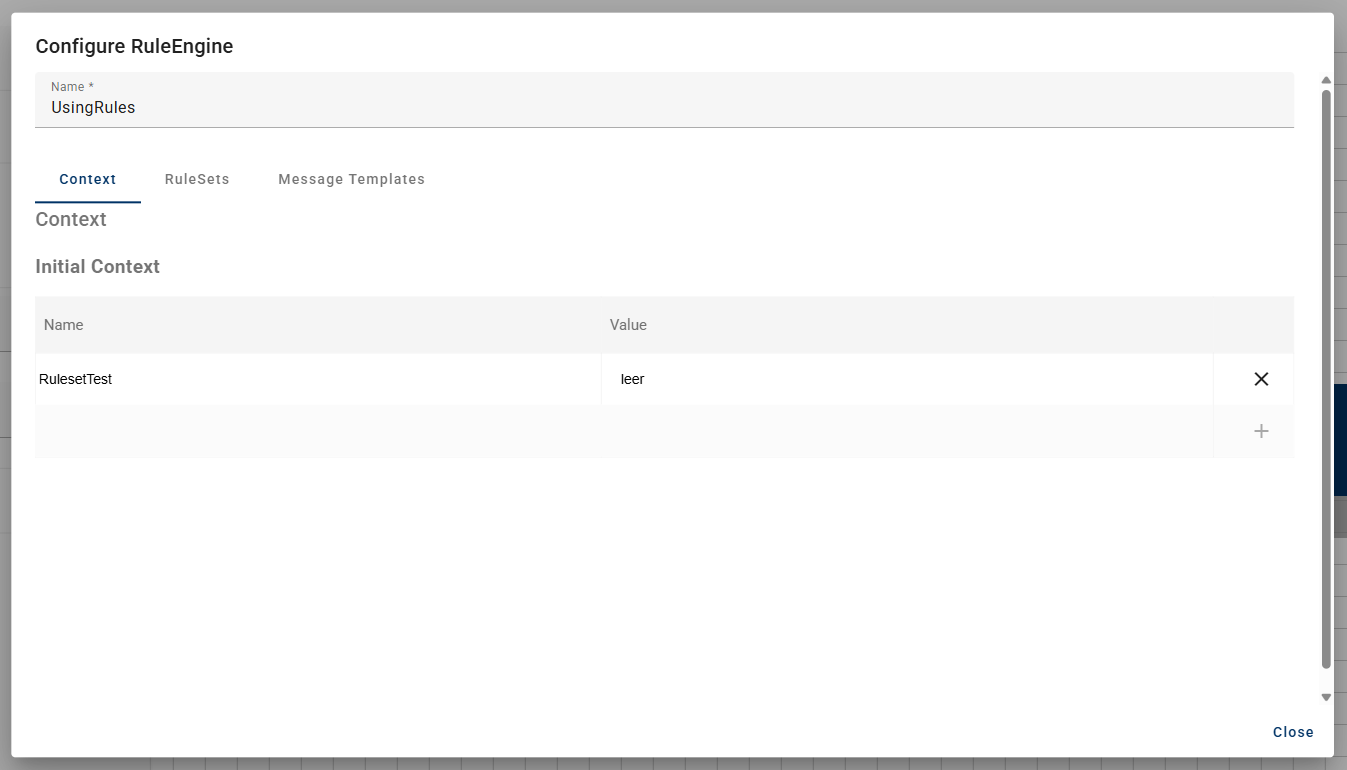
Subsequently, the Context of the block "UsingRules" is configured; here optionally entering context with content (Figure 5).
The configuration of the RuleSets follows:
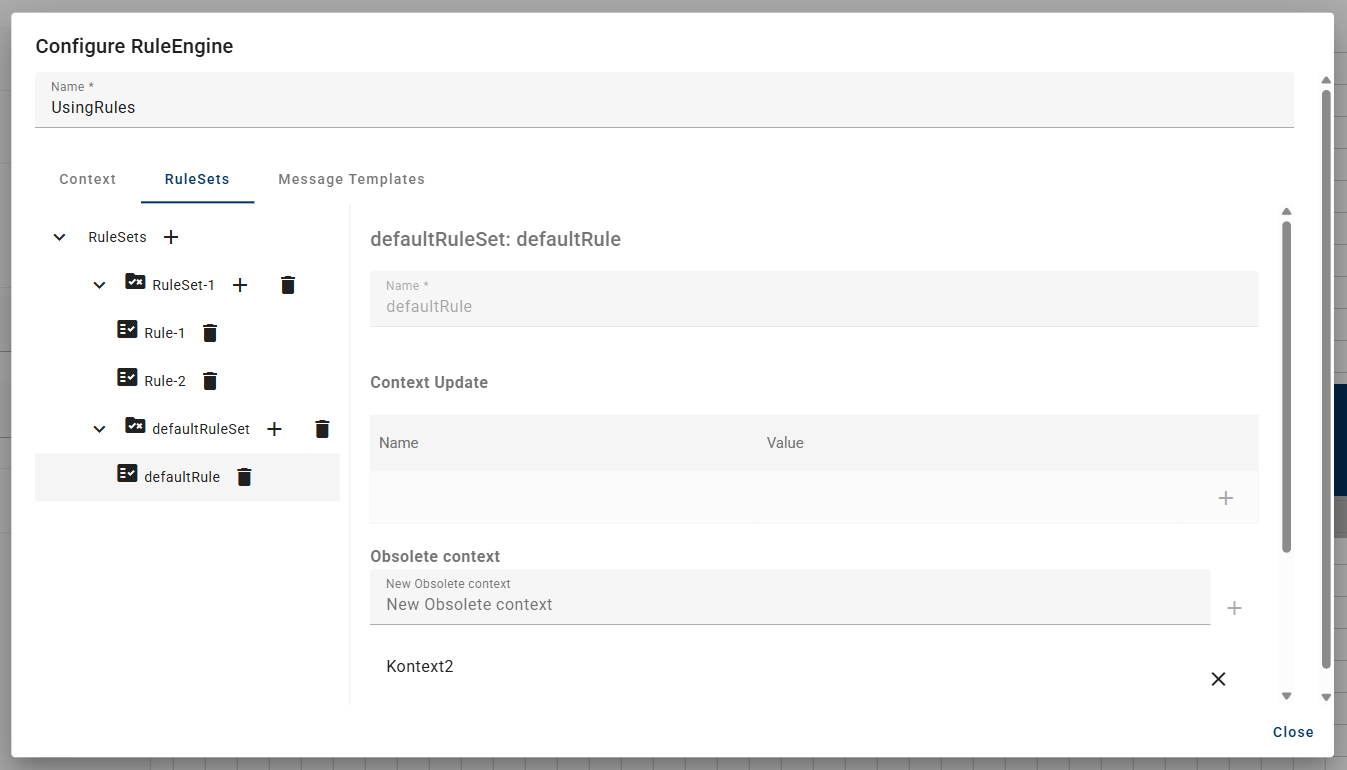
DefaultRule (Figure 6)
RuleSets: Add Default → DefaultRuleSet created
DefaultRuleSet: Add Default -→ DefaultRule created
Context and Into were left empty
In Obsolete Context, the elements Kontext2 and Kontext3 are removed
Specify Message Template "default"
Once RuleSet-1 is created, the Rules with their conditions must be configured.
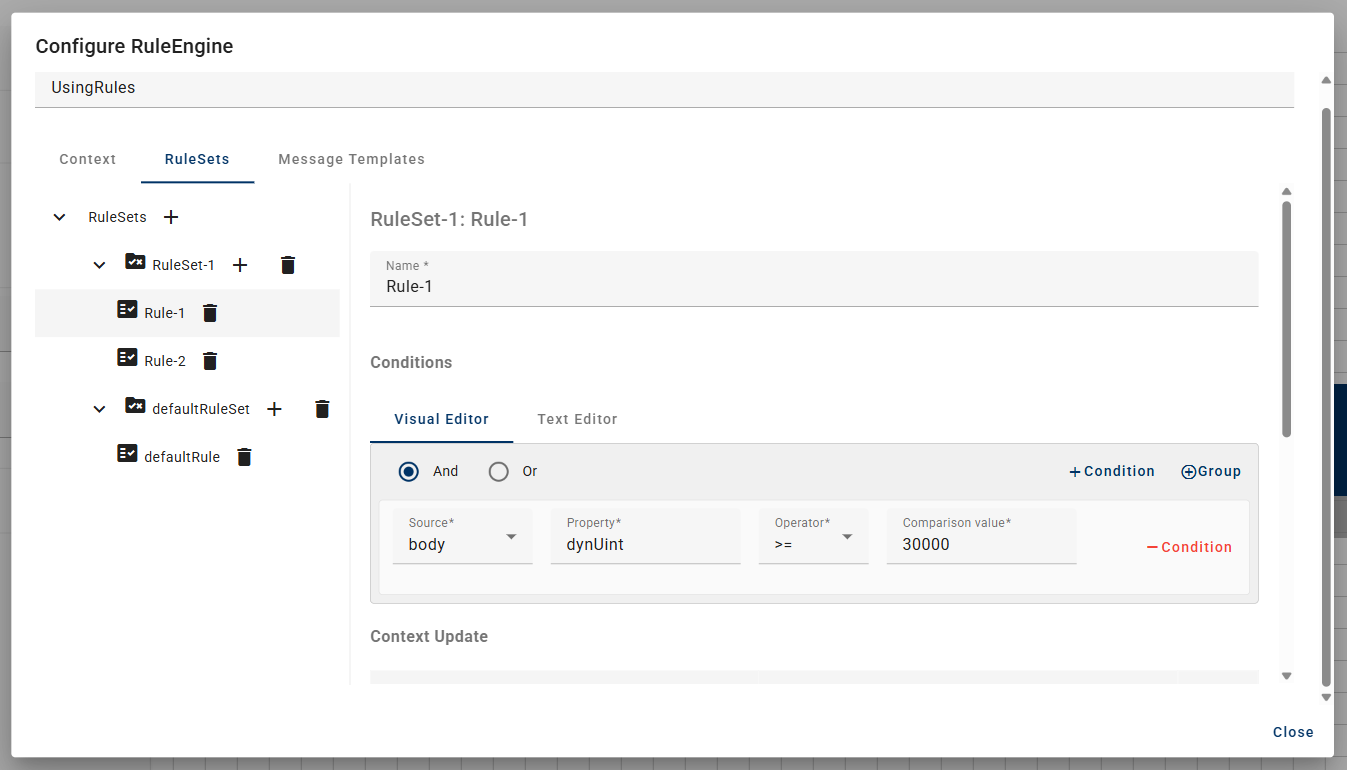
Rule Set-1 -→ Add Rule → Rule-1 created
Configuration of Conditions in the Visual Editor
Source: body
Property: dynUint
Operator: >=
Comparison value: 30000
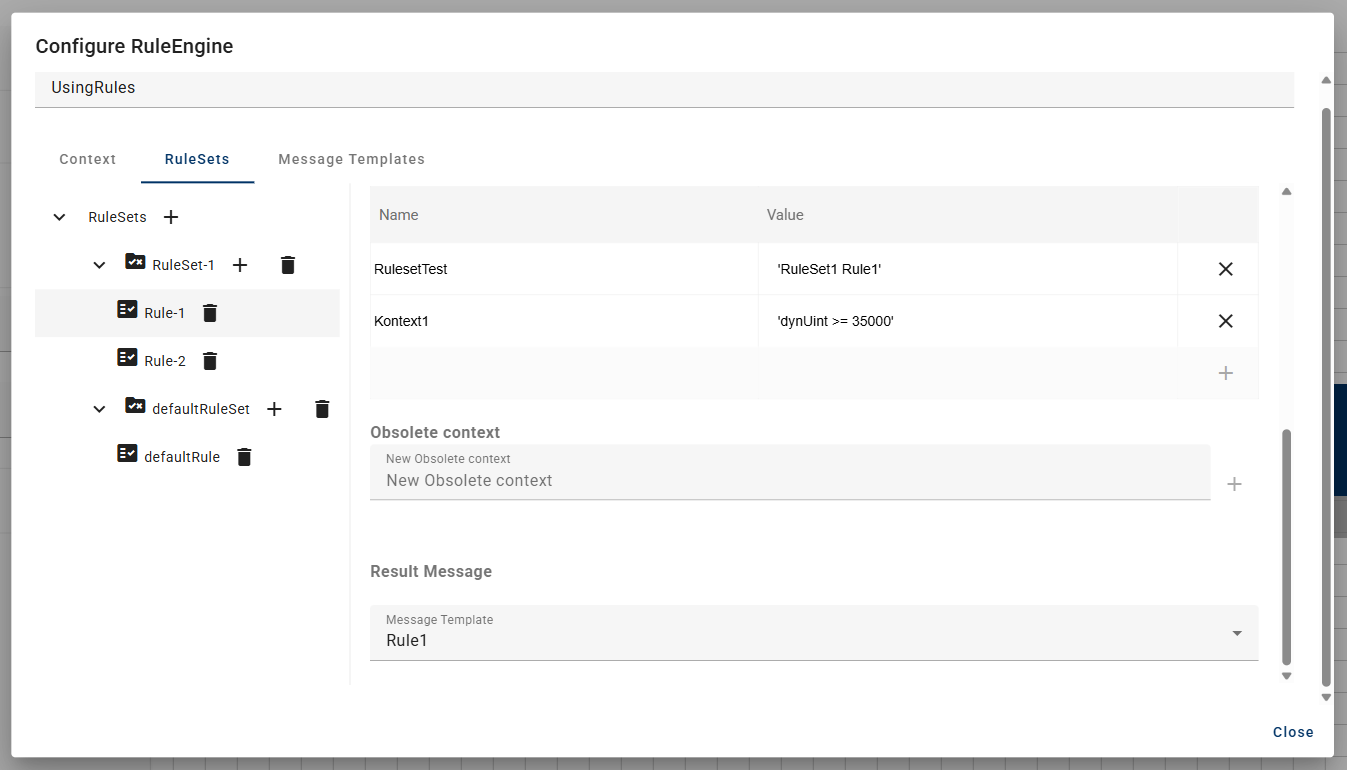
In Context, two elements are described with a new value:
RulesetTest with the string 'RuleSet1 Rule1'
Kontext1 with the string 'dynUint >= 35000'
Obsolete Context is left empty
Specify Message Template with Rule1
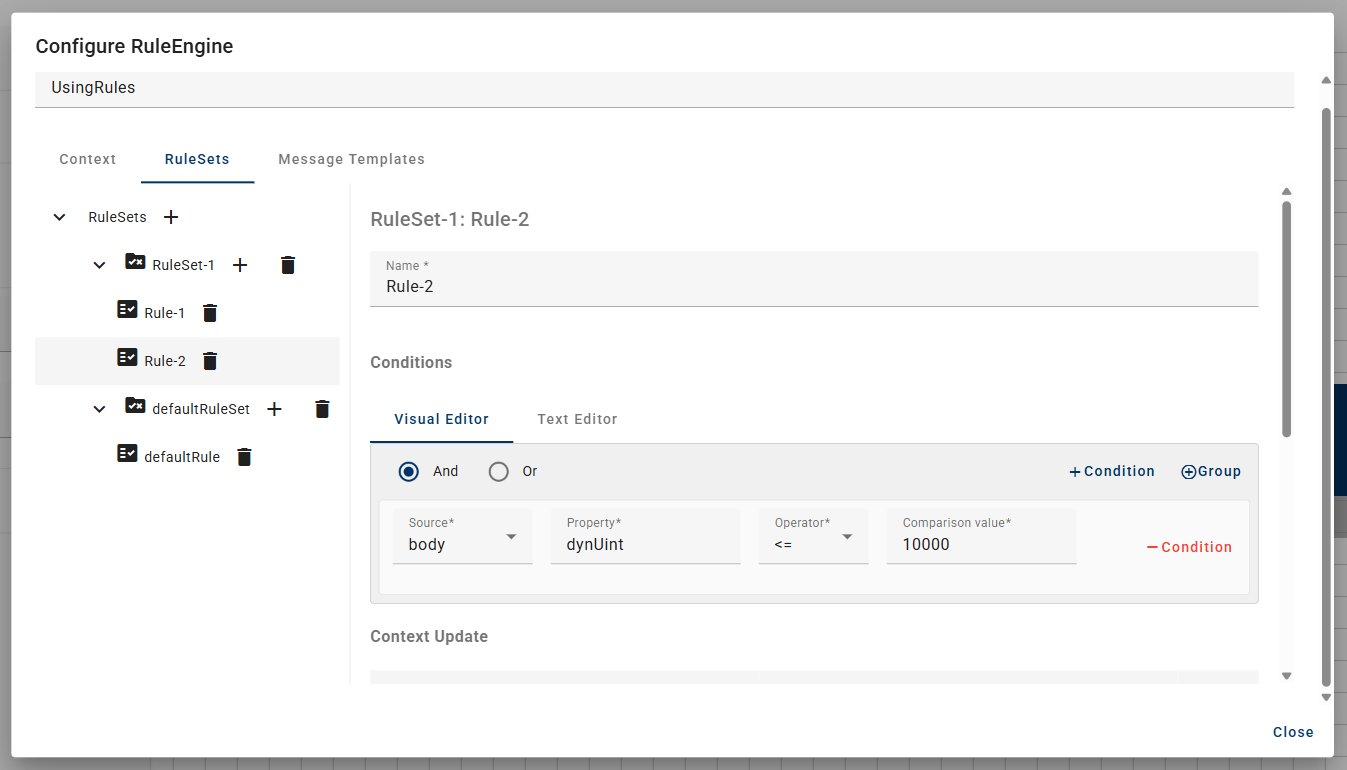
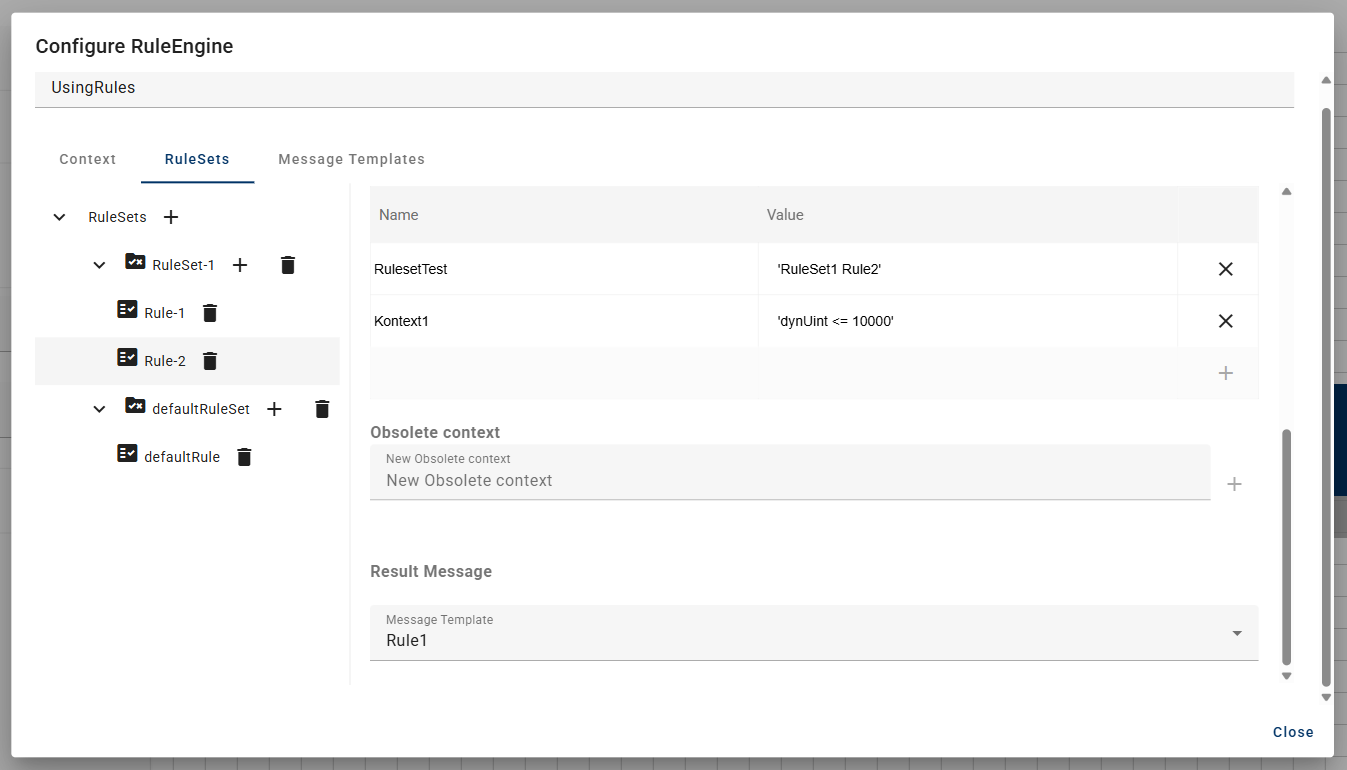
Rule Set-1 -→ Add Rule → Rule-2 created (Figure 9)
Configuration of Conditions in the Visual Editor
Source: body
Property: dynUint
Operator: ⇐
Comparison value: 10000
In Context, two elements are described with a new value:
RulesetTest with the string 'RuleSet1 Rule2'
Kontext1 with the string 'dynUint < = 10000'
Obsolete Context is left empty
Specify Message Template with Rule1
Finally, the configured blocks must be connected (Figure 11).
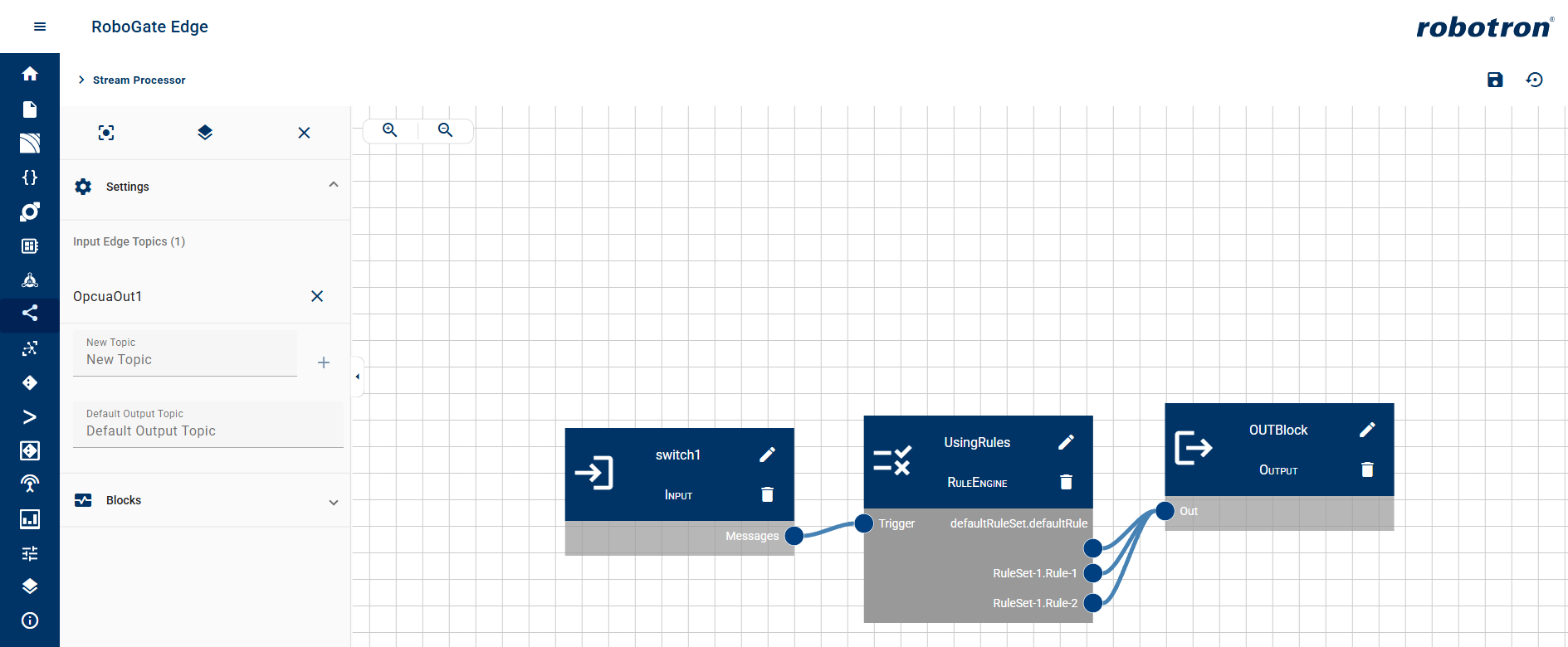
With this configuration, the finished message can now be output via MQTT or other interfaces.