OPC UA Server
The module provides an OPC UA Server. This OPC UA Server and the OPC UA Node Tree are populated from EdgeMessages, i.e. incoming and outgoing messages of other modules of the RoboGate Edge. The configured Node Tree can then be displayed via an OPC UA Client (e.g. UA Expert) and Node Browsing.
Settings
In the following example, data from the RFC module is sent as EdgeMessages to the OPC UA Server module, and a Node Tree is then populated from these messages.
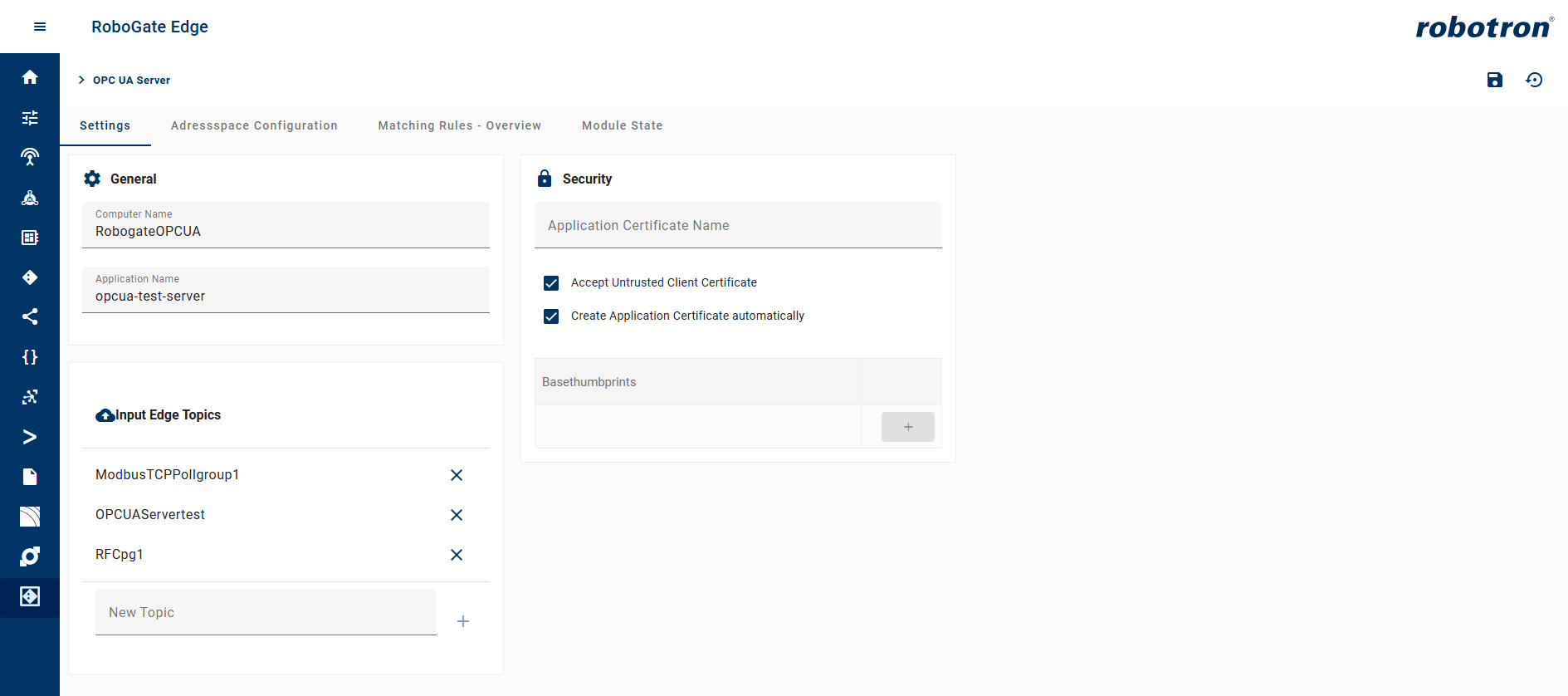
First, a computer and application name can be assigned to the OPC UA Server in the "General" section (Figure 1).
To include the data from the RFC module in the OPC UA Server, the poll group "RFCpg1" is added as an Input Edge Topic in the "Settings" section.
Security settings can be configured as needed.
To apply the configuration, it must be saved using the  button.
Parameters
To create the certificate for the OPC UA Server, the Computer Name and Application Name can be defined.
| Parameter | Description |
|---|---|
Computer Name | optional, name under which the endpoint of the OPC UA Server is reachable via a client; must be a valid DNS name |
Application Name | Identification name of the OPC UA Server |
The connection to the OPC UA Server is possible via client authorization using an Application Certificate. It can be configured whether the server automatically creates a certificate on startup and whether and which client IDs are accepted to connect to the server.
| Parameter | Description |
|---|---|
Application Certificate Name | optional, name of the application certificate |
Accept Untrusted Client Certificate | When enabled, the server automatically accepts the ID of the connecting client |
Create Application Certificate automatically | When enabled, the configured OPC UA Server creates a self-signed application certificate using the configured Computer Name, Application Name, and endpoint information. |
In the Basethumbprints section, the IDs (thumbprints) of the OPC UA Clients that are permitted can be added. Each valid client certificate is automatically added to this trust list. Furthermore, it must be defined from which EdgeMessages the OPC UA Server is populated (Input Edge Topics).
Address Space Configuration
In the "Address Space Configuration" section, the Node Tree of the OPC UA Server can be configured.
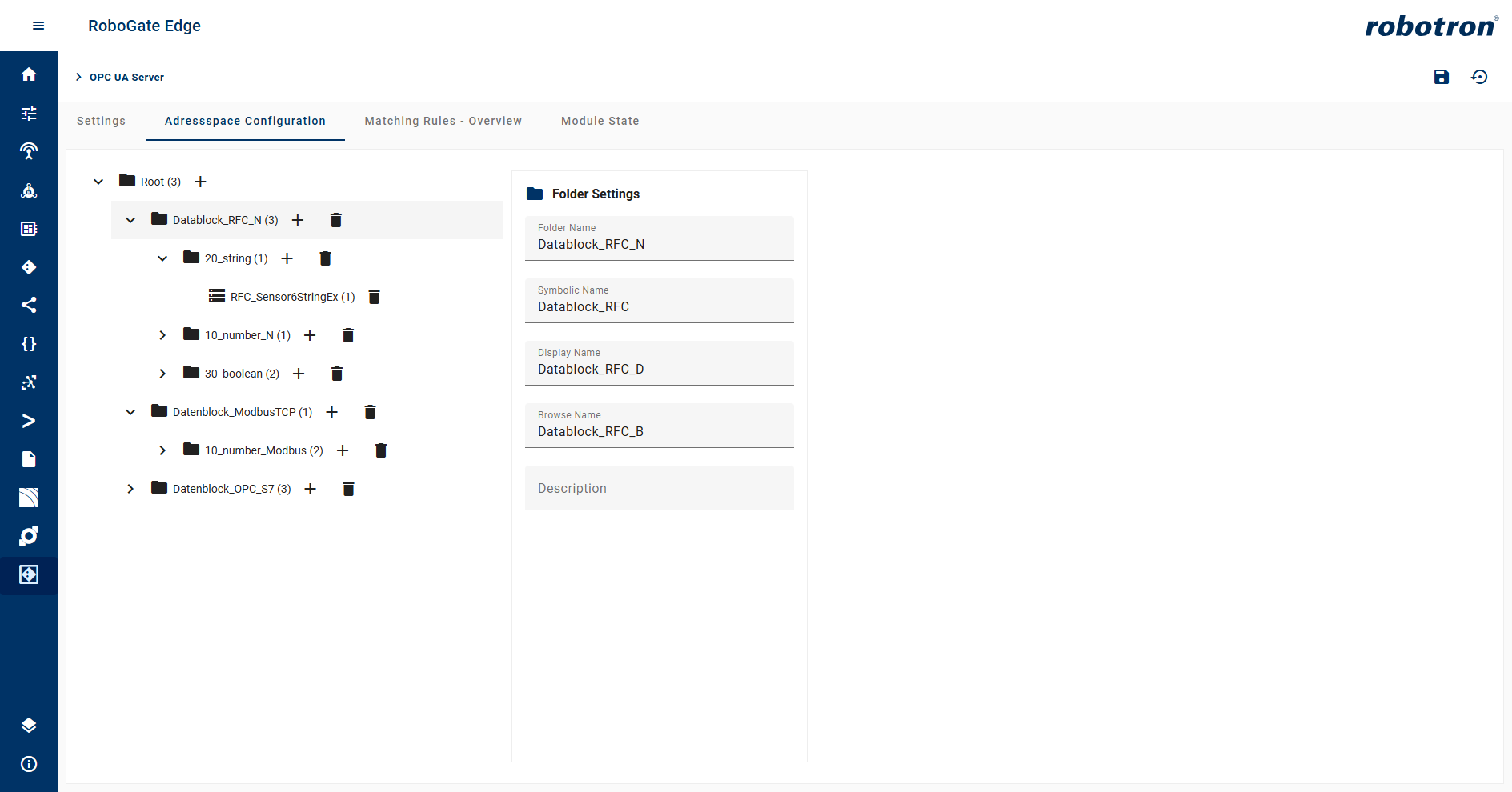
Clicking the add button  allows a new folder to be created. In the example in Figure 2, the folder "Datablock_RFC_N" was created with the respective naming conventions. Additional folders, including the folder "30_string_number", were then created beneath it.
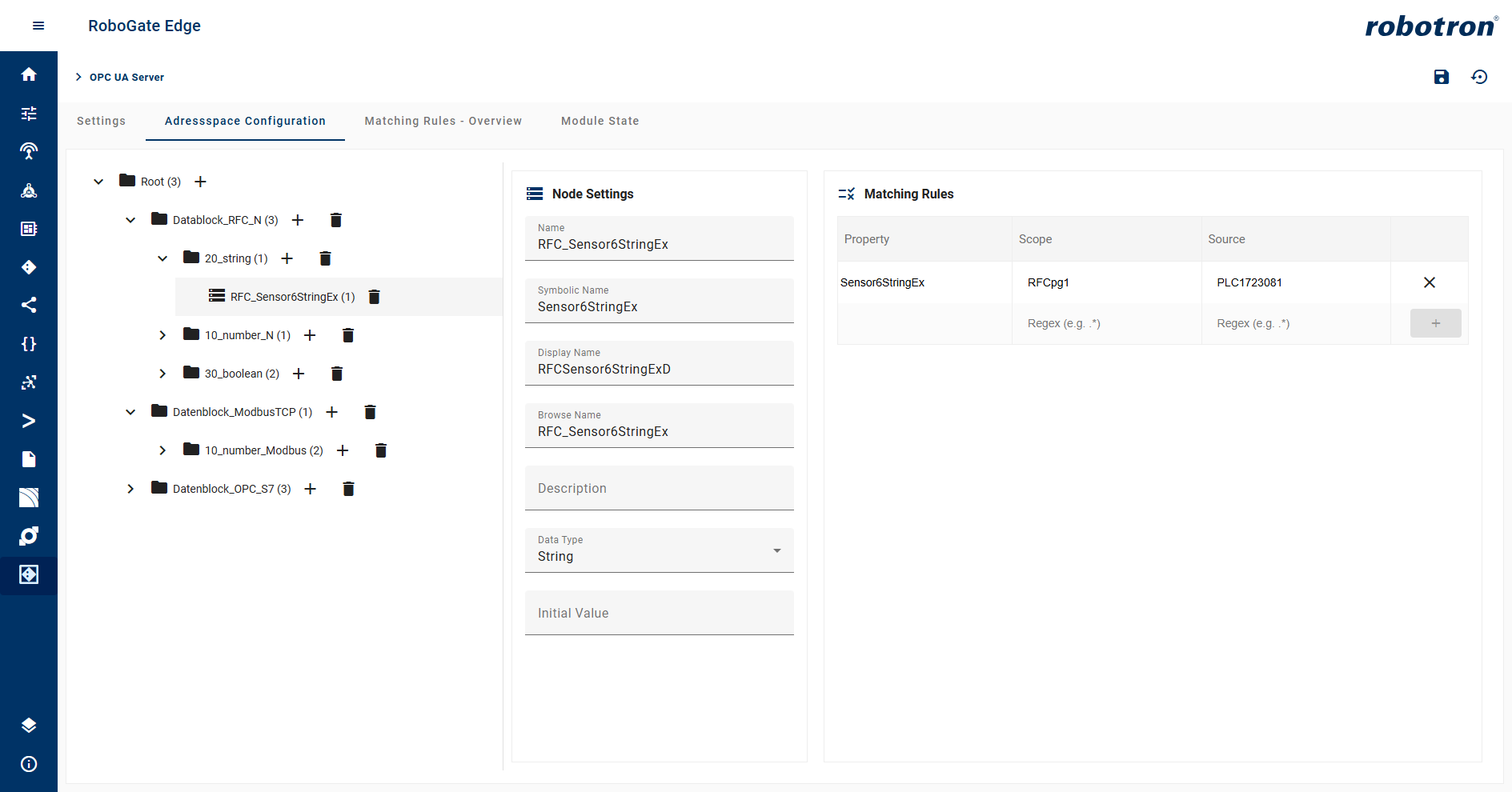
Under each folder (except the root folder), a node can be added and configured via . Under the Node Settings, the name of the node and additionally the data type and, if applicable, an initial value can be configured analogously to the Folder Settings (Figure 3).
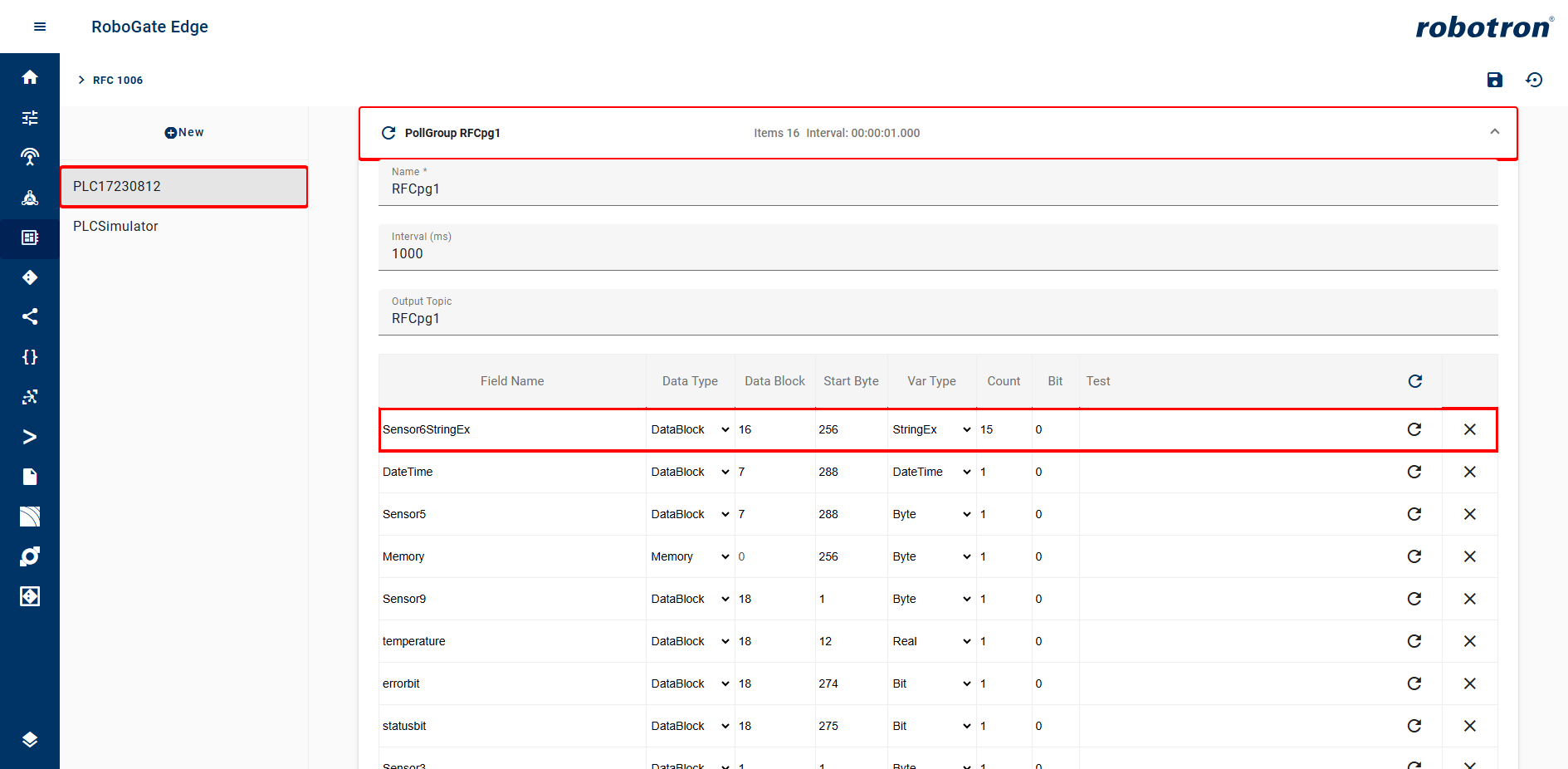
In the Matching Rules section, it is defined from which EdgeMessages the data for the selected node originates. For this, these EdgeMessages must have been created beforehand — in our example in the RFC module — or need to be created subsequently (Figure 4). Source refers to the configured RFC Server, Scope to the poll group set up beneath it.
To apply the configuration, it must be saved using the button.
Parameters
To create the Node Tree, folders and the nodes contained within them must be configured with the following parameters. The folders enable a structured organization of the Node Tree.
| Parameter | Description |
|---|---|
Folder Name | Name/key of the folder object |
Symbolic Name | optional, unique name of the folder (by default the defined name of the folder is used) |
Display Name | optional, any name of the folder displayed in Node Browsing (by default the Browse Name is used) |
Browse Name | optional, unique name displayed in Node Browsing (by default the Symbolic Name is used) |
Description Name | optional, free text for describing the folder |
| Parameter | Description |
|---|---|
Name | Name/key of the node object |
Symbolic Name | optional, unique name of the node, corresponds to the Target Node in the Matching Rules (by default the defined name of the node is used) |
Display Name | optional, any name of the node displayed in Node Browsing (by default the Browse Name is used) |
Browse Name | optional, unique name displayed in Node Browsing (by default the Symbolic Name is used) |
Description | optional, free text for describing the node |
Data Type | Definition or selection of the data type of the configured node: String, Number, Byte, Boolean |
Initial Value | Initial value of the node that is written to the node when the server starts |
Matching Rules Overview
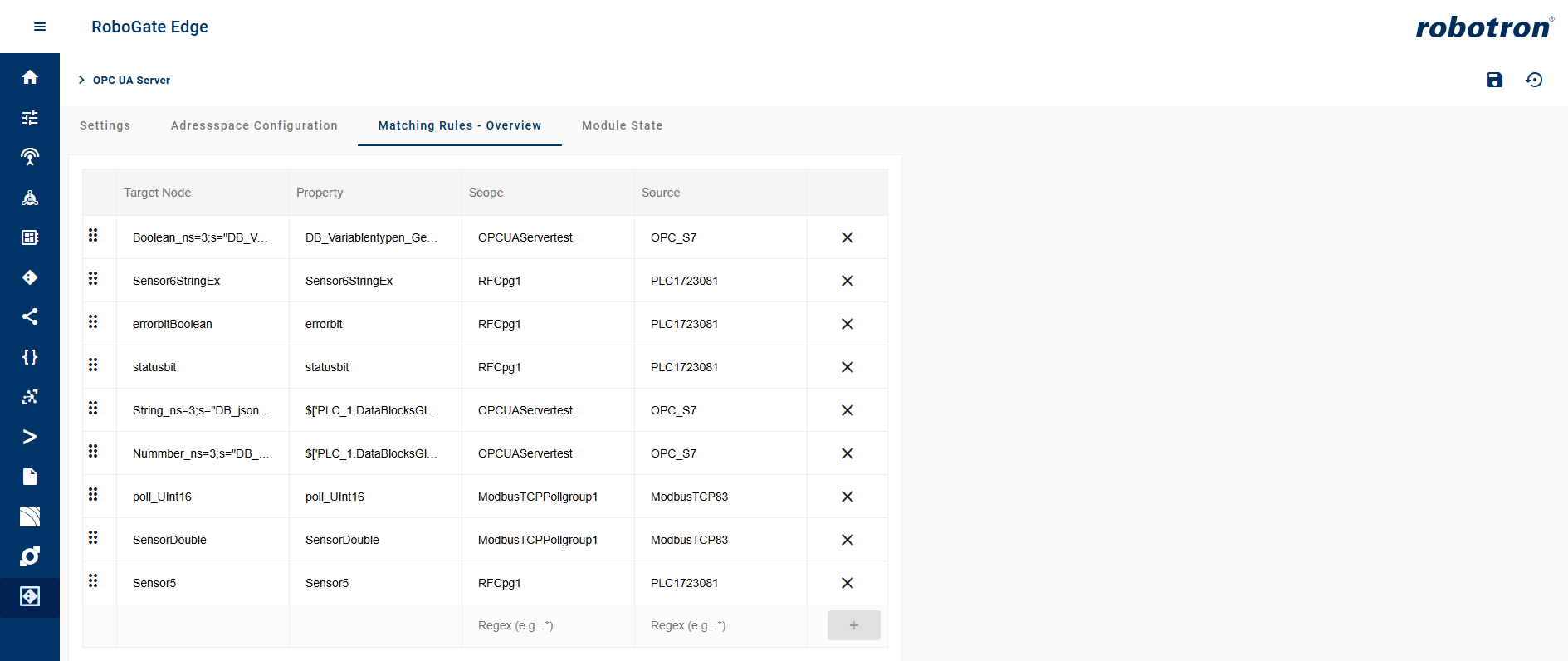
In the "Matching Rules - Overview" section, a list of the configured nodes including Source and Scope is displayed (Figure 5). Rules can also be configured here analogously to the procedure under Address Space Configuration, whereby it is important to specify the correct Target Node, as it is not pre-selected in this view.
Rules are processed top down. If two rules are configured for the same Target Node, the last value will ultimately be written to the corresponding node. To change this order, the rules can be moved via drag & drop.
Parameters
The OPC UA Server module extracts a value from these EdgeMessages based on a list of rules — the Matching Rules — and assigns it to a configured node.
| Parameter | Description |
|---|---|
Property | Key of the property (e.g. data field) in the body of the EdgeMessage |
Scope | Regex filter that matches the information in the "Scope" header field of the EdgeMessage |
Source | Regex filter that matches the information in the "Source" header field of the EdgeMessage |
Deleting Nodes
Created nodes can be deleted using the  button in the Node Tree or via the
 button in the listing in the Matching Rules section.
Reset Configuration
The  button in the horizontal menu bar can be used to reset the complete configuration of the module to factory settings.
After clicking the button, a confirmation dialog with "Yes" and "No" appears asking whether the action should actually be executed.
This will also delete the entire history on the RoboGate Edge!
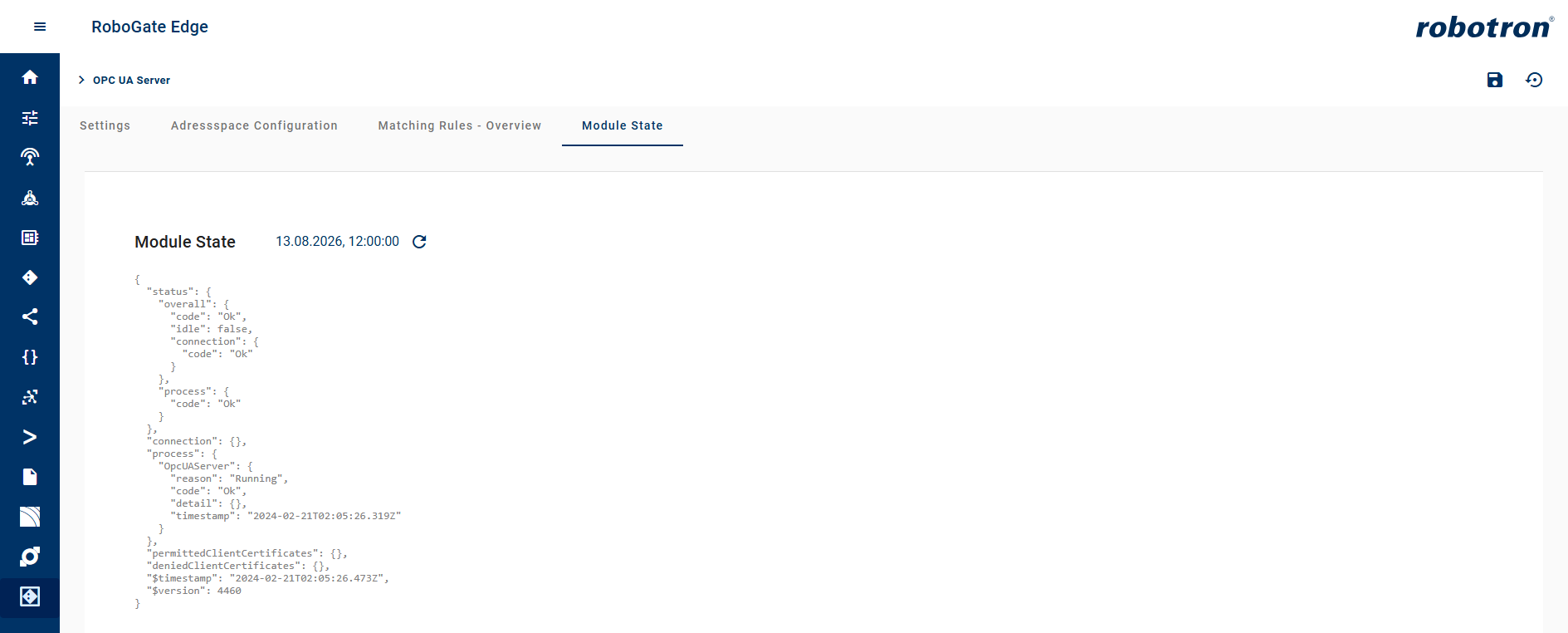
Module State
The Module State window shows the current connection status of the OPC UA Server module.