
MQTT
The MQTT module is used for communication with an MQTT broker.
The following functions are supported:
Sending messages to the broker (Publish)
Receiving messages from the broker (Subscribe)
Optional TLS encryption
QoS and Retain Flag individually per message
Configuration Parameters
Connection
The MQTT configuration includes the definition of access credentials for an MQTT server. These consist of the IP address, username, and password. Additional encryption (TLS) is possible. Table 1 contains explanations of the individual configuration parameters.
| Parameter | Description |
|---|---|
Enabled/Disabled Switch | The module connection can be activated or deactivated. If the module is inactive, incoming messages are discarded. |
Hostname | Broker hostname or IP address |
Client ID | Client ID for client assignment at the MQTT broker (see MQTT specification) |
Clean Session | When enabled, no client-specific information (subscribed topics, etc.) is stored at the broker (see MQTT specification). Must be enabled if the client ID is empty. |
Username | Login credentials for access to the broker |
Password | Login credentials for access to the broker |
Port | Broker port (TCP/IP). If the field is left empty, the default ports 1883 (without TLS) and 8883 (with TLS) are used. |
Queue Size | Size of the queue, i.e. the number of messages to be retained. |
TLS | When active, an encrypted connection to the broker is established. |
Allow untrusted Certificates | Allow untrusted Certificates: Connection to the broker is also established with an untrusted certificate. |
Messages / Topics
In the MQTT Publishing section, the topics and message formats to be processed by the module are defined.
MQTT Server Topic
| Parameter | Description |
|---|---|
Topic Name | Enter the destination topic at the broker. Defined placeholders can be used (see Table 3). |
Default Message | When active, the Retain Flag is set by default for messages transmitted to the broker. The setting is overridden via the Edge Message Header "retainFlag" (true/false) or individually for each message (general MQTT specification). |
To be able to adjust the topic dynamically at runtime, the placeholders in the following table can be used. The placeholder from column 1 is enclosed in curly braces (pay attention to whitespace) to be processed.
Example:
A value {year}/{month}/{header:source}/data would be extracted to a runtime topic 2020/06/MachineNameXY/data as an example.
| Placeholder | Description | Example |
|---|---|---|
"year" | Calendar year, four digits | "2020" |
"month" | Month, two digits, with leading '0' if necessary | "06" |
"day" | Day of the month, two digits, with leading '0' if necessary | "02" |
"hour" | Hour of the day, two digits, with leading '0' if necessary | "05" |
"minute" | Minute of the hour, two digits, with leading '0' if necessary | "59" |
"second" | Second of the minute, two digits, with leading '0' if necessary | "59" |
"ticks" | see: Microsoft Docs | |
"ext" | Headers ext field | |
"name" | Headers name field | |
"prefix" | Headers prefix field | |
"source" | Headers Source field, otherwise "any" | "192.12.1.11" |
"scope" | Headers Scope field, otherwise "any" | "pollgroup2" |
"hostname" | Hostname of the RoboGate Edge | "RG-231889000100401" |
"header: <name>" | Message header access to the key name, otherwise "any". For example "{header:foo}". | arbitrary string |
Edge Topics
The Edge Topics designate the internal message channels. The received MQTT messages can be further processed in other RoboGate Edge modules through the definition of topics.
| Parameter | Description |
|---|---|
New Topic | Selection of the subscribed topics defined in the input modules that are to be transmitted to the MQTT broker. |
MQTT Subscribing
The RoboGate Edge has the ability to subscribe to messages from an MQTT broker. An Output Edge Topic (destination) can be assigned to an MQTT Topic Expression (source). From there, the messages are accessible to other modules. The topic expression must be entered according to the MQTT specification.
Configuration in the UI
After selecting the MQTT module on the start page or via the left menu bar of the RoboGate Edge UI, the MQTT module can be opened and configured.
Configuring the Connection
In the first step, the connection must be configured with the parameters described above. Subsequently, the desired topics can be created in MQTT Publishing and MQTT Subscribing. To do this, enter the names of the topics that the MQTT module should process in the Input Edge Topics and define a topic name for the MQTT server according to your requirements.
After completing the configuration of the MQTT module, it can be saved  (Figure 1). By saving the module configuration, the data of the selected topics is sent to the configured client and is available for evaluation, e.g. in the MQTT Explorer (Figure 2).
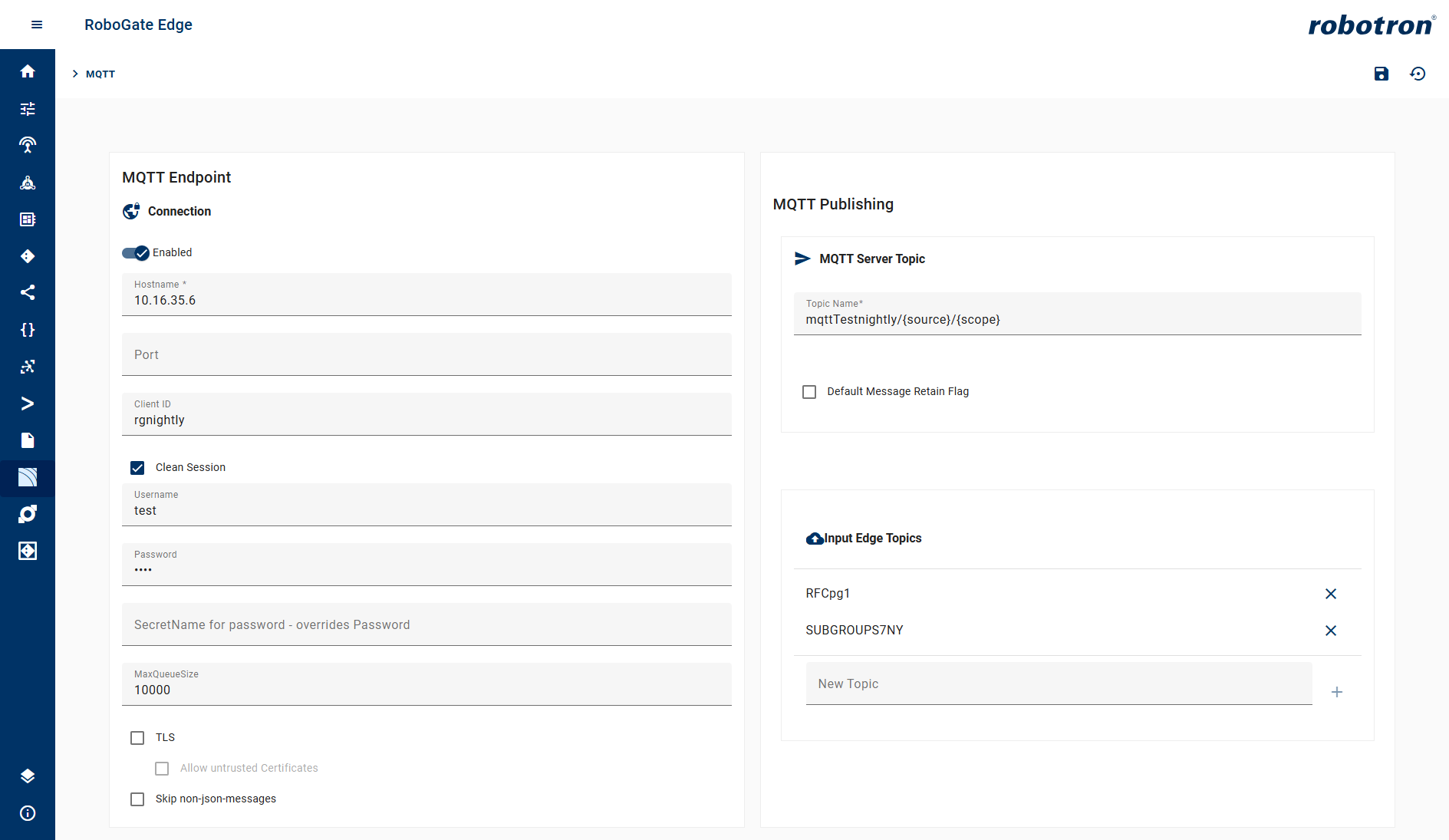
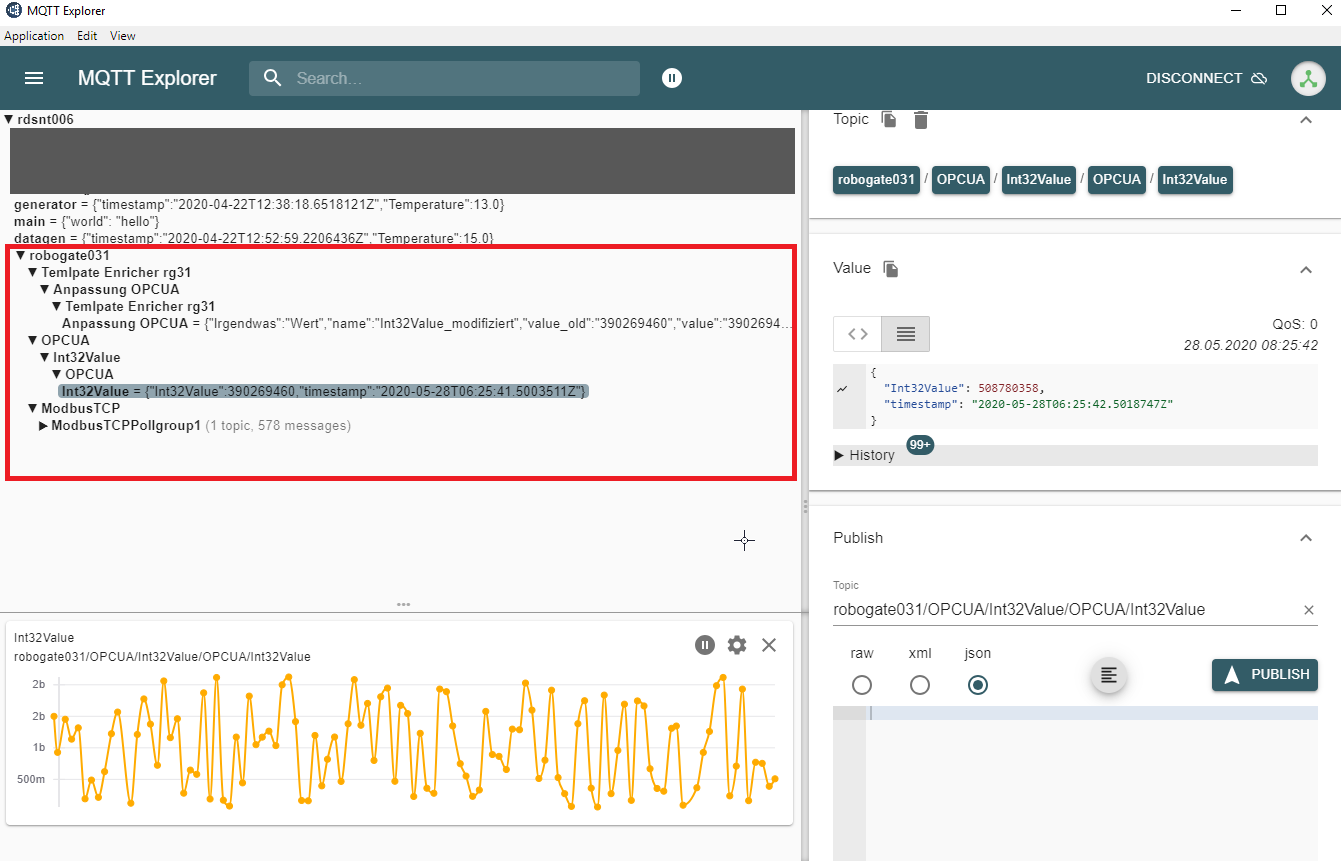
In the "Module State" section, it can be determined whether the module was able to establish a connection to the MQTT server.
Deleting Topics
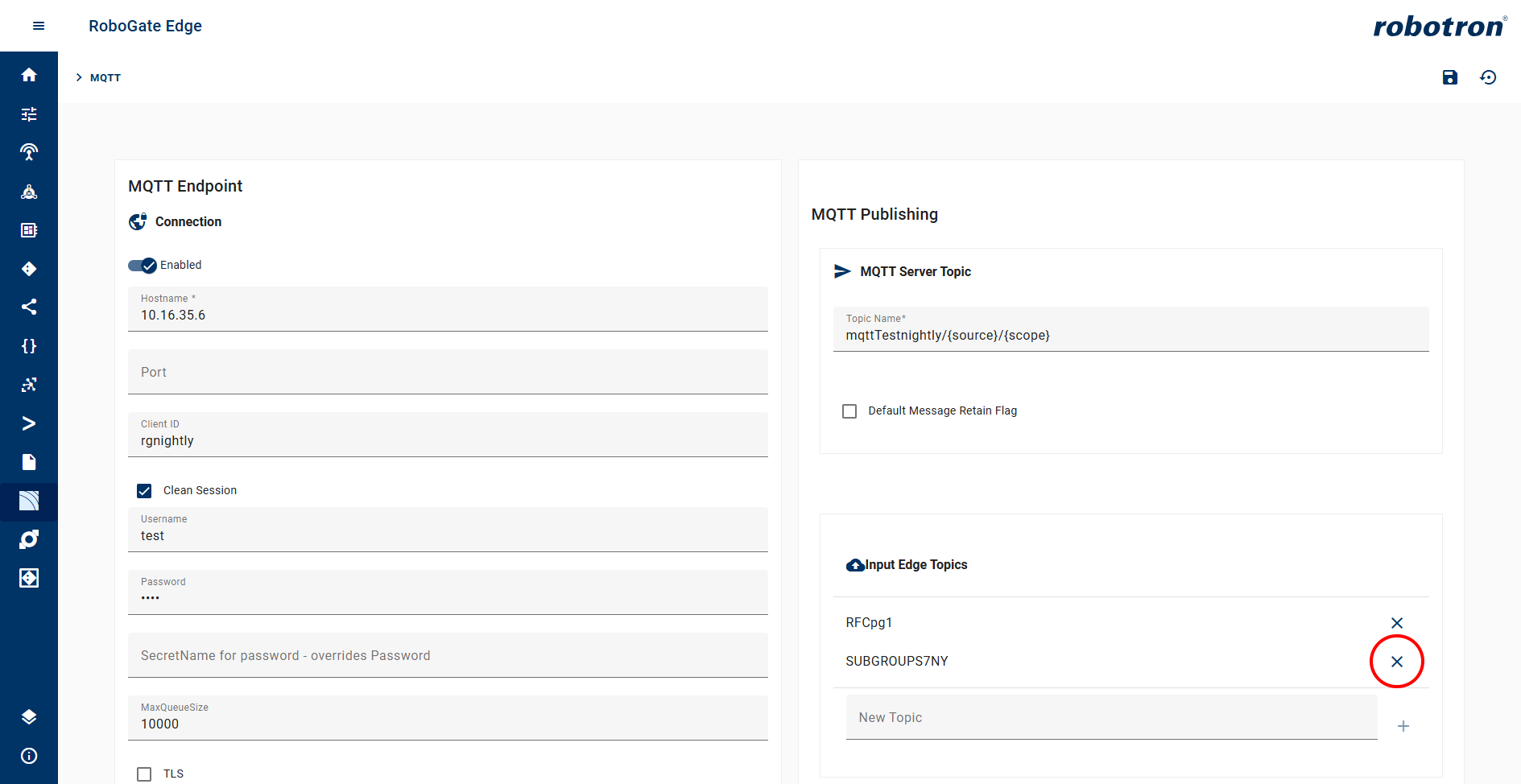
Topics can be removed from the configuration of the MQTT module. To do this, the  behind the topic to be deleted must be clicked. This removes the marked row. By subsequently clicking the save button (floppy disk), the changed configuration is applied (Figure 3).
Resetting the Configuration
The  button in the horizontal menu bar can be used to reset the entire module configuration to factory settings.
After clicking the button, a confirmation dialog with "Yes" and "No" follows, asking whether the operation should really be executed.
This will also delete the entire history on the RoboGate Edge!