
File Logger
The File Logger module is a data output module that allows incoming messages to be stored on an external storage medium.
The module logs all incoming data and collects it over a configurable time period. The data is then saved to a defined file. The size of the log file is configurable. When the maximum size is reached, a new log file is created. An external storage medium or a network drive is required for this purpose. Optionally, the file format can be converted from JSON to CSV.
Configuration Parameters
File Info
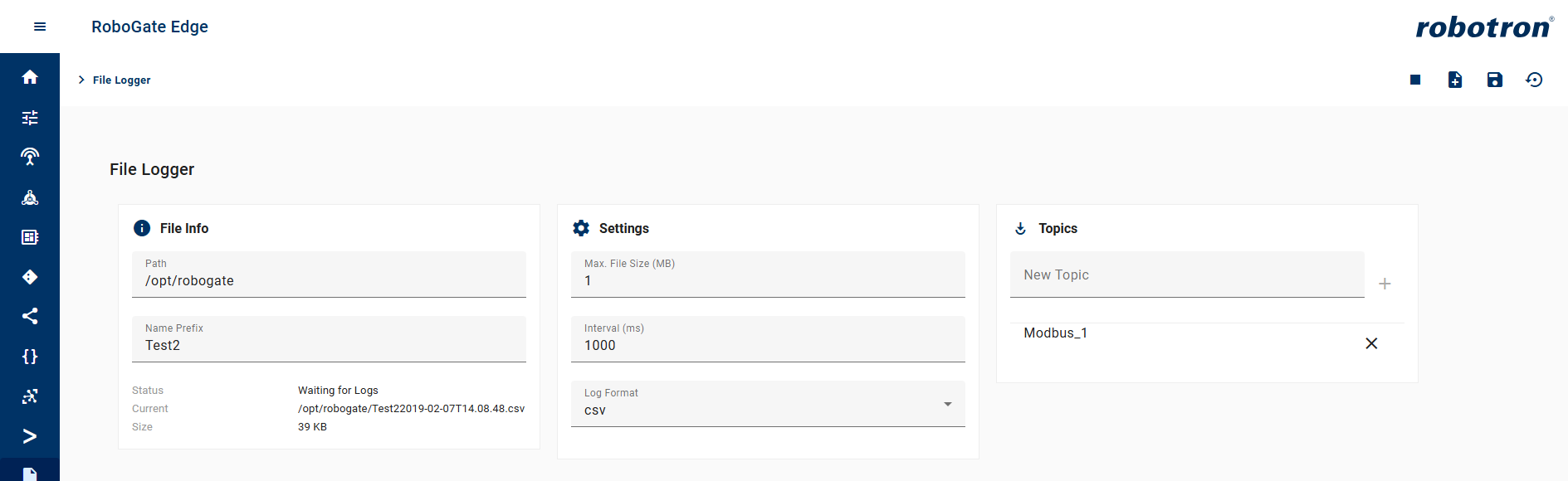
To create the log file, the path where the created file should be stored as well as a name with prefix are required. The name prefix is the current file name in which logging takes place. This must be set.
Topics
Topics can be added by entering a topic name under New Topic and clicking "+". All data published under this topic will then be logged in the defined file.
Settings
The following additional settings can be made for the log file:
| Parameter | Description |
|---|---|
Max. File Size | Specifies at how many megabytes a new log file is created. |
Interval | Specifies the log interval. |
Log Format | Specifies the format in which files are written. Data formats can be CSV or STRING. |
Configuration in the UI
The File Logger module can be accessed and configured by selecting the module on the home page or via the left menu bar of the RoboGate Edge UI.
Configure File Info & Topics
The module must be configured with the presented parameters according to requirements. After the File Info has been filled in, the definition of at least one topic from one of the input or output modules to be logged is required. Topics can be added via "+". In Figure 1, logging of the output topic "Modbus_1" from the Modbus module is selected as an example. After all relevant data has been entered and saved in the configuration, the status changes automatically from "Waiting for Logs" to "Logging" (Figure 2).
Start / Stop File Logger
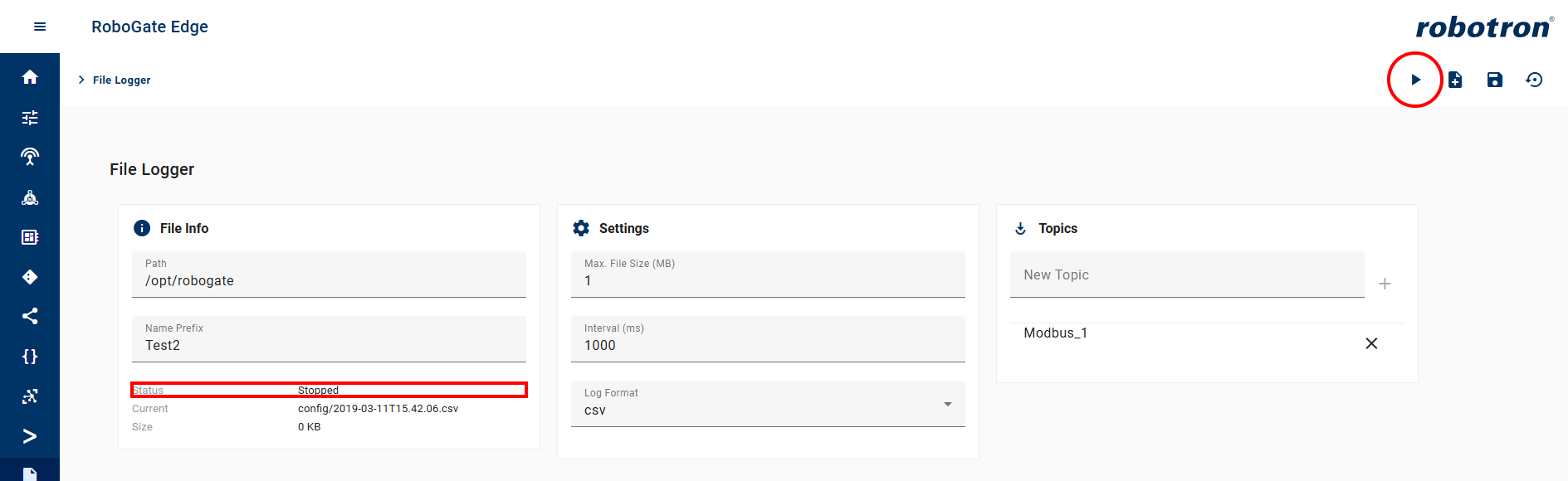
The File Logger can be stopped using the stop button ■ in the horizontal menu bar to interrupt writing data to the file. The status automatically changes to "Stopped". The File Logger can be restarted using the start button  . The status changes to "Logging" (Figure 3).
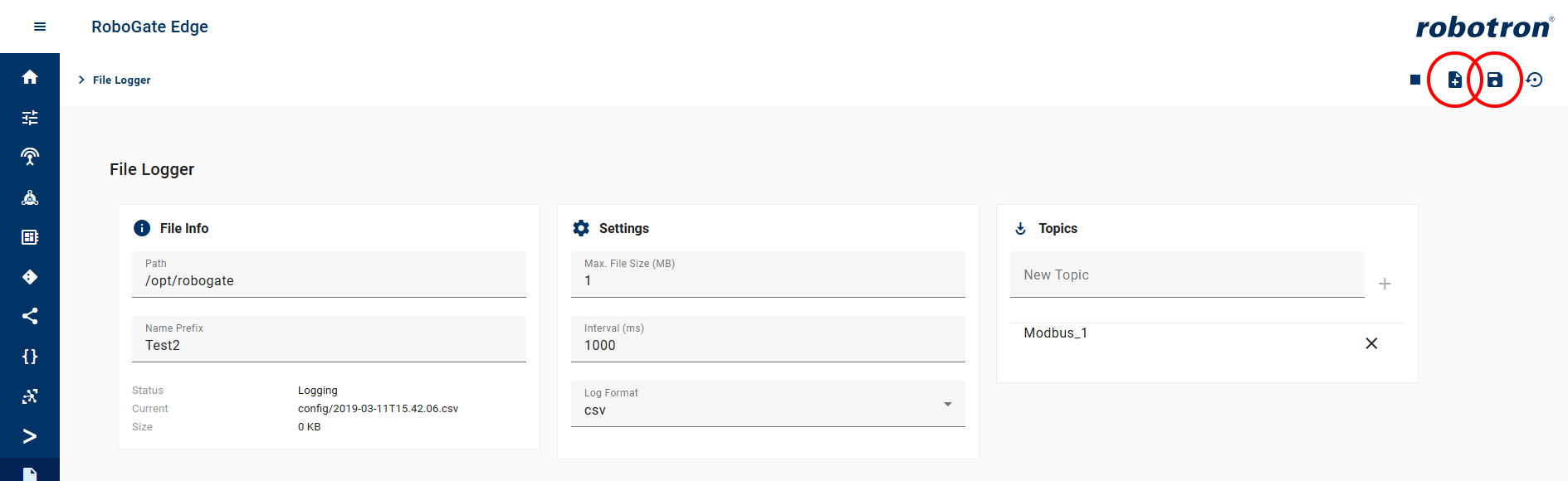
The "New Log File" button allows a manual change of the log file. Changes are applied upon saving (Figure 4).
Delete Topic
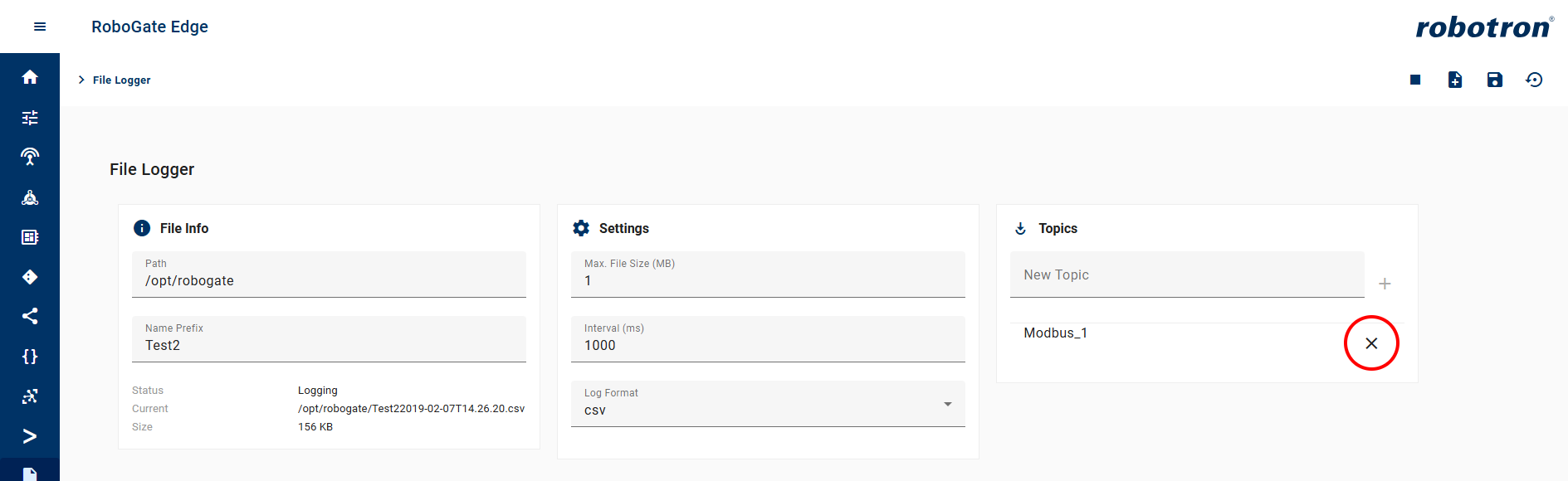
Within the configuration of the File Logger module, topics can be deleted. To do so, click "x" on the topic to be removed. After saving, no further data from the deleted topic will be logged (Figure 5).
Reset Configuration
The button  in the horizontal menu bar can be used to reset the entire module configuration to factory settings.
After clicking the button, a confirmation dialog with "Yes" and "No" appears, asking whether the operation should really be executed.
This will also delete the entire history at the RoboGate Edge level!