
Control Panel
The Control Panel provides an overview of the status and network of the RoboGate Edge.
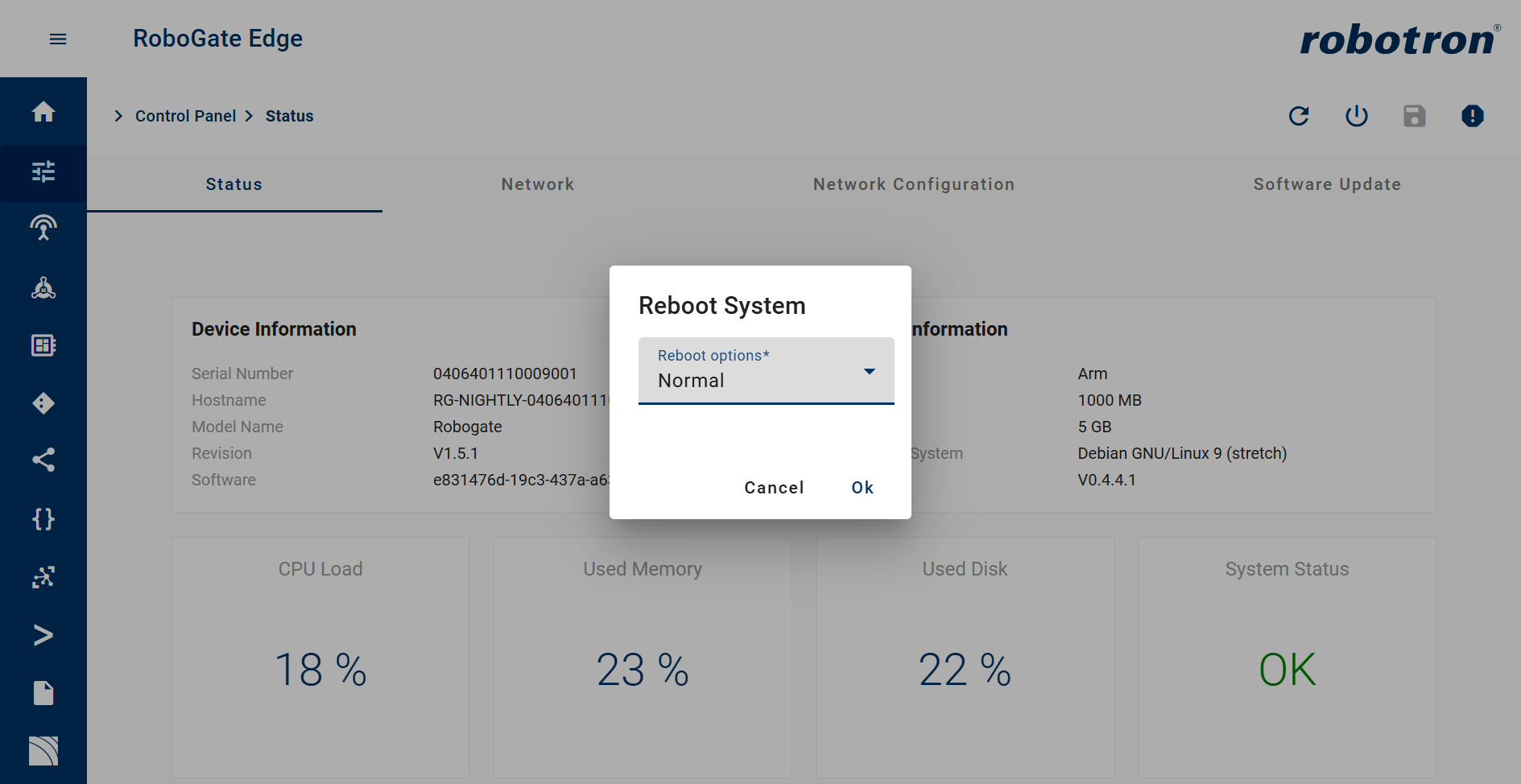
A restart of the RoboGate Edge can be performed here by clicking  "Reboot System" (Figure 1).
A dialog window opens in which one of three restart options can be selected and confirmed via the "Ok" button (Figure 2):
Normal: The operating system is restarted. Available on RoboGate Devices powered by Turck and RoboGate Devices powered by Moxa.
Power: The operating system and hardware are restarted. This is equivalent to briefly disconnecting the power supply before startup. Available on RoboGate Devices powered by Turck.
Force: Restart of the operating system without a controlled shutdown. Available on RoboGate Devices powered by Turck.

Furthermore, system information (e.g. module versions, error logs, configuration) can be downloaded via  "Download Support packages" (Figure 3) in order to provide it to Robotron or your contact person at Robotron for support purposes.
The message "Creating Information Package… Please wait…" will appear.
Finally, a .zip file containing the system data is downloaded.
This process can take up to 5 minutes!

Status
The "Status" tab displays device information (Device Information) and system information (System Information). This includes, among other things, the CPU load as the average load of the last minute, used RAM, occupied storage, and an overall assessment of the current state of the system. Figure 4 shows a RoboGate Edge with the system status "OK". The information is updated every minute. Furthermore, the system time and uptime are displayed. Detailed information about the device and system information can be found in the following tables.
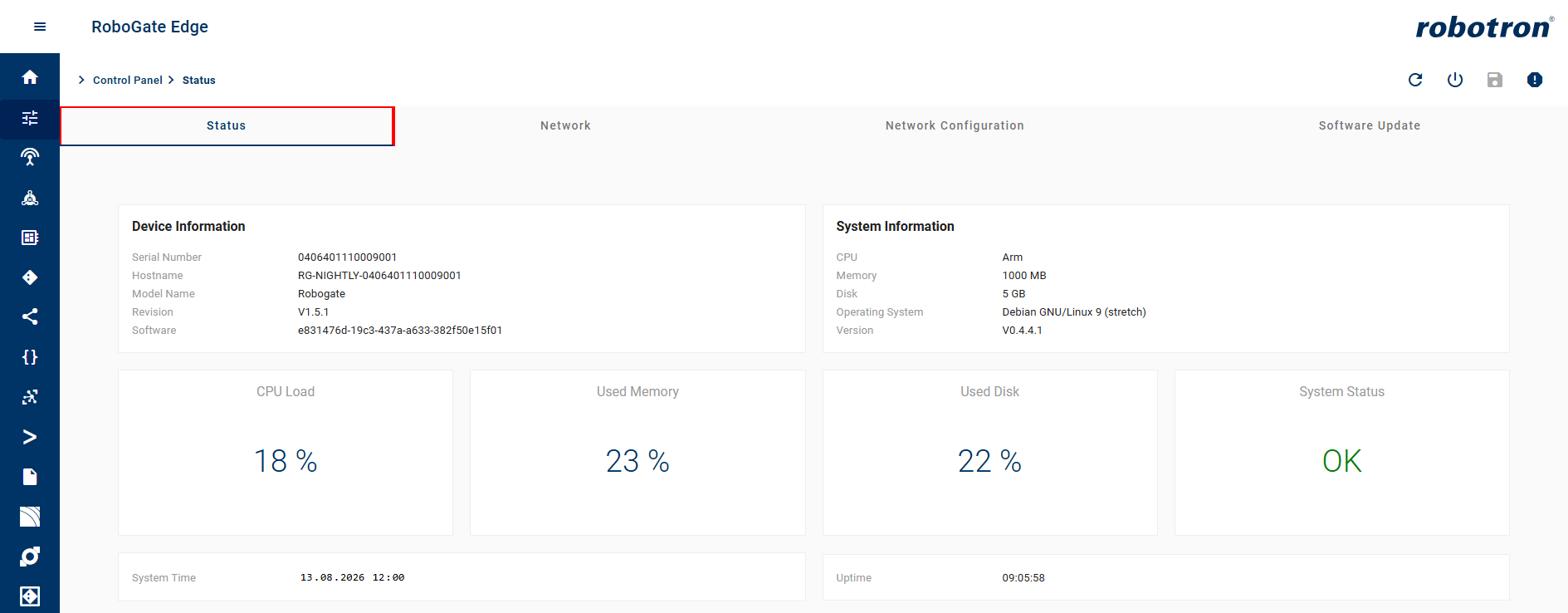
| Field | Description |
|---|---|
Serial Number | Serial number of the device |
Hostname | Host name of the device |
Model Name | Type of the RoboGate Edge |
Revision | Hardware revision number |
Software | Software version ID |
| Field | Description |
|---|---|
CPU | Type and version of the installed CPU |
Memory | Size of the installed RAM |
Disk | Size of the storage space |
Operating System | Type of operating system |
Version | Version of the operating system |
Network
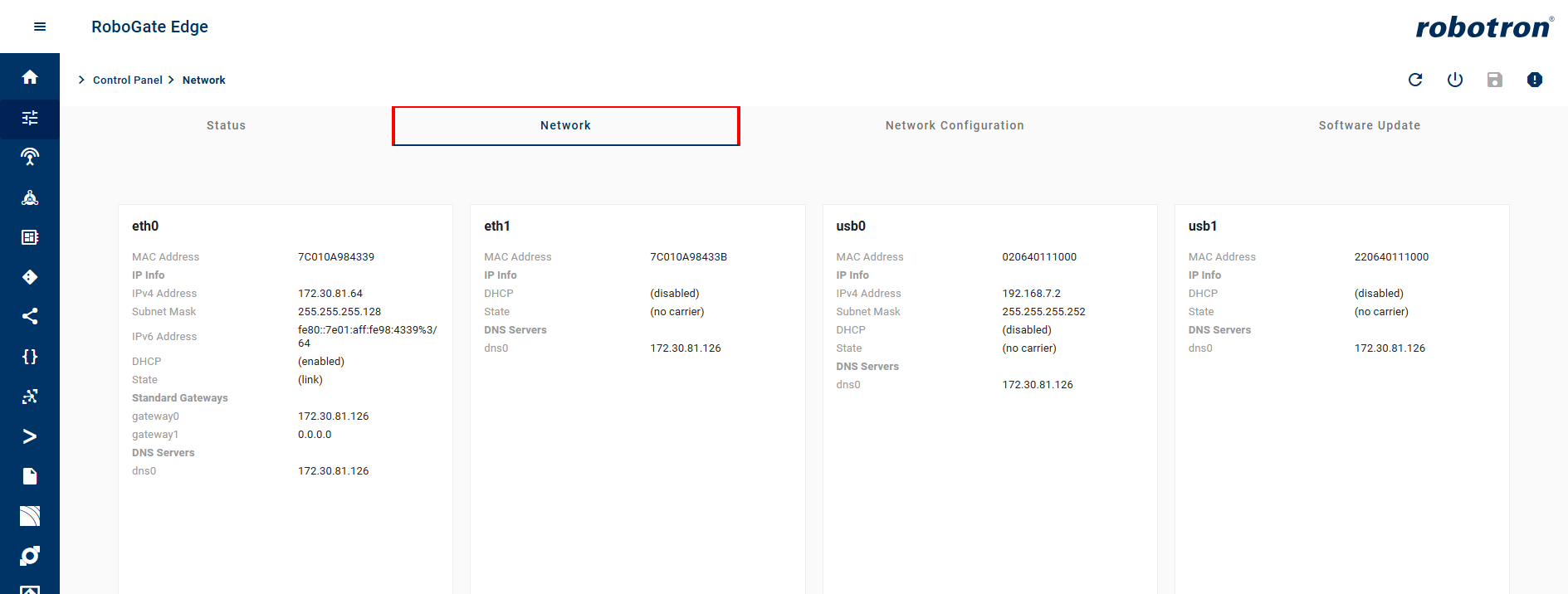
The "Network" tab (Figure 5) displays the network information of the RoboGate Edge. This page shows all interfaces with the configurations stored in the RoboGate Edge. The information is updated every 5 minutes.
Network Configuration
The system administrator can set up the network via the "Network Configuration" tab (Figure 6).
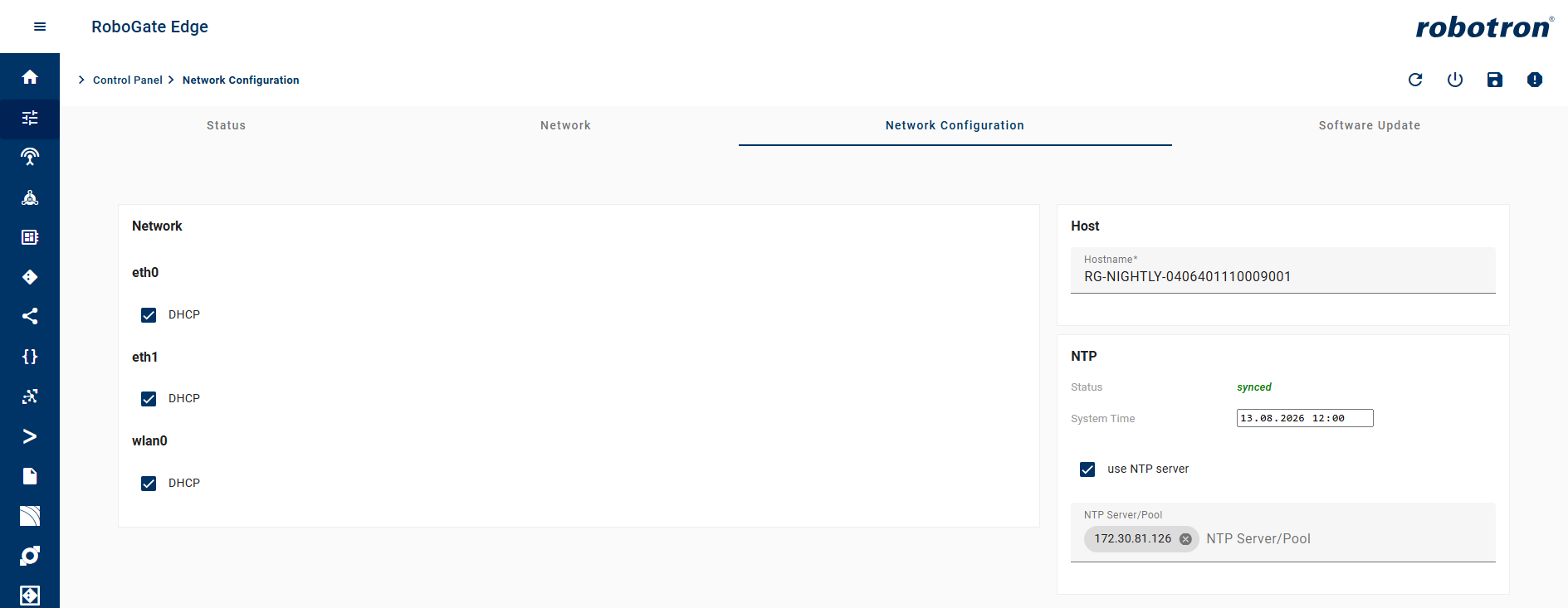
Network: Configurations can be made for the two Ethernet interfaces "eth0", "eth1" and wlan0. The settings relate to:
IP: Dynamic Host Configuration Protocol (DHCP) or static configuration.
A static configuration requires entering the (own) IP address and subnet mask in the format "xxx.xxx.xxx.xxx/yy"DNS Server
Default Gateway
As a rule, when using DHCP, all parameters are resolved via the DHCP server.
Host: The hostname corresponds to the DNS name of the RoboGate Edge.
NTP: The NTP server/pool is used for time synchronization via Network Time Protocol (NTP). Use requires entering the IP address (v4) or DNS name. Further information can be found on the following page: http://support.ntp.org/servers. If the "USE NTP" field is left empty, time synchronization is disabled and a time must be entered manually in the "Status" tab under "System Time".
Software Update
The "Software Update" tab allows the software of the RoboGate Edge to be updated on RoboGate Devices. Figure 7 shows the input field for the software update.
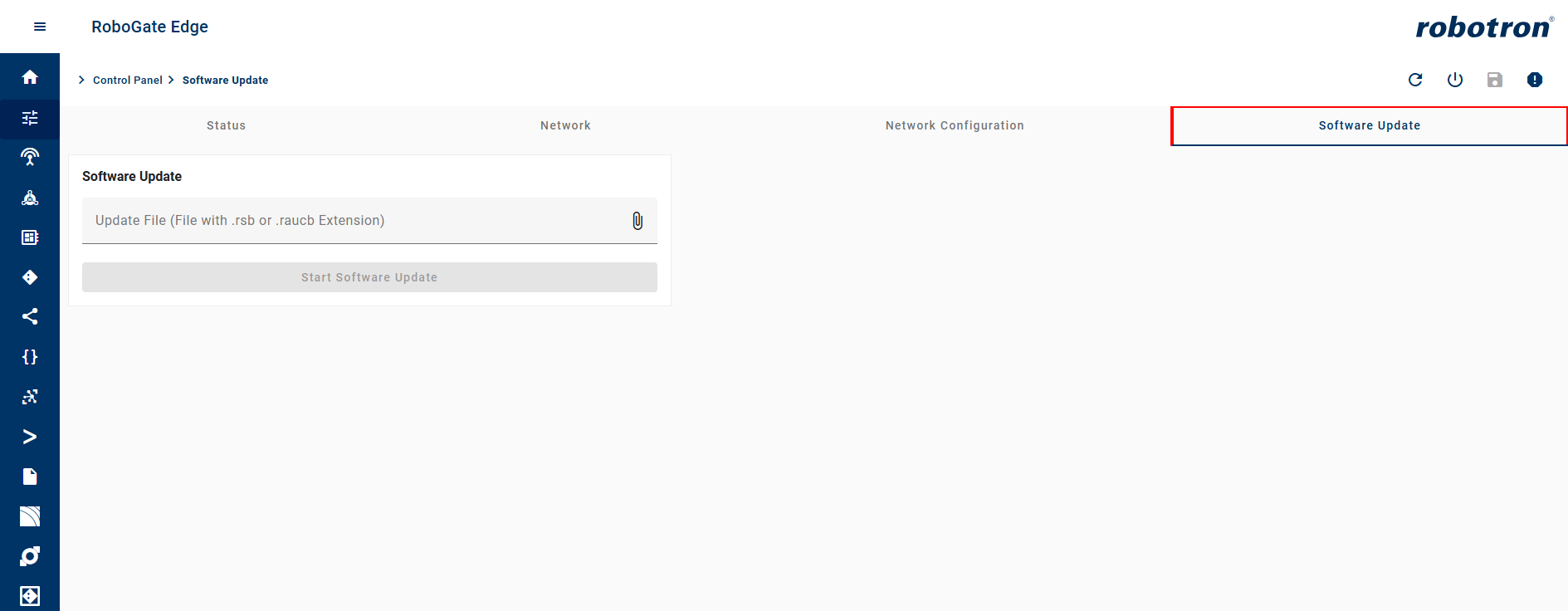
To update the software, a *.rsb file (RoboGate Software Bundle) provided by Robotron must be selected via the input field. The update process can then be started by clicking Start Software Update. This may take several minutes.
Please do not refresh the page during the update process.