
OPC UA
The OPC UA module is used to read data from an OPC UA server.
Nodes can be read in two ways. They can be subscribed to in order to read changing values (Subscription), or they can be polled cyclically (Poll). To minimize message traffic, nodes with the same sampling rate are grouped together in a Group. The nodes in this group are subscribed or polled simultaneously, and one message is sent as the result of the query.
Configuration Parameters
Server Connection
The parameters described in the following table must be defined for the OPC UA server.
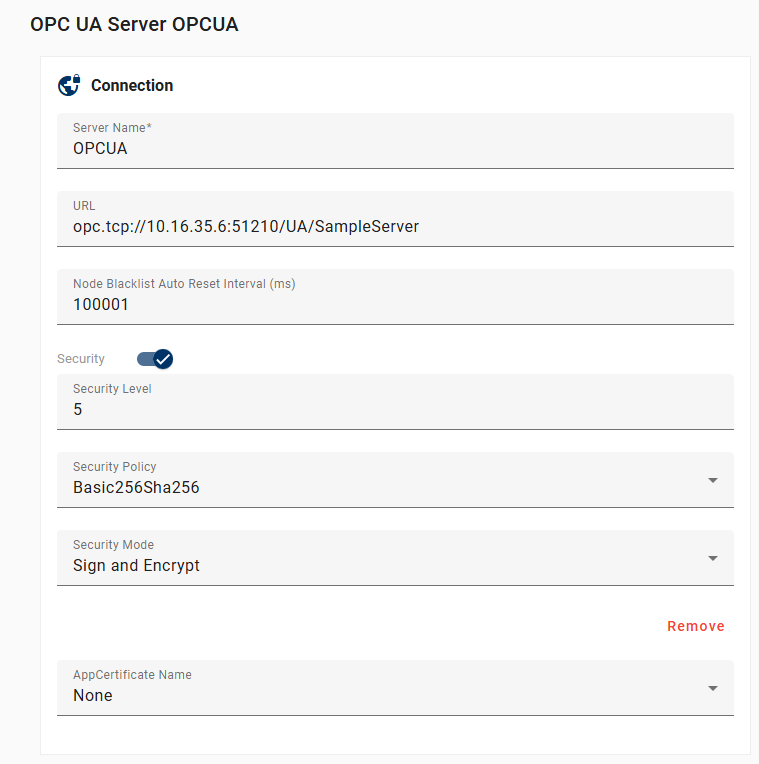
A security configuration can be created for the OPC UA server and enabled or disabled using a switch. Figure 4 shows how to enable or disable security.
| Parameter | Description |
|---|---|
Server Name | The server name represents the name of the data source. This corresponds to the source in evaluations. |
URL | Connection to the OPC UA server via the server’s URL |
Node Blacklist Auto Reset Interval (ms) | Enables an automatic cyclic cleanup of the blacklist for the selected server. The default interval is 15 minutes (900,000 milliseconds). |
Security Level | 0 – 255 |
Security Policy | Selection options:
|
Security Mode | Selection options:
|
AppCertification Name | Selection for the application certificate of the OPC UA server. Available options:
|
Additional configuration parameters:
OptimizeNodeValueReadAccess - configurable deactivation of read optimization/polling. When this option is enabled, multiple node values are read in a single request. Otherwise, each node is requested separately via an individual request.
Use Source Timestamp - When Use Source Timestamp is enabled globally, it is applied to all Subscriptions, Subscription Groups (including Submit Full Model), and Poll Groups. When multiple values are contained in the message (Poll Group or Subscription Group with Submit Full Model), the timestamp of the last read node is used as the general timestamp.
Download Nodeset - The complete node list of the OPC UA server can be downloaded here in XML format.
Authentication
Three authentication types are distinguished:
Anonymous
Username and Password
Certificate
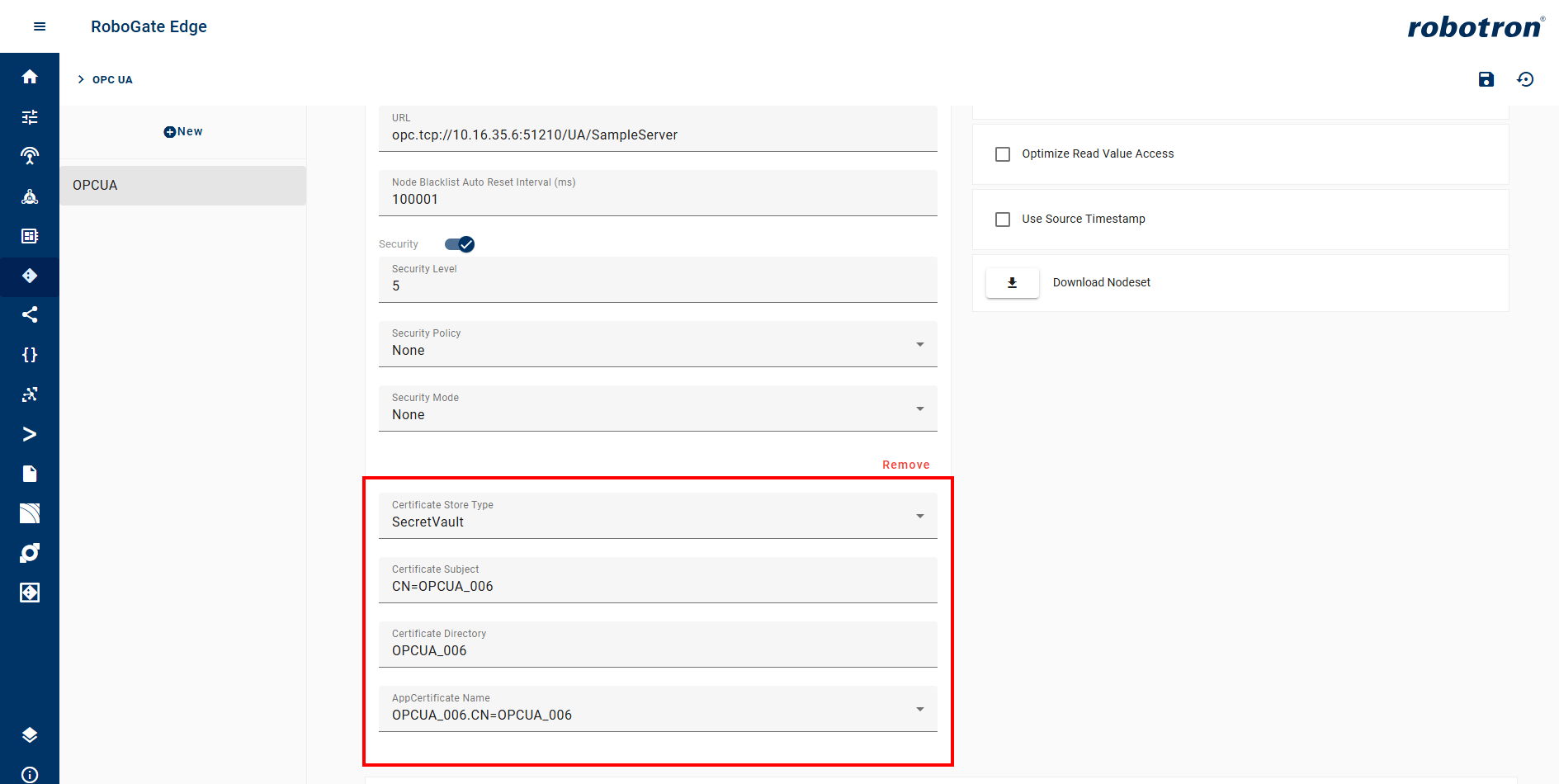
For Certificate, the following additional fields are available:
| Parameter | Description |
|---|---|
Certificate Store Type | Choose between Folder (=Directory) and SecretVault. |
Certificate Subject | The issuer of the certificate. Often also referred to as CN. |
Certificate Directory | The relative path within the Robogate folder (C:\Program Files\Robotron\Robogate\). A subfolder must be created under config\certs, e.g. User, which then contains the folders "certs" and "private". The certificates (.der file) are placed in the "certs" folder, and the keys (.pem file) in the "private" folder. |
Secret Name | (only when SecretVault is selected). Selection of the secret. |
Subscriptions
The OPC UA server can be read using Subscriptions. Each subscription generates a message (event) for each value change of the configured nodes. The event corresponds to a message with one data point. The parameters described in the following table must be configured.
| Parameter | Description |
|---|---|
Field Name | The name can be freely configured using letters and numbers without special characters. It specifies the label of the value to be read. |
Node ID | The node ID is automatically assigned based on the field name. This ID can be copied manually. Nodes on the server can be browsed and selected using the OPC UA Node Browser. |
Output Topic | Data input modules publish data to a topic. The topic name can be freely configured using letters and numbers without special characters. |
Method Mapping
OPC UA methods can also be called via RoboGate Edge. Such methods are typically triggers for an action that a machine is to execute, for example to start a process and set parameters.
To call an OPC UA method via RoboGate Edge, the method must have been created on the OPC UA server beforehand. Furthermore, the Object Node ID and the ID of the method must be known. Alternatively, the browsing path can also be specified. Using this information (Table 3), the method mapping can be performed. This refers to the mapping of OPC UA methods to the edge methods, which are registered with the edge broker of RoboGate Edge.
| Parameter | Description |
|---|---|
Method Name | Name of the method (freely selectable) |
Object Node ID | Node ID of the object that is the parent of the OPC UA method |
Method Node ID | Node ID of the OPC UA method |
Once a method has been created for the method mapping, it can be called in the Stream Processor via Edge Method Invocation and in the Azure module of RoboGate Edge.
The method must be specified there as follows: robogate.opcua.<name>.
Here, <name> refers to the freely assigned name of the method in the method mapping.
In the Azure module, the method can be called in the "Direct Methods" section. For this, a name for the method (Direct Method) must also be defined and the corresponding method to be referenced (robogate.opcua.<name>) must be created as an Edge Method.
Method Error Code Mapping
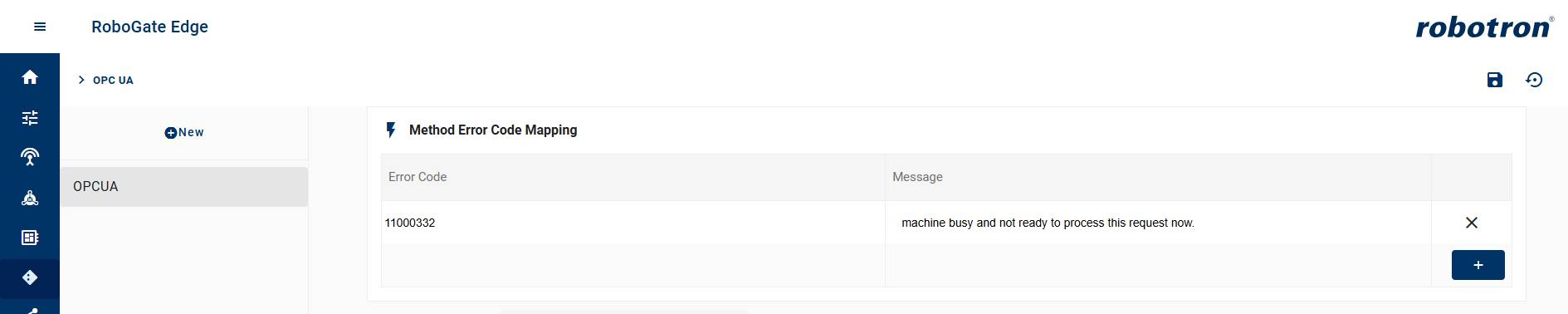
The Error Code Mapping feature is available to convert individually configured status codes of an OPC UA server into meaningful error messages.
| Parameter | Description |
|---|---|
Error Code | The code must be entered as a whole decimal number OR with the prefix "0x" as a hexadecimal representation. |
Message | Freely selectable text to describe the error |
Poll Groups
Poll Groups are active data requests. Each poll group generates a message (model). The model corresponds to a message containing values from multiple data points.
| Parameter | Description |
|---|---|
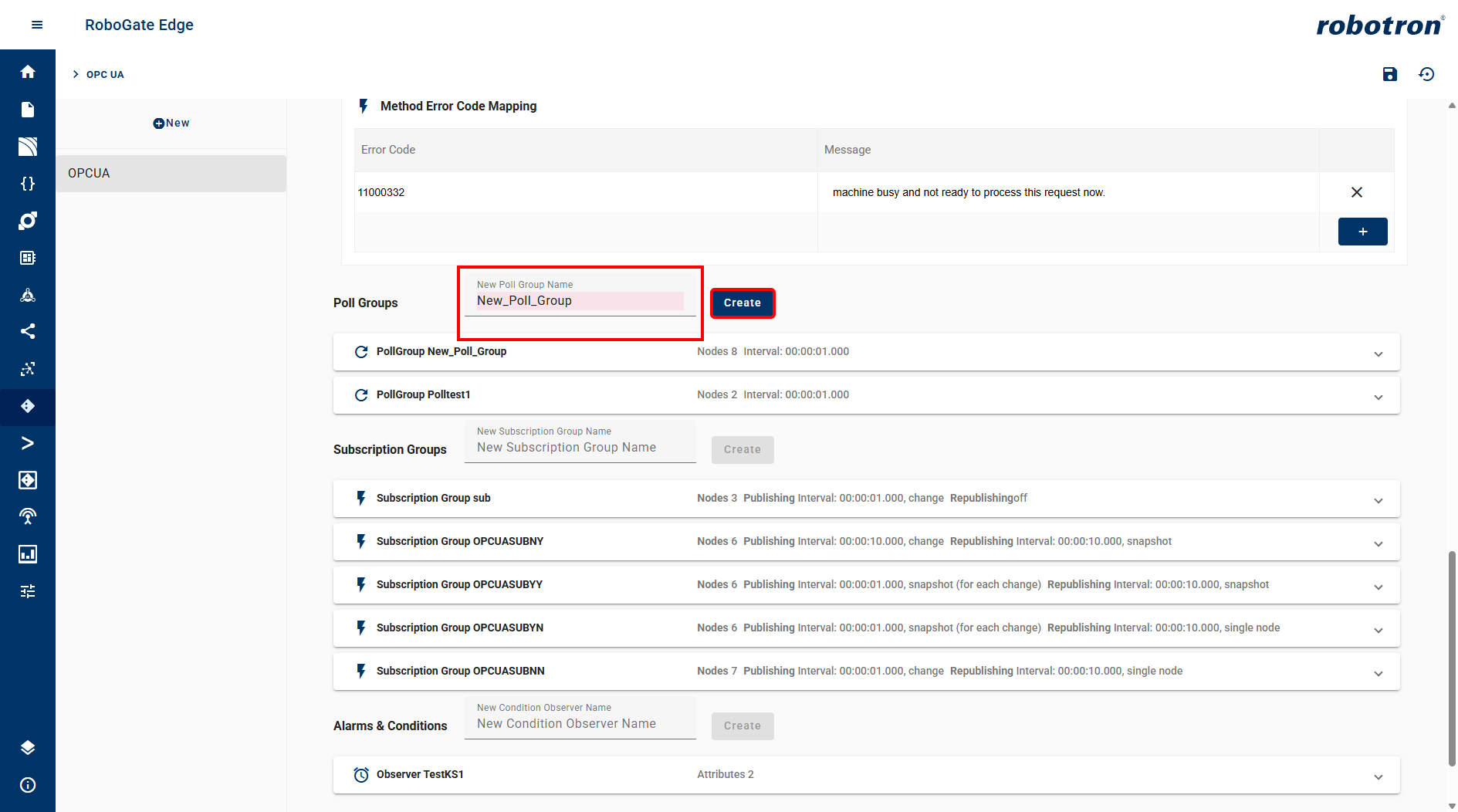
Poll Group Name | The name can be freely configured using letters and numbers without special characters. A name must be entered for the poll group. This name corresponds to the name of the area to be read. The name is provided under Scope in evaluations. Clicking "Create" creates a new group. |
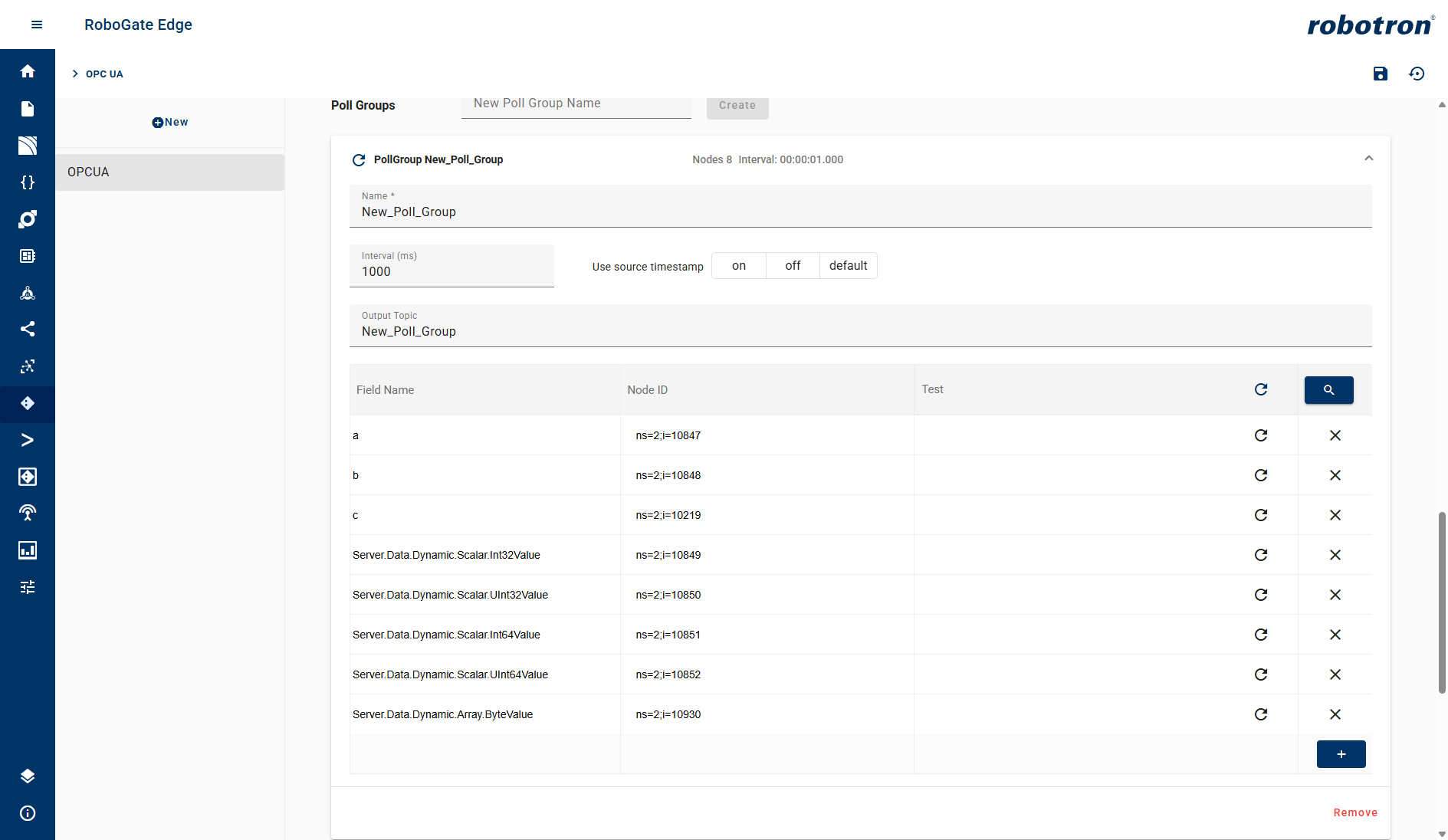
Interval (ms) | Interval in milliseconds specifies the rate at which values are polled. |
Use source timestamp | Usage of the SourceTimestamp:
|
Output Topic | Specify an assigned output topic here, e.g. OPCUAPOLL1. The name can be freely configured using letters and numbers without special characters. |
Field Name | This is the label of the field in the OPC UA server. |
Node ID | The node ID is automatically assigned based on the field name. This ID can be copied manually. Nodes on the server can be browsed and selected using the OPC UA Node Browser. |
Subscription Groups
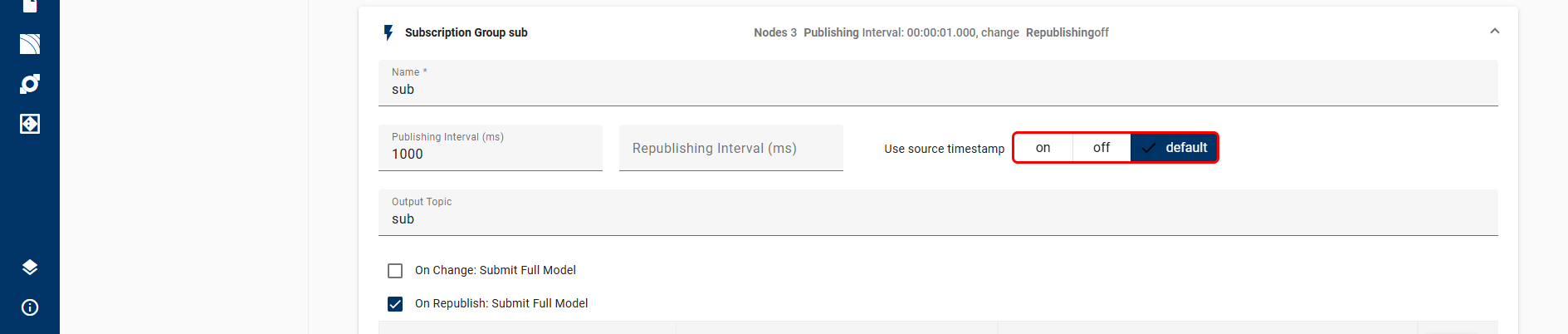
Subscription Groups define a set of OPC UA server nodes to be subscribed to. The state of each node is held in a buffer. When a data value update occurs, the corresponding value is updated and a message containing all configured nodes is sent. Each subscription group generates one message.
| Parameter | Description |
|---|---|
Subscription Group Name | The name can be freely configured using letters and numbers without special characters. A name must be entered for the subscription group. This name corresponds to the name of the area to be read. The name is provided under Scope in evaluations. Clicking "Create" creates a new group. |
Publishing Interval (ms) | Interval in milliseconds specifies the rate at which values are polled. |
Republishing Interval (ms) | Interval in milliseconds specifies the rate at which the last read values are sent again. |
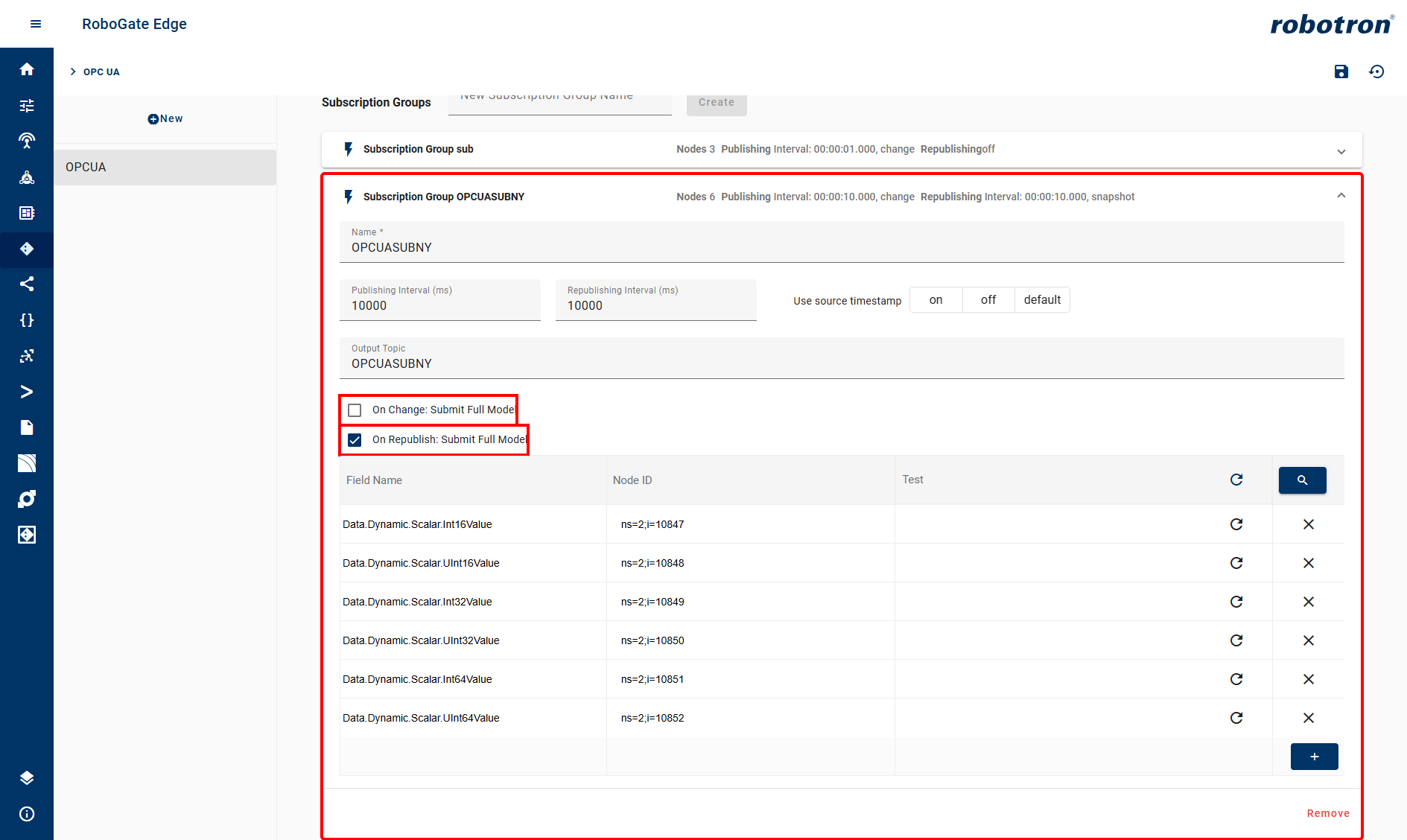
On Change: | Active: If the OPC UA server reports a change, the changed data point is transmitted together with the last read values of the other data points as a model message.
NOTE: Simultaneous changes to multiple data points within the subscription group are handled individually. |
On Republish: | Active: During republishing, the data points are sent as a single data model message. |
Output Topic | Specify an assigned output topic here, e.g. OPCUASUB1. The name can be freely configured using letters and numbers without special characters. |
Use source timestamp | Usage of the SourceTimestamp:
|
Field Name | Label of the field in the OPC UA server. |
NodeID | The node ID is automatically assigned based on the field name. This ID can be copied manually. Nodes on the server can be browsed and selected using the OPC UA Node Browser. |
Alarms & Conditions
The OPC UA module can also be used to call alarms and conditions that have been created as nodes in the OPC UA server. Multiple so-called condition observers can be configured per OPC UA server. Each configured observer generates an EdgeMessage on the specified output topic as soon as an event arrives from the OPC UA server.
See also Alarms&Conditions and Conditions in the OPC UA Online Reference.
| Parameter | Description |
|---|---|
Condition Observer Name | The name can be freely configured using letters and numbers without special characters. A name must be entered. This name corresponds to the name of the area to be read. The name is provided under Scope in evaluations. Clicking "Create" creates a new group. |
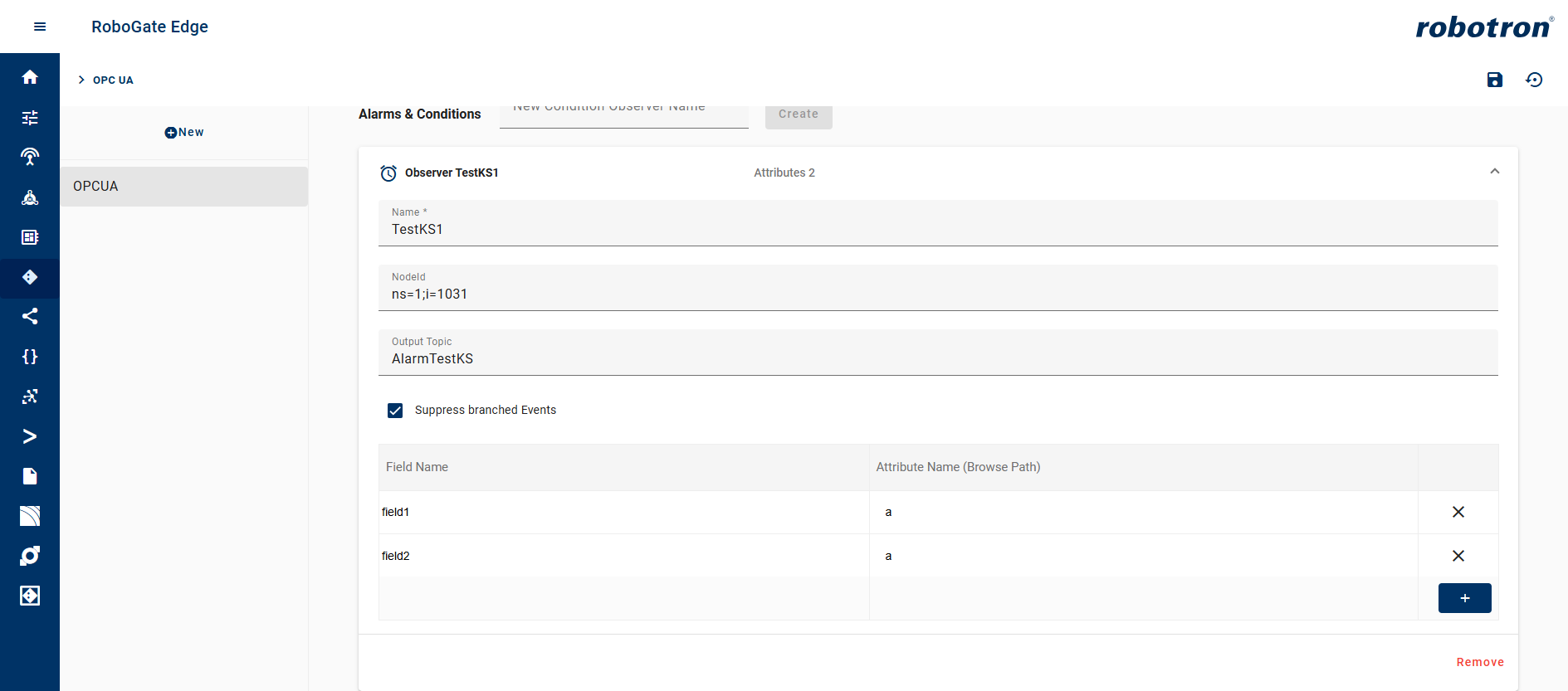
NodeId | The node ID of the alarm or condition to be called. |
Output Topic | Name of the output topic. The name can be freely configured using letters and numbers without special characters. |
Suppress branched Events | Suppresses events whose Branch ID is set. |
Field Name | Free field name of the property in the OutputEdgeMessage. |
Attribute Name | Name of the attribute in the OPC UA server |
Configuration in the UI
The OPC UA module can be opened and configured by selecting the module on the start page or via the left menu bar of the RoboGate Edge UI.
Configuring a Server
A new OPC UA server can be added and configured via  New. The previously described parameters can be defined according to requirements (Figure 4).
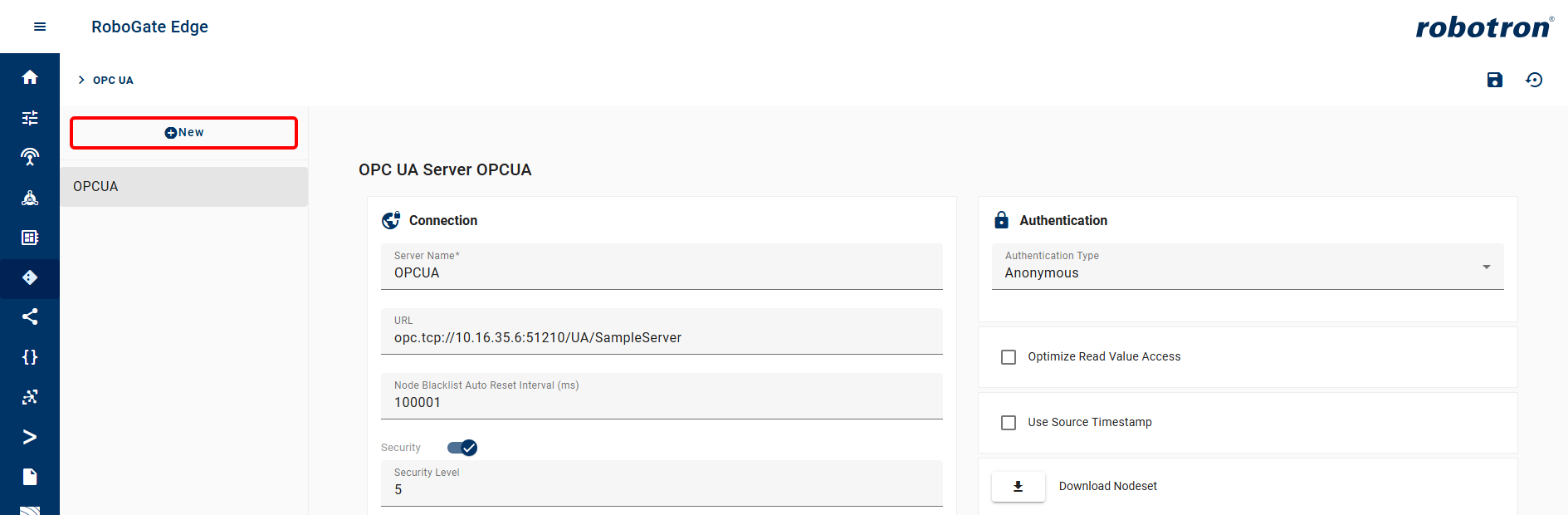
Once this configuration is saved  , the Module State section at the bottom of the page shows whether the module was able to establish a connection to the OPC UA server.
Subscriptions, poll groups, and subscription groups with the corresponding data fields (node IDs) can now be created.
Configuring a Subscription
To configure a subscription, the field name, node ID, and output topic must be specified. Additional subscriptions to node IDs can be added by clicking "+" (Add). These entries can be made manually if the node ID is known, or with the help of the OPC UA Node Browser.
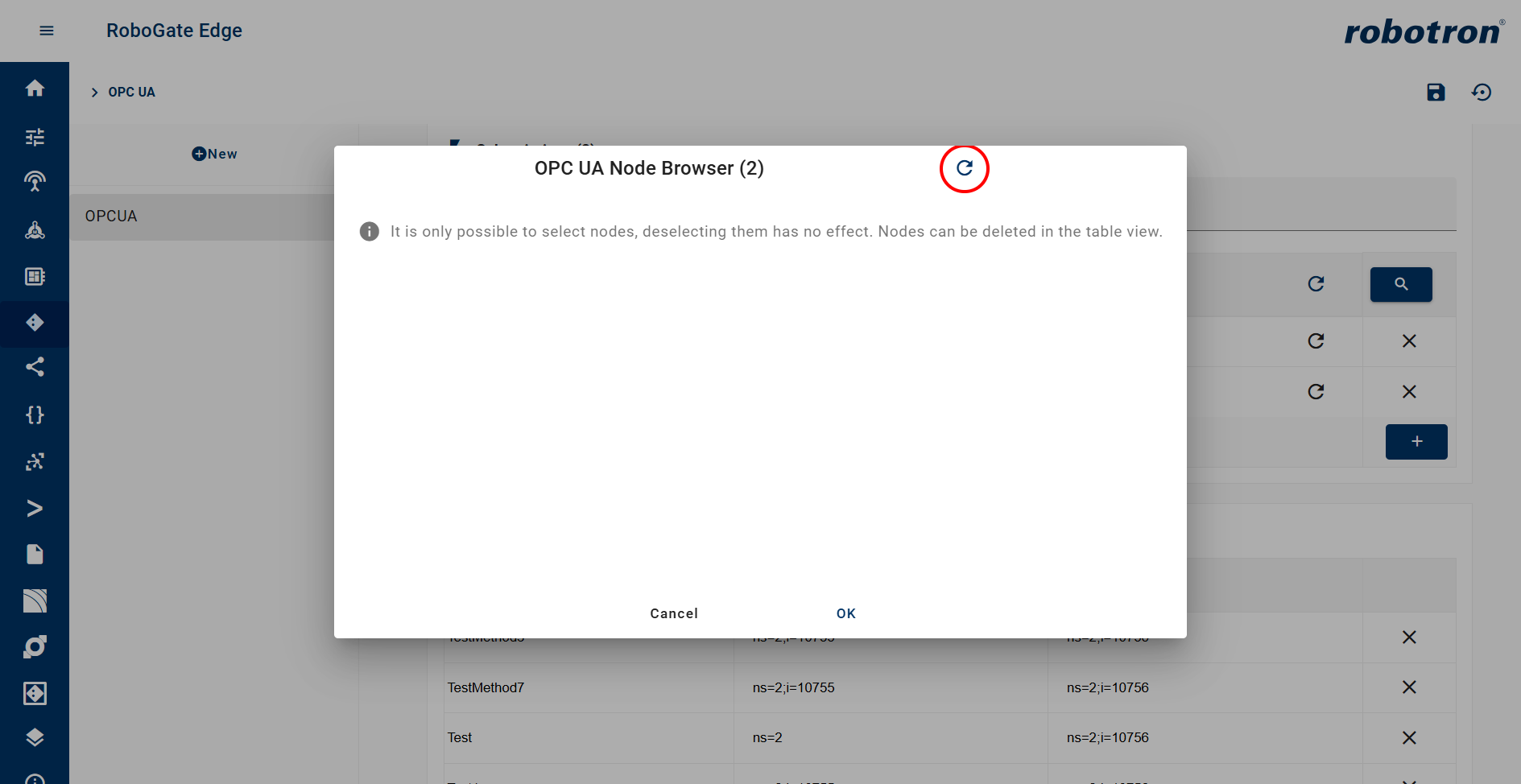
The OPC UA Node Browser displays all node IDs available on the server. The node browser can be opened via the button with the magnifying glass icon. Clicking the arrow  refreshes the node IDs and displays a selection of all available node IDs (Figure 5).
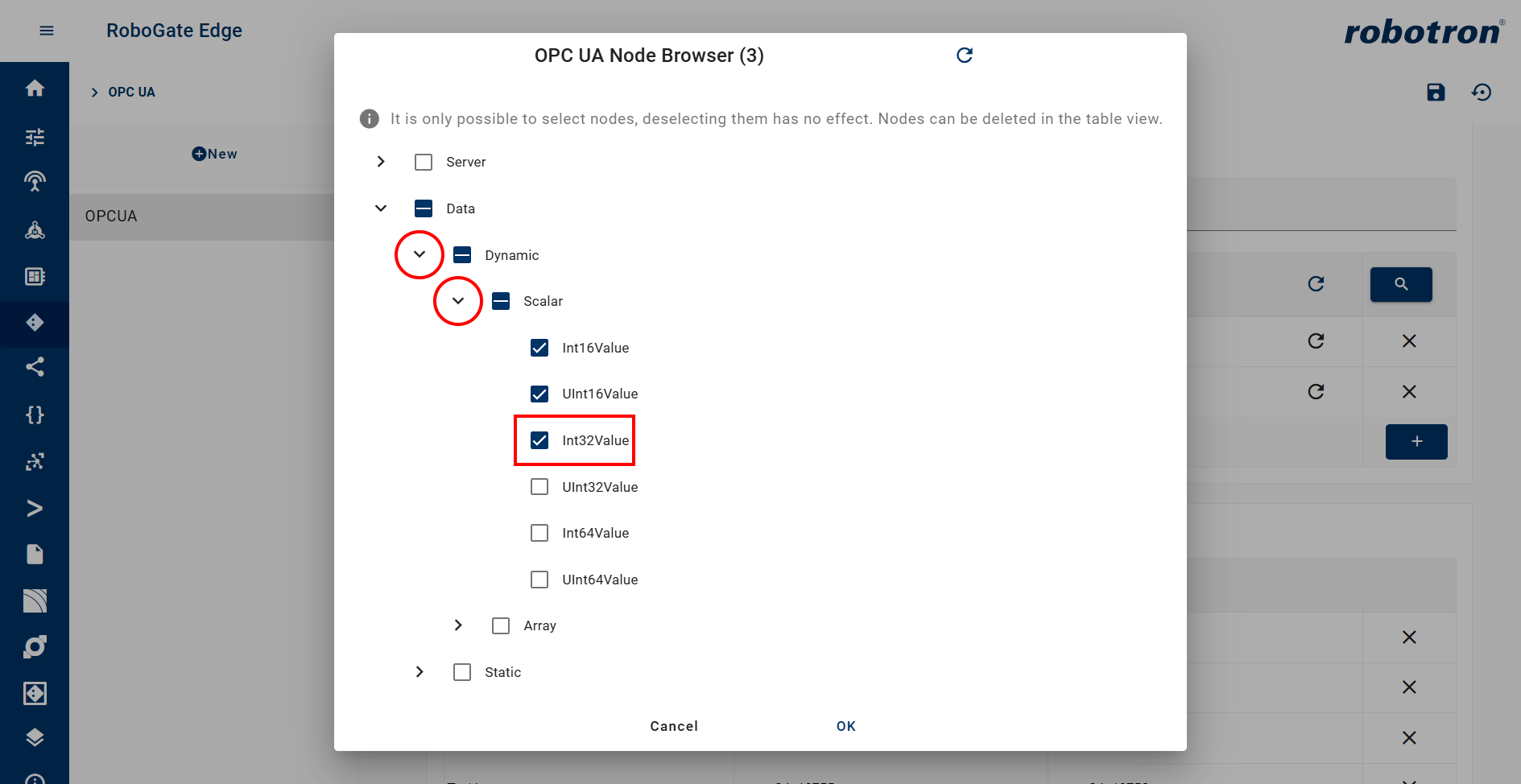
Desired nodes for the subscription can be marked in the node browser. When selecting node groups, the marking process may take longer. After all nodes have been marked, they can be accepted using the "OK" button (Figure 6).
To check whether a node has been configured correctly, it can be tested using the arrow in the "Test" column. The read result is displayed after clicking the arrow, or updated when changes are made. Initially, no values are displayed. This function is available for creating a subscription, subscription group, and poll group.
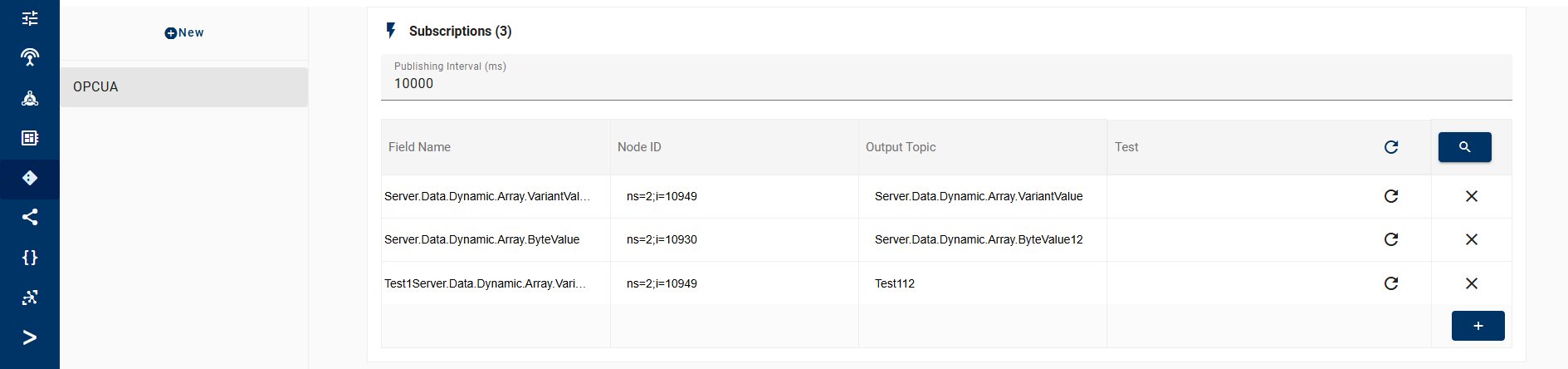
After completing the subscription configuration, it is saved using the Save button in the upper right corner.
Configuring Method Mapping
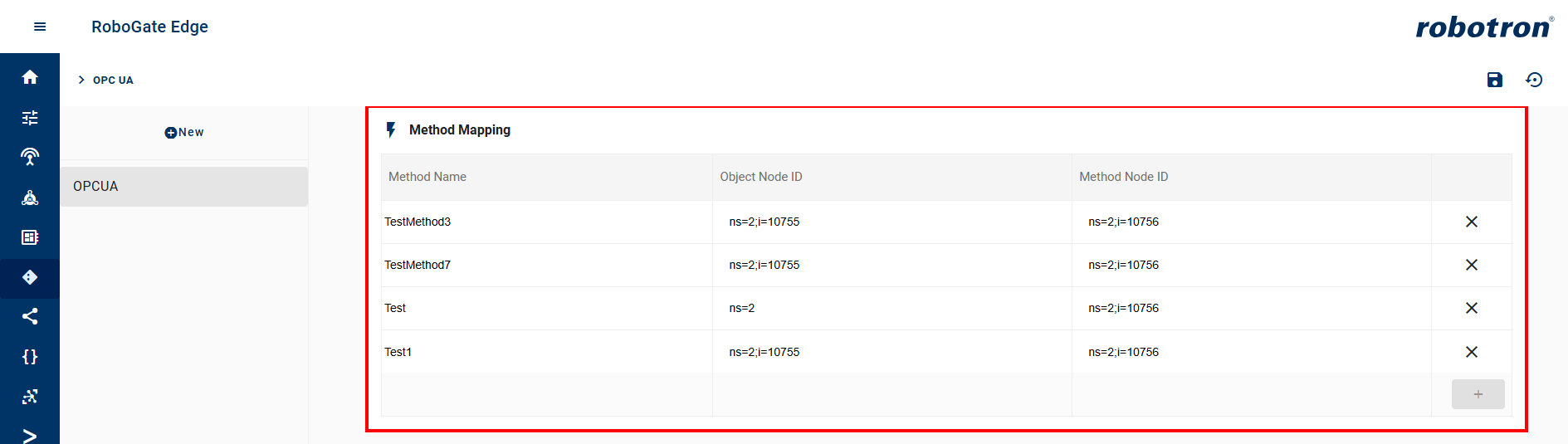
Figure 8 shows the configuration of OPC UA methods with the parameters described in Table 3. This must be done manually.
Configuring Error Code Mapping
Figure 9 shows an example configuration of an error message using error code mapping.
Configuring a Group
Configuring poll or subscription groups works in the same way in principle.
Poll Groups generate active data requests.
Subscription Groups react to changes in semantically related data points.
First, create a new poll/subscription group by entering a name for the poll/subscription group and clicking "Create". This creates a new group (Figure 10). Then define the interval and output topic and configure the node IDs (Figure 11). Browsing for available node IDs is identical to the process for creating subscriptions.
For subscription groups, it must additionally be configured whether messages should be sent On Change and/or On Resubmit (Figure 12).
Using the curved arrow, it is possible to output the current value of a node. To read the entire group, the curved arrow in the header must be clicked. The green checkmark then indicates the number of correctly read values, and the red cross indicates the number of faulty nodes.

After completing the configuration of the OPC UA module, it can be saved using the "Save" button . Saving the module configuration makes it available in RoboGate Edge.
Configuring Alarms & Conditions
Figure 14 shows an example configuration of a condition observer.
Editing / Deleting Node Browser Configuration
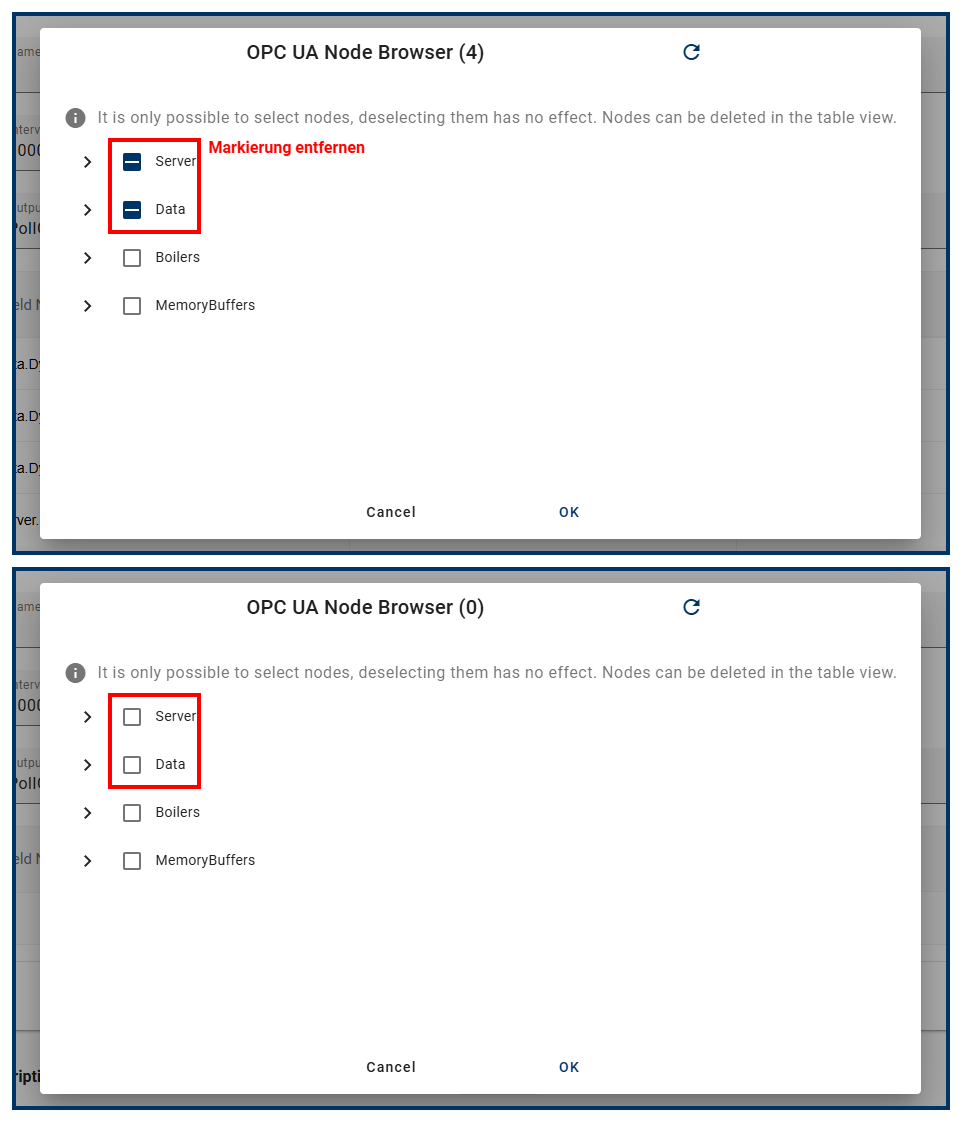
Within the OPC UA module configuration, the node selection in the node browser for subscriptions and poll groups can be removed. The stored configuration is displayed and available for further editing via the magnifying glass icon in the respective configuration. Selections can be removed or added. Changes are applied by confirming with "OK" and then saving the configuration. When all selections in the browser are removed, the entire node browser is automatically removed from the configuration (Figure 15).
Deleting a Data Field
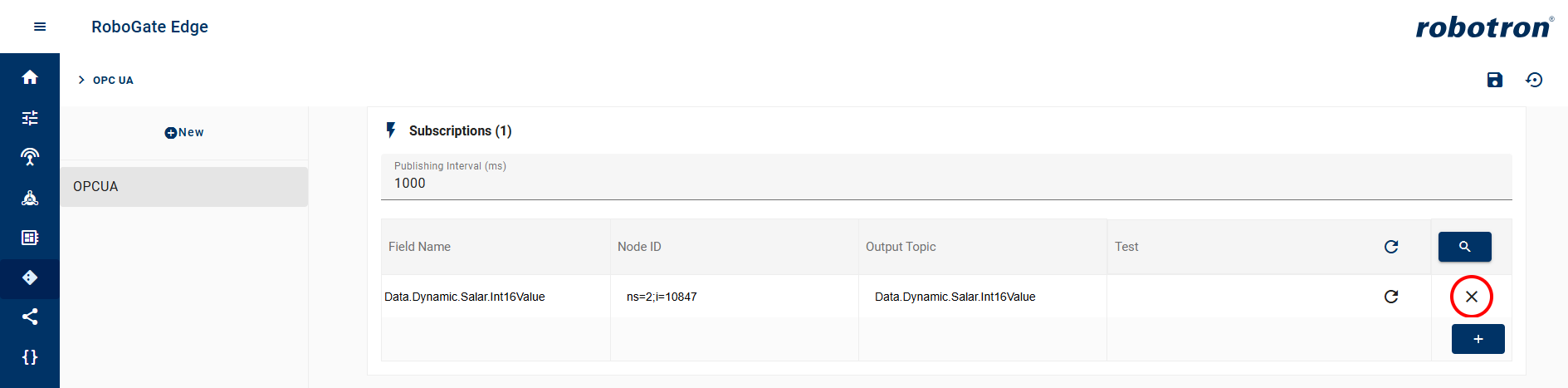
Within the OPC UA module configuration, data fields of subscriptions and poll groups can be deleted. To do this, select the data field to be deleted and remove it by clicking  . Saving the configuration change makes it available in RoboGate Edge (Figure 16).
Deleting a Group
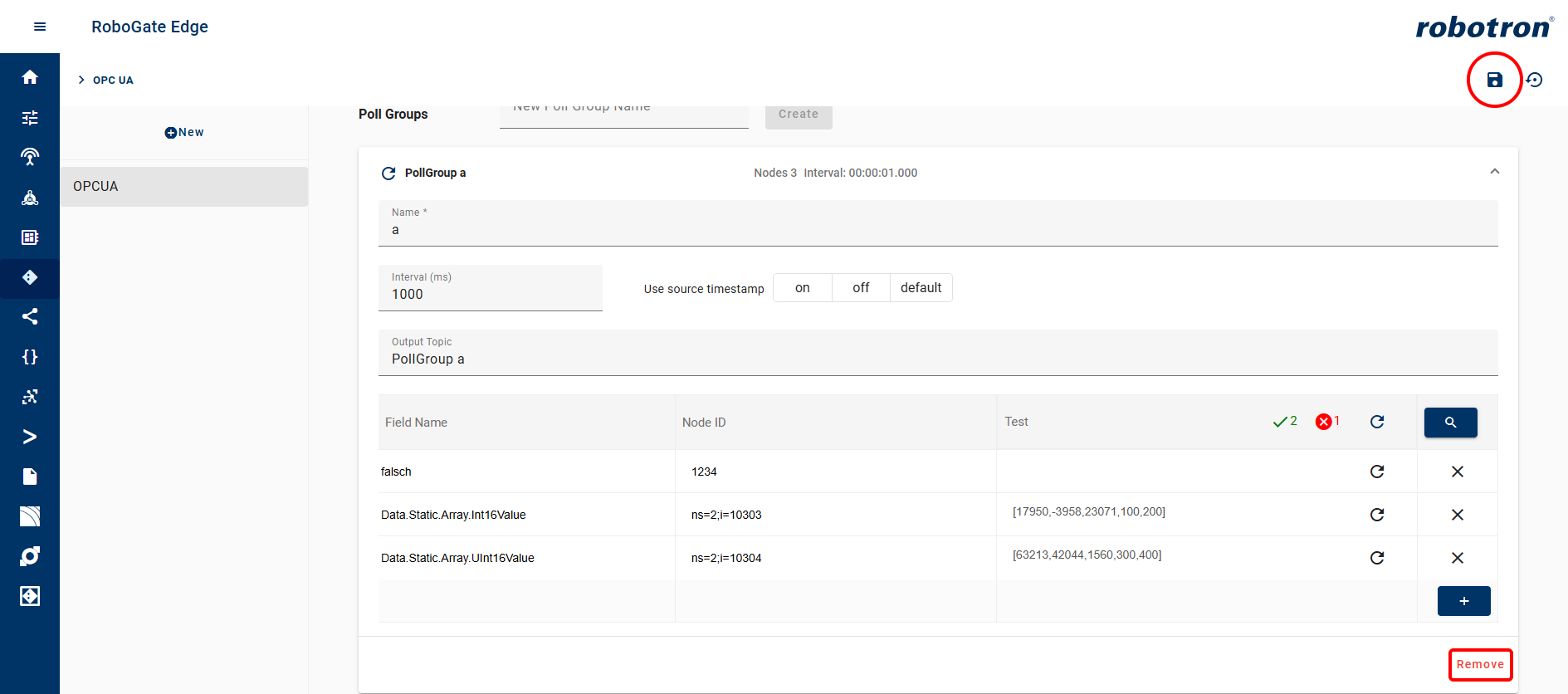
Groups can be deleted entirely. Clicking the delete button removes the selected poll or subscription group (Figure 17). Saving the entire OPC UA configuration applies and makes the changes available.
Resetting the Configuration
The entire module configuration can be reset to factory settings using the  button in the horizontal menu bar.
After clicking the button, a confirmation dialog with "Yes" and "No" appears, asking whether the action should actually be executed.
This also deletes the entire history on the RoboGate Edge!