Operation
Login
Before tunnels can be established correctly, the user must authenticate with the ControlCenter. All necessary information can be configured on the Settings page.
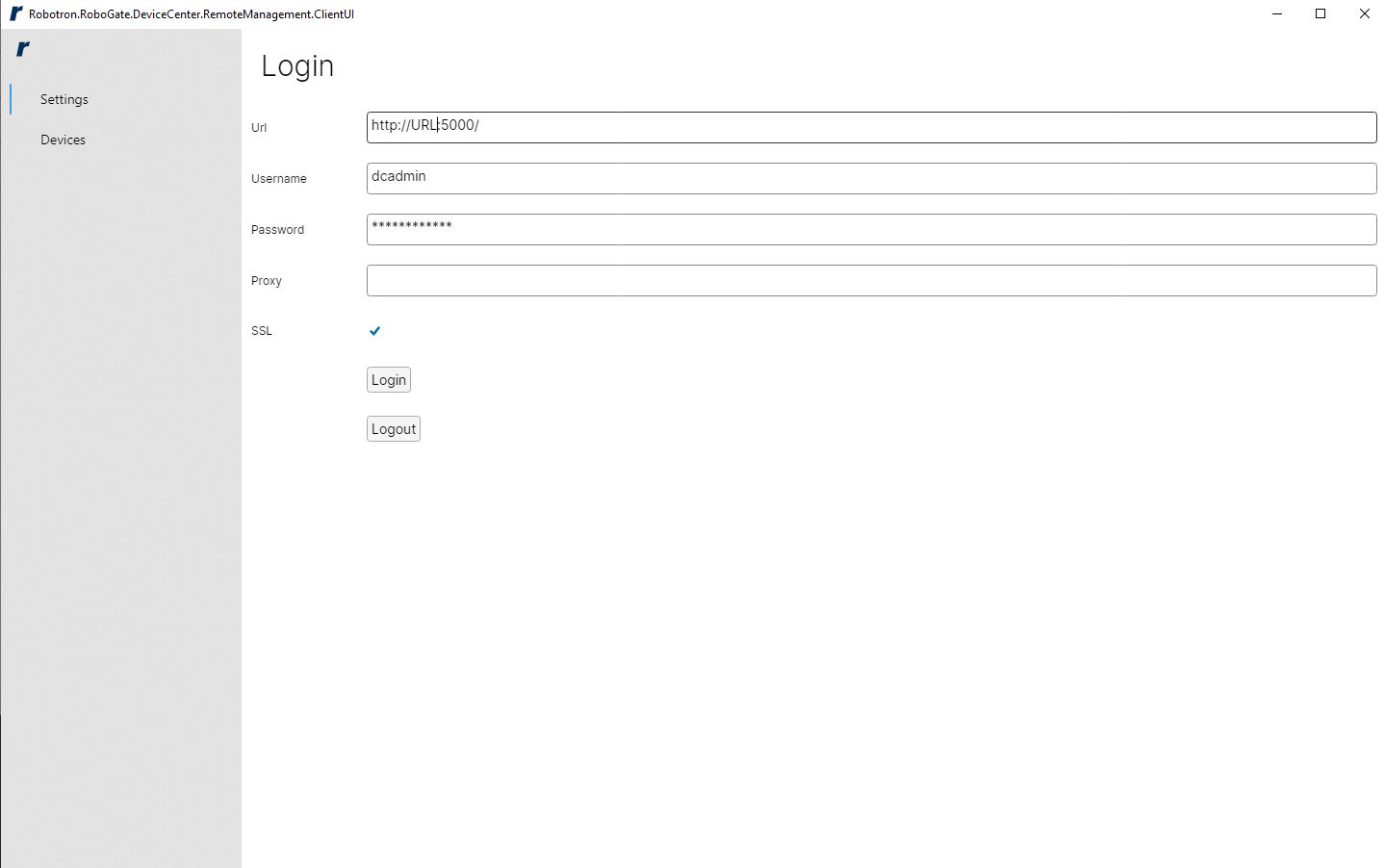
| Field | Description |
|---|---|
Url | URL / host of the ControlCenter instance |
Username | Username of the user |
Password | Password of the user |
Proxy | HTTP proxy for connections |
SSL | Checks the validity of SSL certificates. Should only be disabled in exceptional cases! |
After clicking Login, a success message appears if the entered information is correct.
Devices
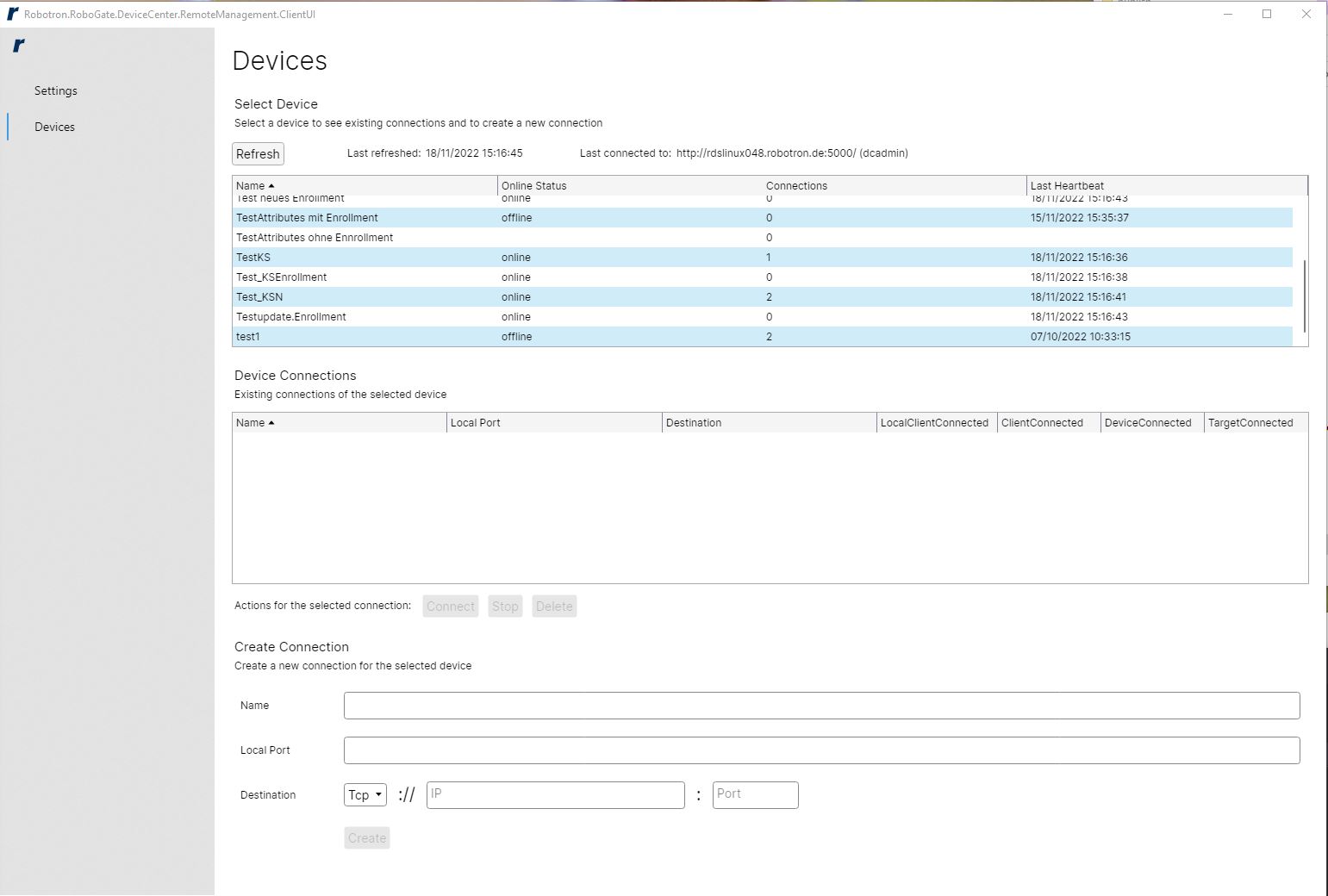
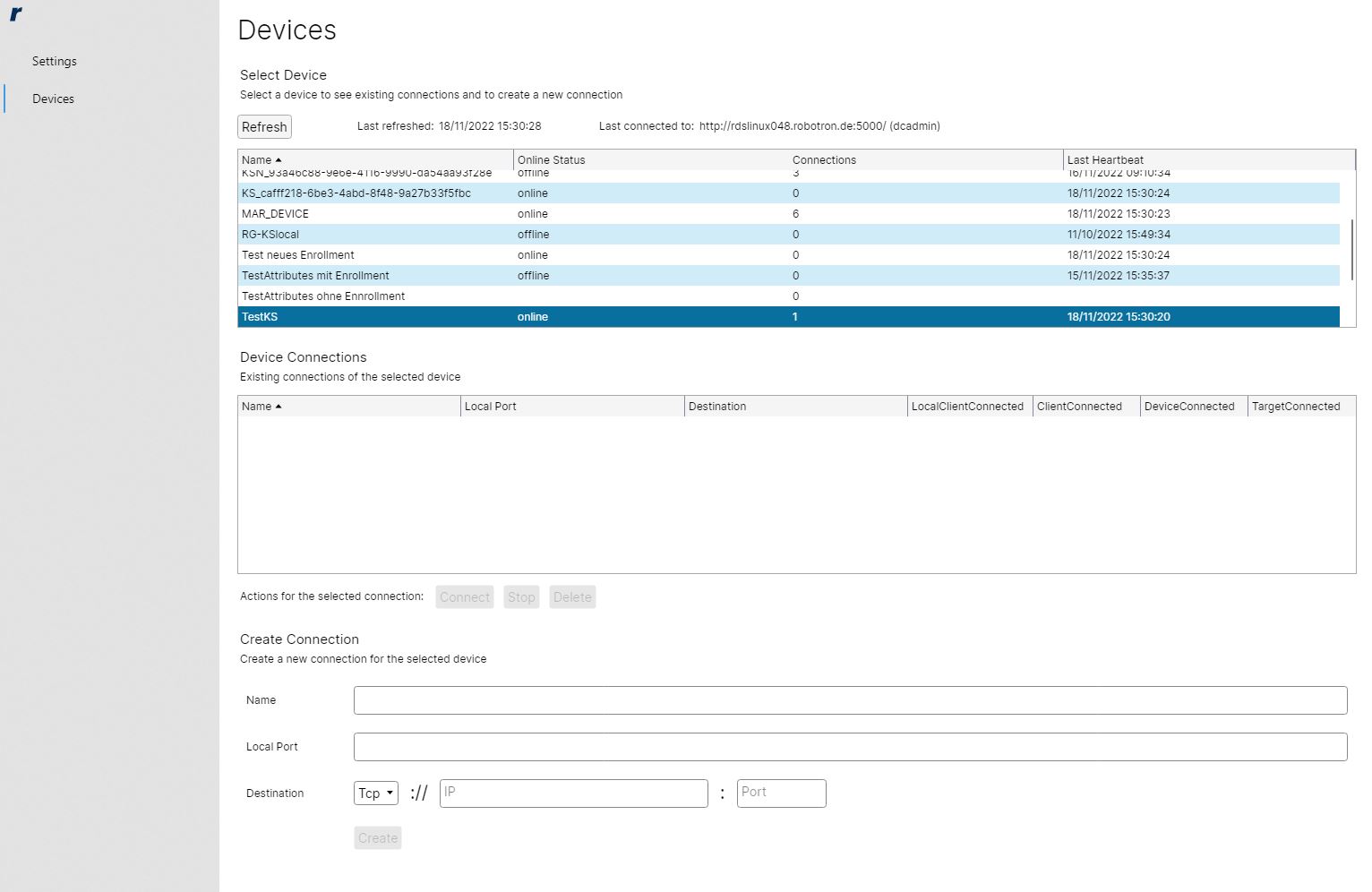
Once logged in, the device overview on the Devices page can be refreshed by clicking Refresh. All available devices are displayed with their names, online status, and the number of open connections to the ControlCenter.
When the Device page is opened, automatic sorting is applied in the "Select Device" table and in the dependent Device Connections table, each sorted by column name in descending order.
Note: Remote connections without a name are placed at the end.
All columns can be sorted: Name, Online Status, Connections, and Last Heartbeat.
Create New Connection
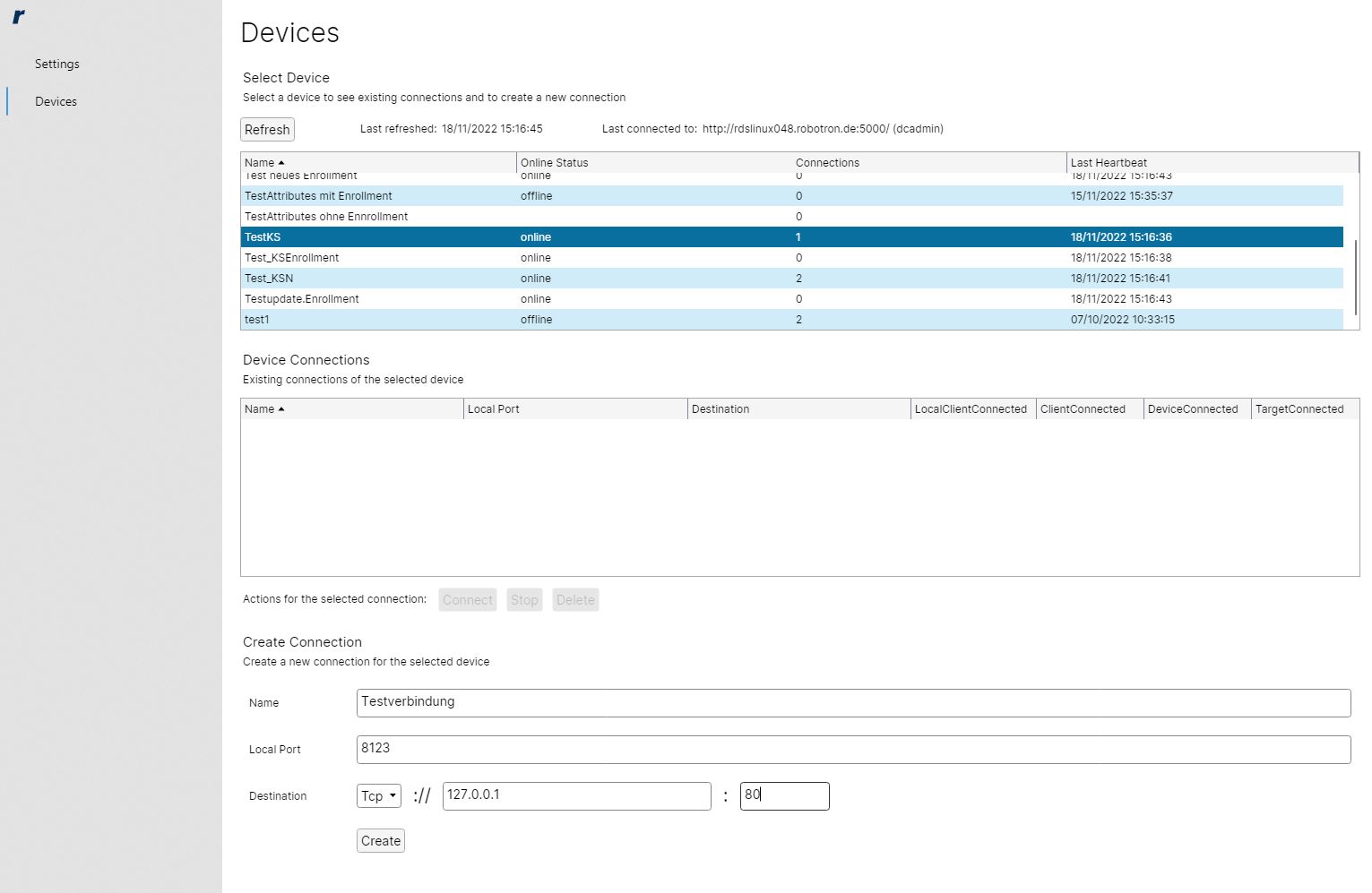
After selecting the device to connect to, all necessary information can be entered in the Create Connection section. Here using the Edge UI as an example:
| Field | Description |
|---|---|
Name | Local name of the connection |
Local Port | Port under which the connection is available on the service PC. Can be chosen freely (should be greater than 1024). Each local port may only appear once. |
Protocol | Selection of the transport protocol |
IP | IP address of the target. If the desired service is located on the same RoboGate Device as the RoboGate Edge, use the localhost IP (127.0.0.1). DNS resolution is possible. Therefore, IP addresses should be used. |
Port | Port of the desired service |
Commonly Used Services
| Port | Service | Service Client (Example) |
|---|---|---|
22 | SSH | SSH CLI |
80 | HTTP (Edge UI) | Browser |
102 | ISO on TCP / RFC 1006 / S7 Comm | TIA Portal |
443 | HTTPS (Edge UI) | Browser |
502 | Modbus TCP | Modbus TCP Client |
1522 | SSH on RoboGate Device xCom | SSH CLI |
4840 | OPC UA | UA Expert |
5900 | VNC | UltraVNC Viewer |
48898 | Beckhoff ADS | TwinCat |
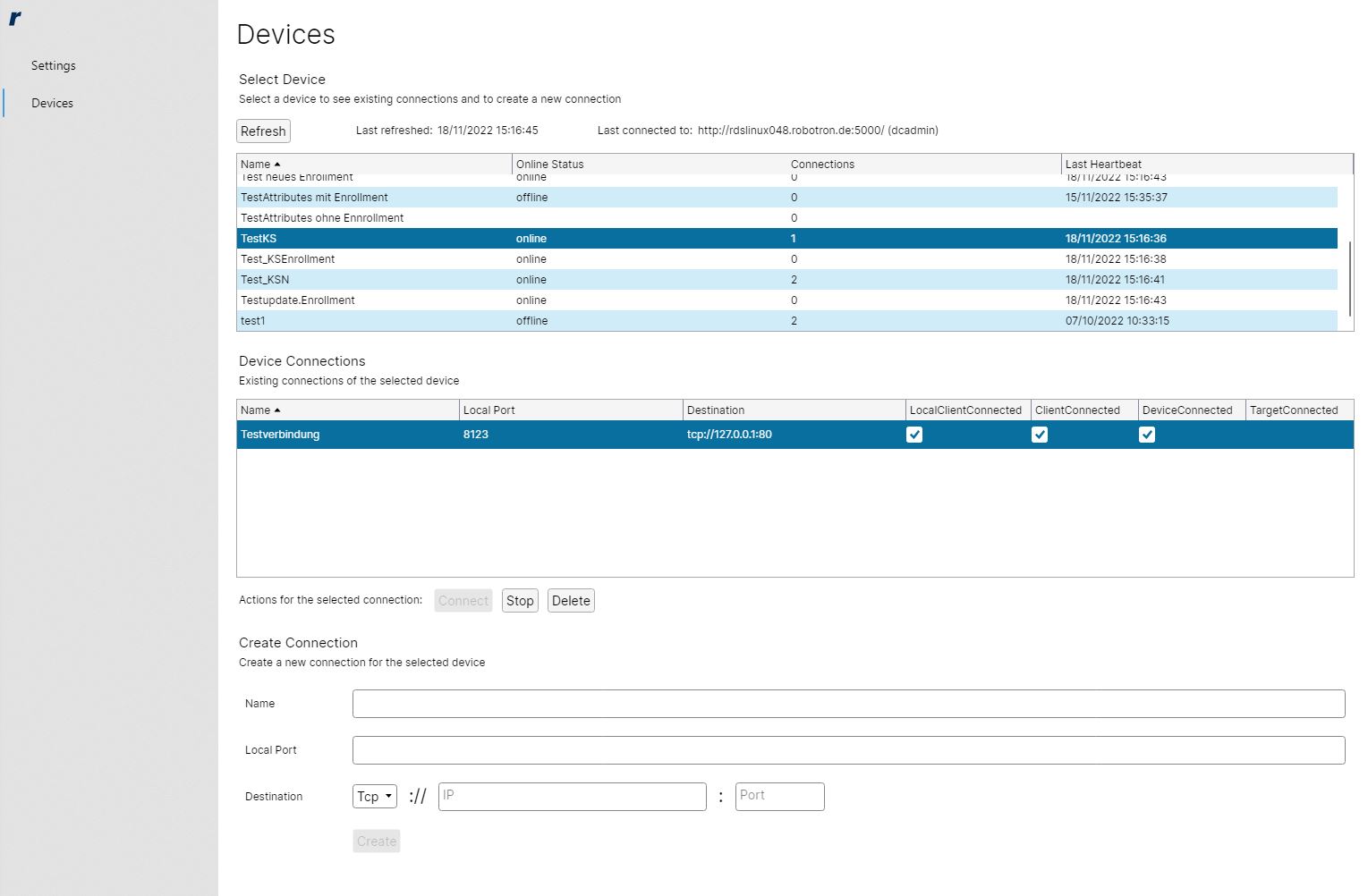
After a connection has been created by clicking Create, it appears in the list in the Device Connections section. The status can be refreshed by clicking Refresh. In addition to the configured information, the list also shows the state of the sub-connections:
Name | Description |
LocalClientConnected | The RemoteService Client on the service PC is connected to the ControlCenter. |
ClientConnected | The RoboGate Edge has established the connection to the target IP. |
DeviceConnected | The RoboGate Edge has established the connection to the ControlCenter. |
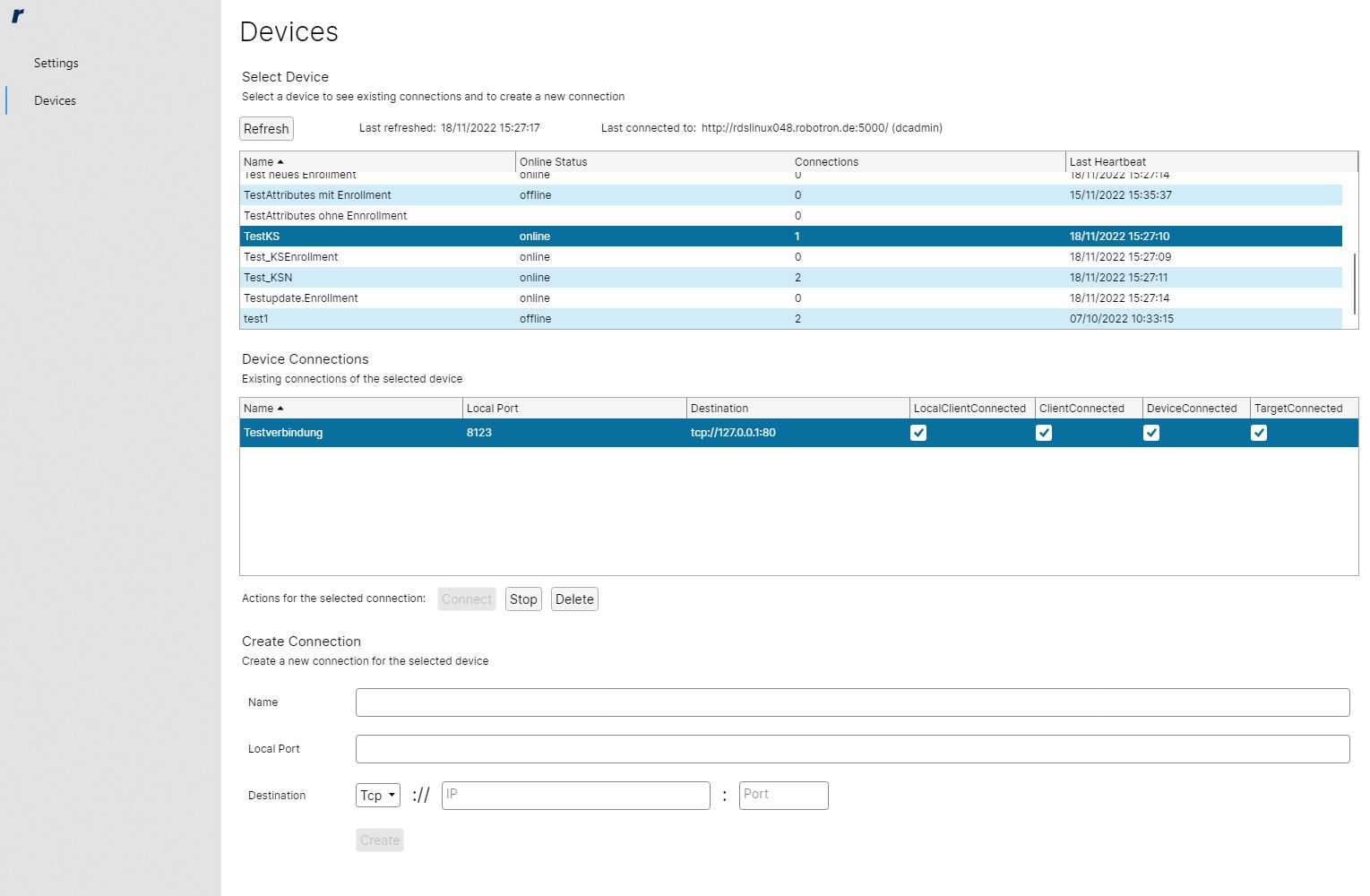
TargetConnected | The tunnel is being used by the service client (after first use). |
Tooltips for quick descriptions also appear when hovering over the columns with the cursor.
Once all connections are established, the table looks as follows:
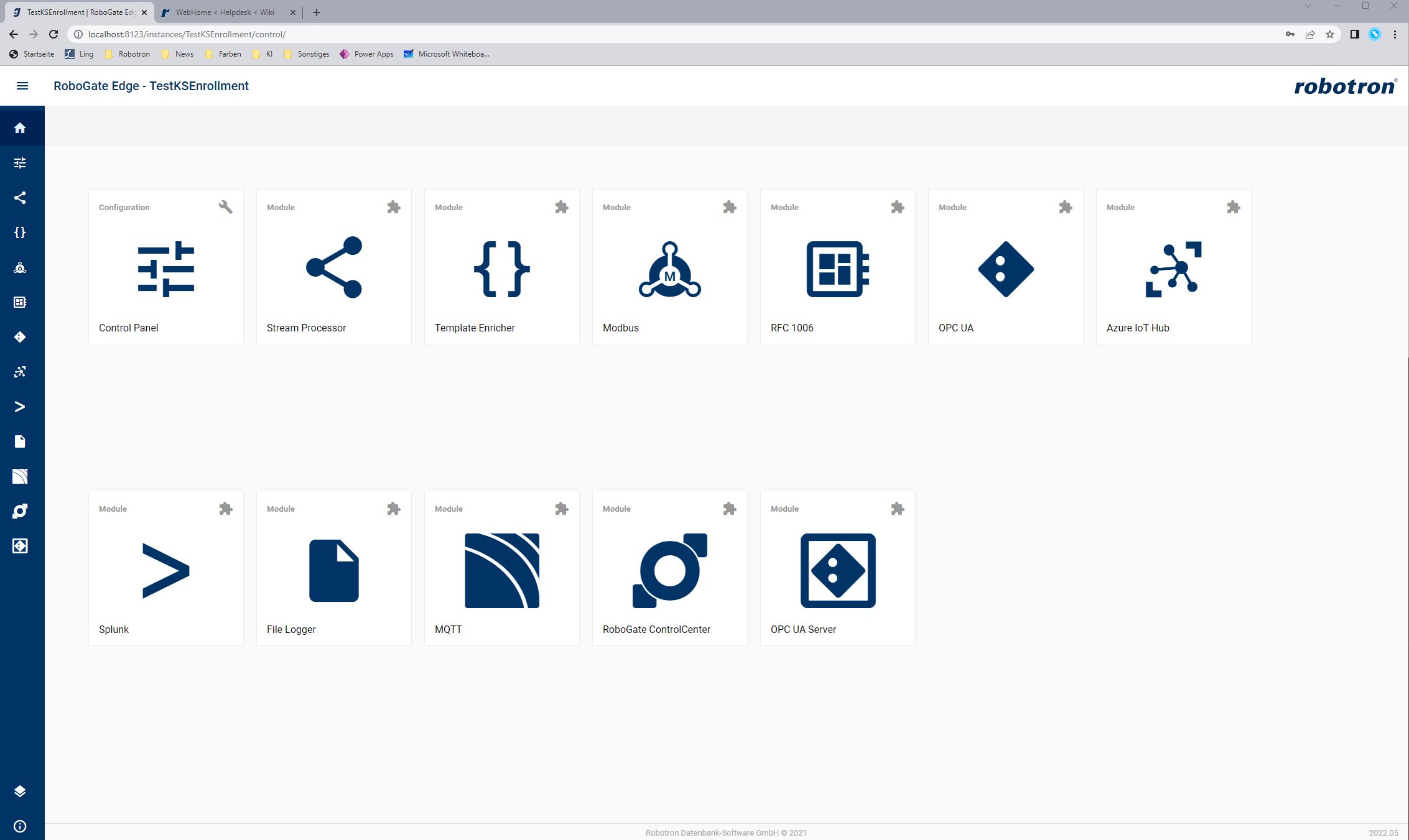
For this example, the Edge UI can now be accessed in the browser (in this case the service client) at the address http://localhost:8123.
Manage Connection
After selecting an active connection, the following options are available:
| Option | Description |
|---|---|
Stop | Closes the connection between the RemoteService Client and the ControlCenter. |
Delete | Closes and completely removes the tunnel |
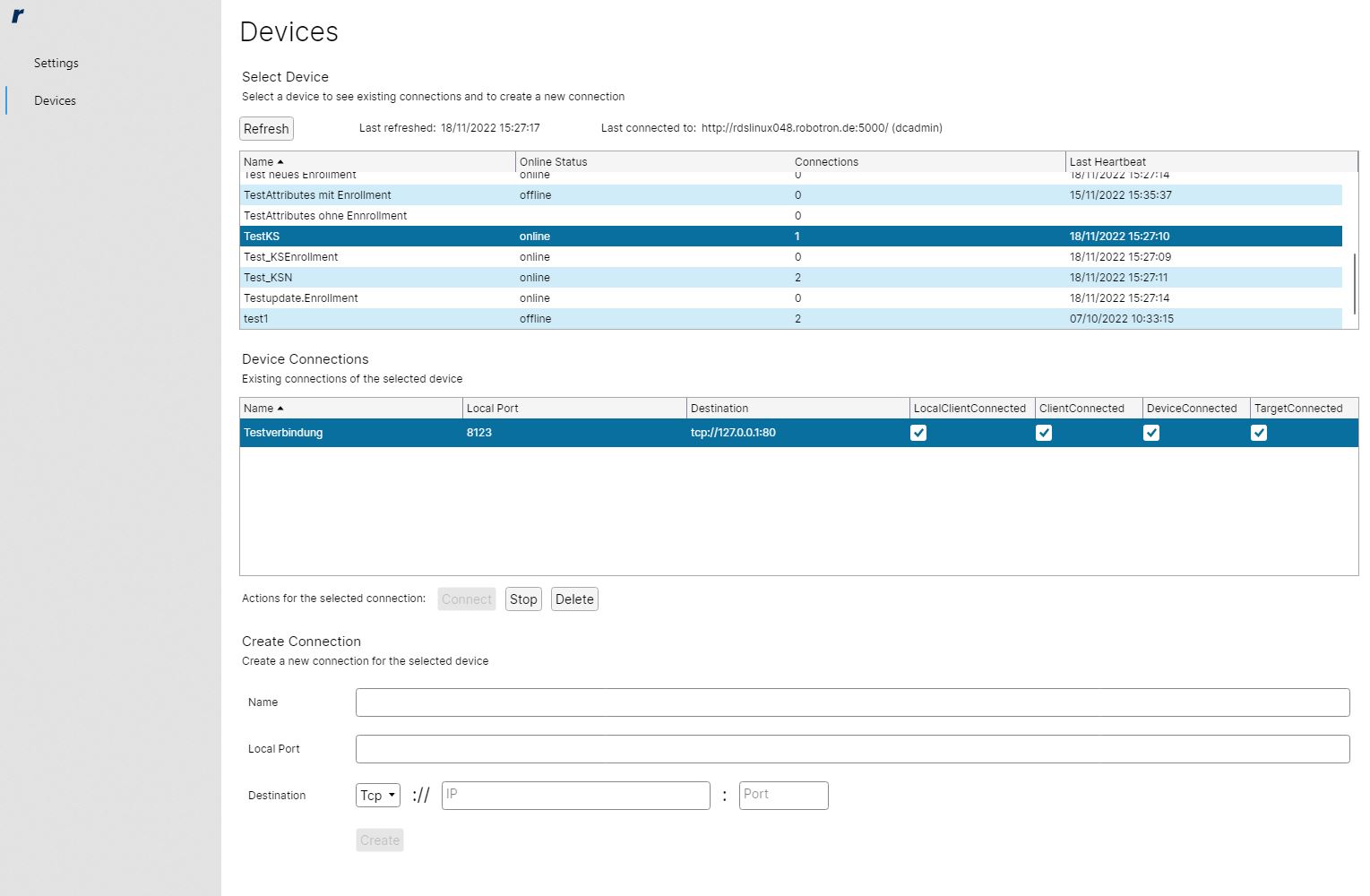
Stop Active Connection
Closes the connection between the RemoteService Client and the ControlCenter. The connection between the RoboGate Device and the RoboGate ControlCenter remains open for reuse.
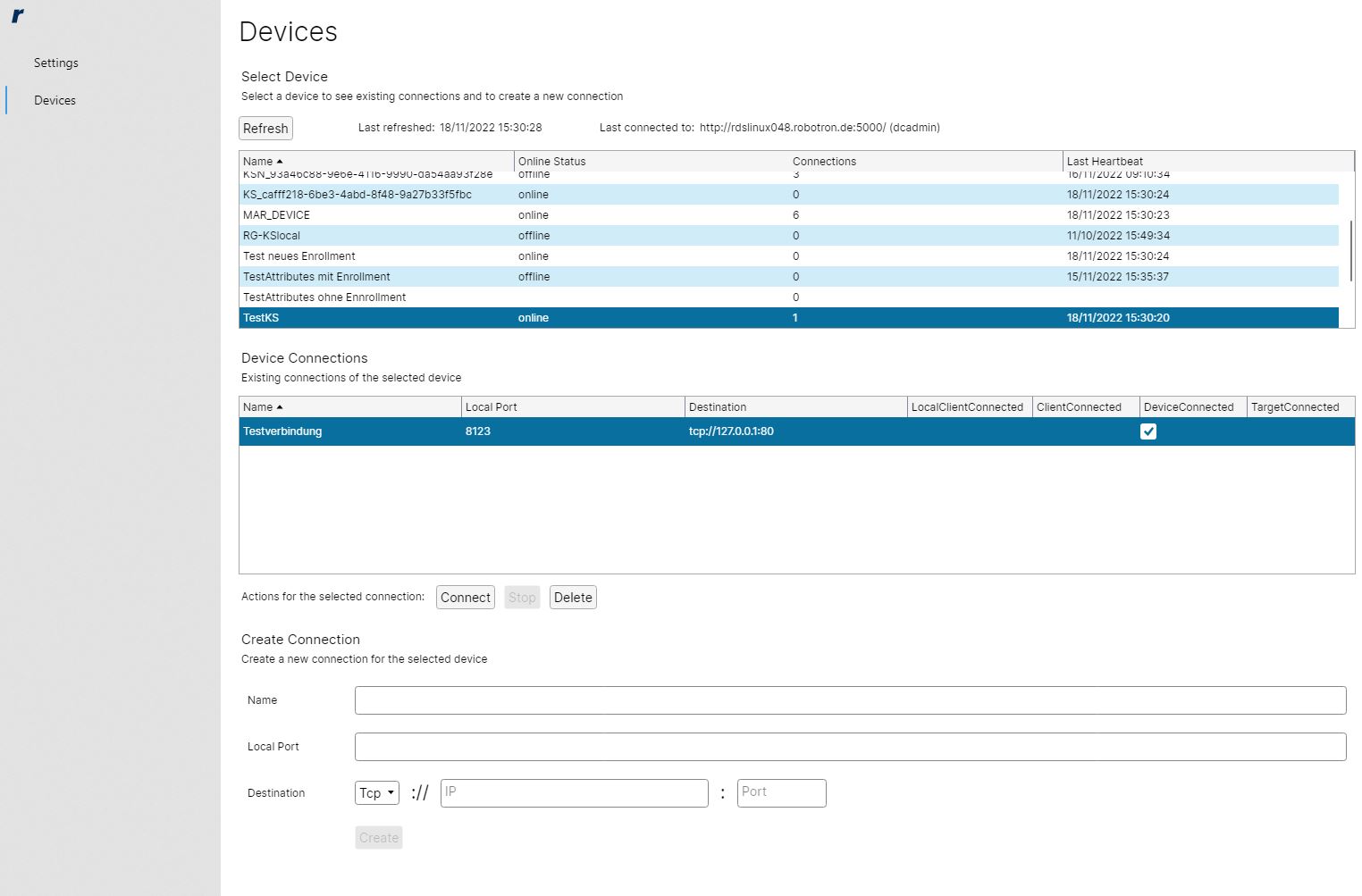
After selecting a stopped connection, the following options are available:
| Option | Description |
|---|---|
Connect | Resumes the connection to the device, provided it was configured locally |
Delete | Closes and completely removes the tunnel |
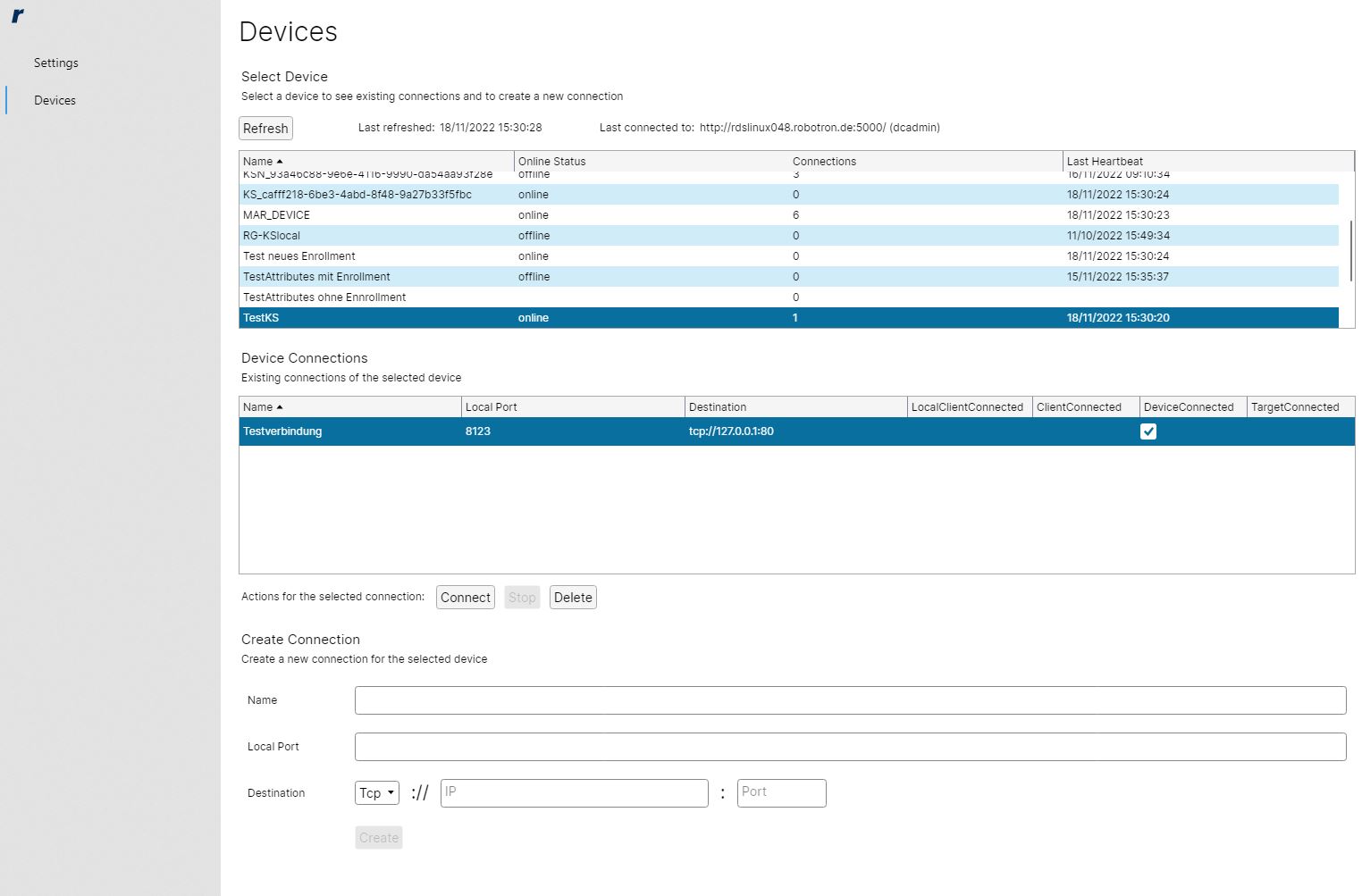
Delete Connection
Closes and completely removes the tunnel. All sub-connections are terminated and are no longer available. This action requires confirmation.
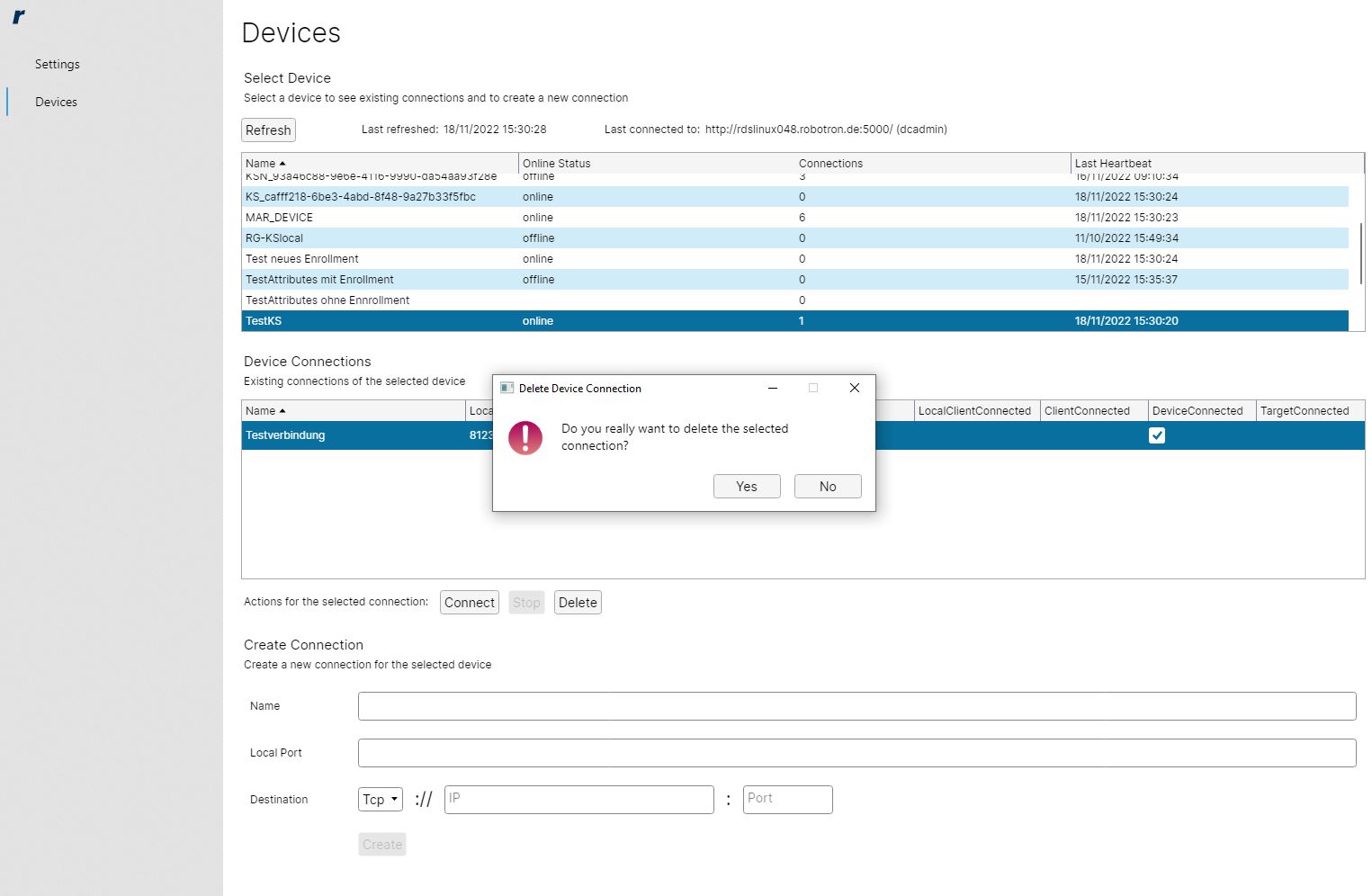
The connection is then no longer available in the list.
Close Application
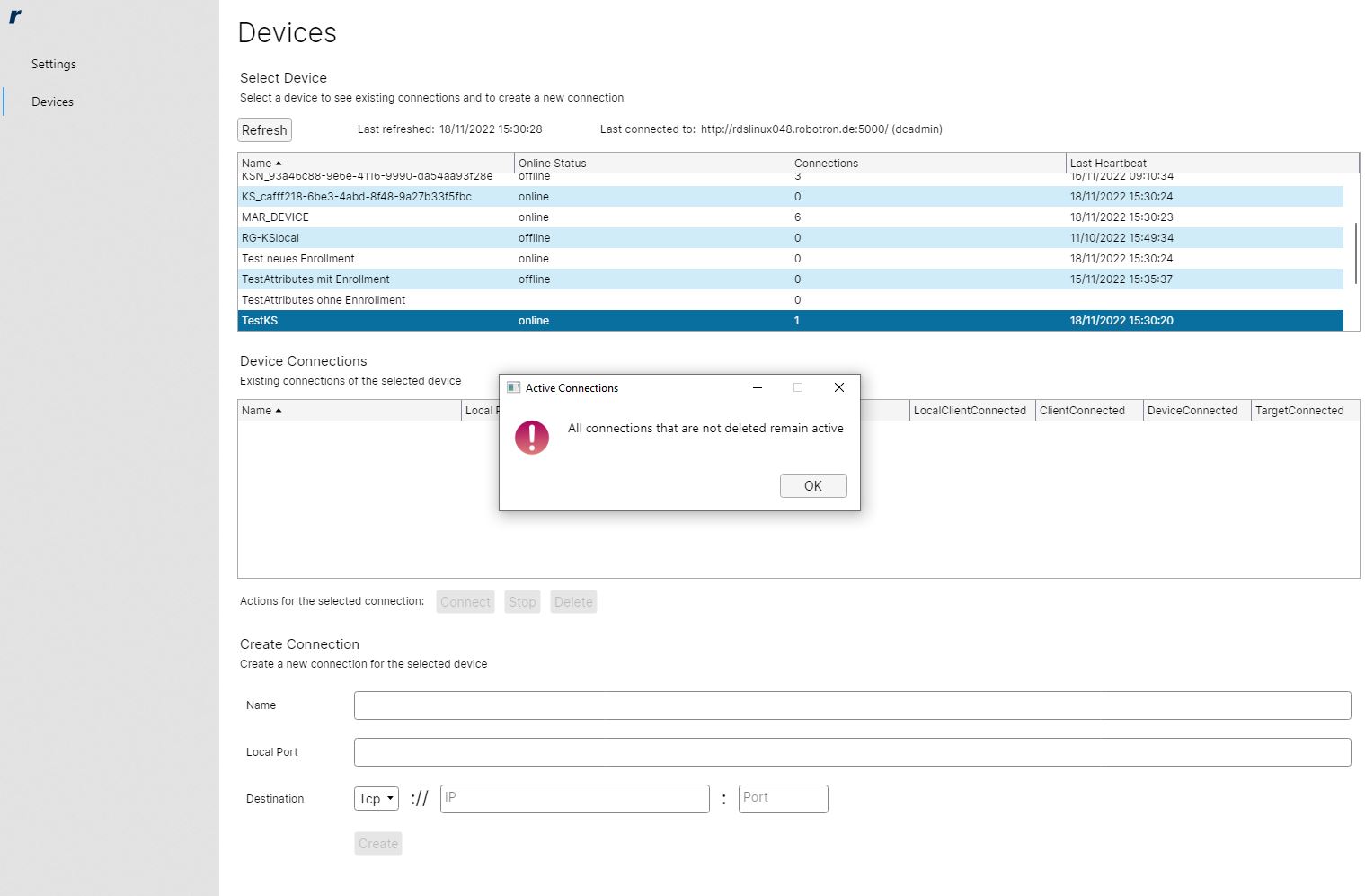
When closing the application, a notice is displayed that open connections are only closed, not deleted. This means the RoboGate Devices keep their connections to the RoboGate ControlCenter open and can be reused after restarting the application.