
Software
The Software module allows the software (RoboGate Edge) to be managed on RoboGate Devices and RoboGate Containers created via the RoboGate ContainerManager.
Software Versions
A software version is a revision of a software component for RoboGate Edges. The software stack is divided into different types:
Operating System (OS): The base system that hosts applications and enables access to hardware.
Application/Runtime: Software that generates business value.
Software type "RoboGate Application" for RoboGate Devices
Software type "RoboGate EdgeContainer Images" for RoboGate Containers
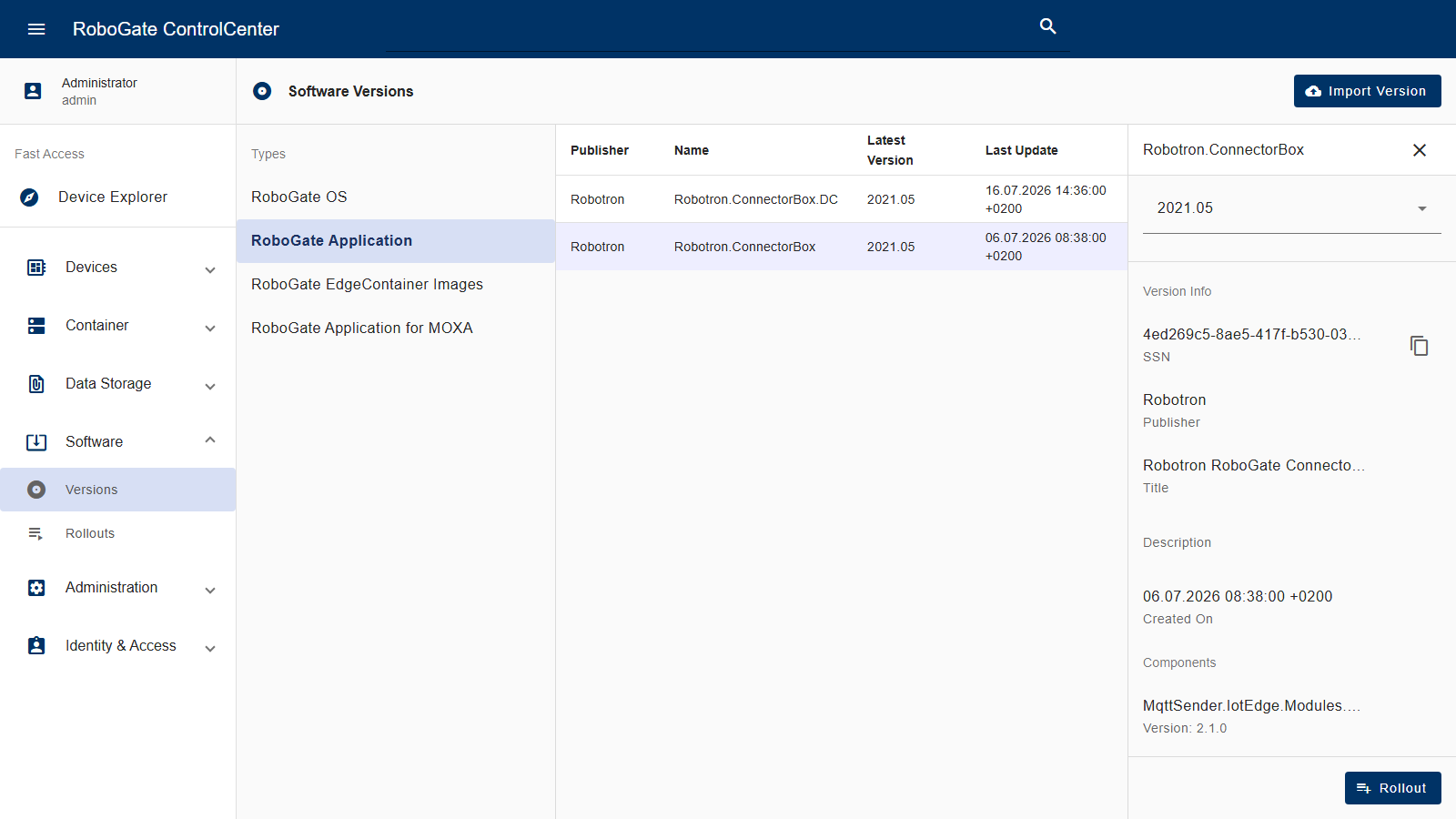
Each of these components can be updated individually, as they are designed to have minimal dependencies on each other. Each version has a specific identifier, the software serial number (SSN). This number allows the origin and content of each deployed package to be traced, e.g. for support requests. Selecting a software version opens the detail view with further information about the version (Figure 1).
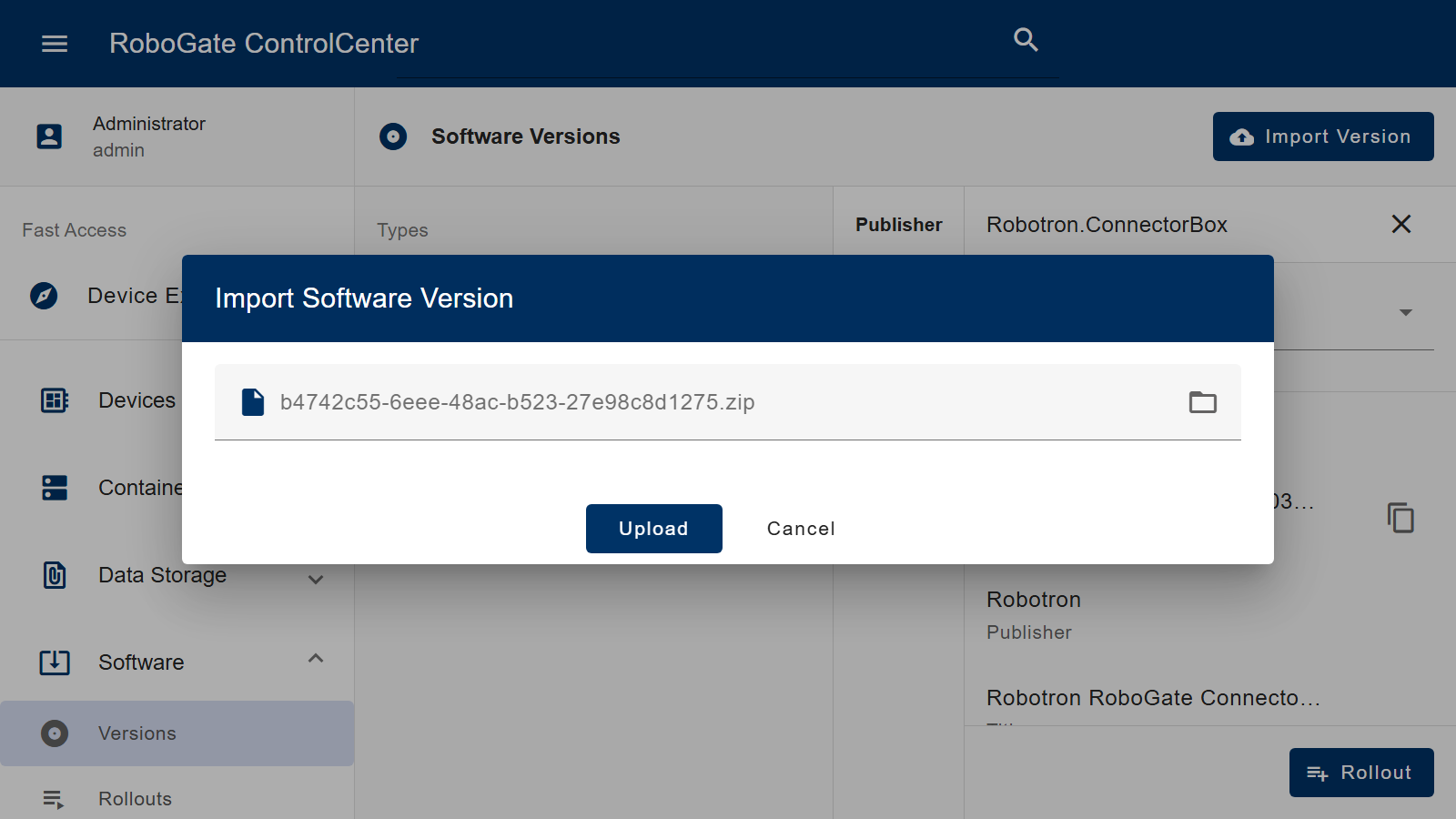
To import a software version, click the "Import Version" button in the horizontal menu bar and select the supplied RSB file from the file system. Confirm the import by clicking the "Upload" button (Figure 2). The file already contains all metadata about the software version.
Software Rollouts
A software rollout is the process of delivering software versions for installation on devices and tracking the installation progress.
The system does not check whether the installed software version is older or newer. There is no restriction on installing an older version over a newer one. However, it is not possible to reinstall the same version. If the target RoboGate Edge is part of a rollout with the same software version (same SSNs) that is already installed, the rollout is reported as successfully completed for that RoboGate Edge.
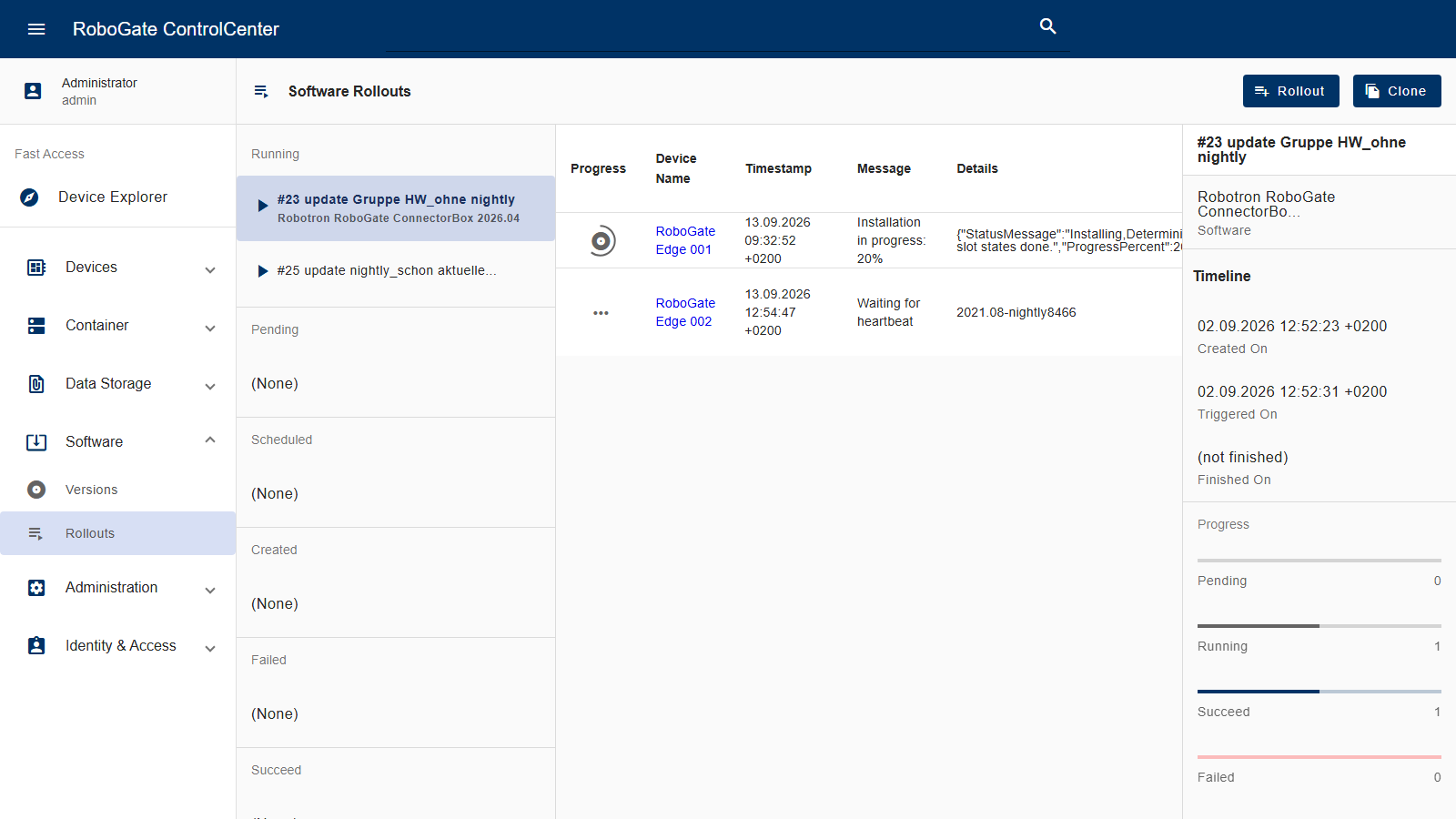
The rollout overview table shows the status of rollouts (e.g. running, scheduled, failed) (Figure 3). Selecting a specific rollout shows the progress and the time history.
After the rollout is triggered, the new version is installed as follows:
Download the new version
Start the installation routine
Restart (application or OS)
After each stage, the RoboGate Edge reports its current progress independently of the heartbeat.
Create a Rollout
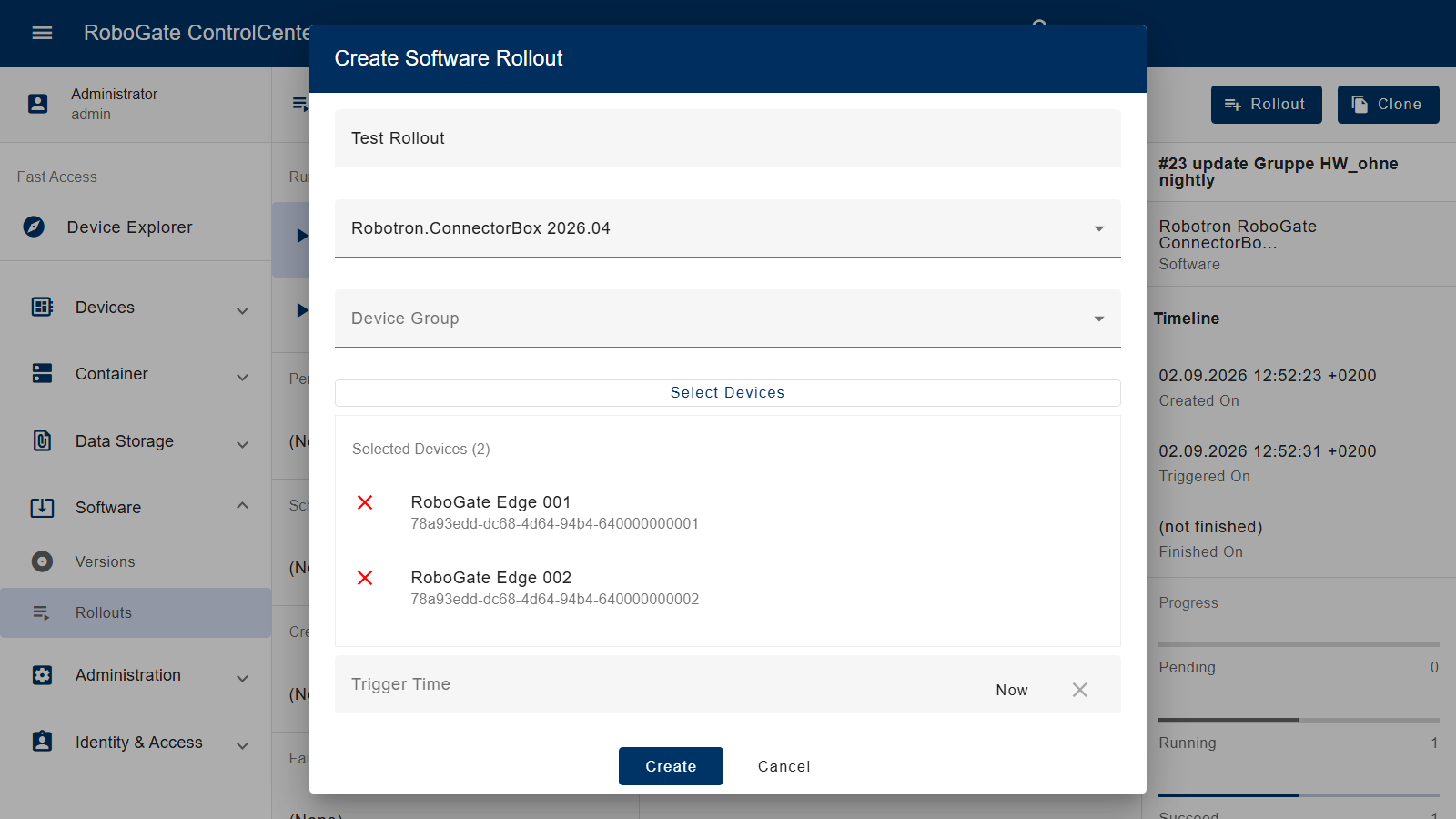
To create a new rollout, click the "Create Rollout" button. A window opens (Figure 4) in which the rollout details described in the following table can be configured. Click "Create" to create the rollout.
| Parameter | Description |
|---|---|
Name | User-defined name for the rollout. By default this is the software version. |
Software Version | The software version to be installed. |
Device Groups | The devices to which the software update should be rolled out. By default the entire group is selected; individual devices can be removed from the rollout by clicking the X next to a device under "Selected Devices". |
Trigger Time | The time after which the devices start updating. If left empty, the rollout can be triggered individually. |
If a software version suitable for RoboGate Containers is selected, only RoboGate Containers managed via the ContainerManager are available for selection under "Select Devices" for a software rollout.
Warning: If a software version suitable for RoboGate Devices is selected, all devices in the ControlCenter (RoboGate Devices and Containers) are available for selection under "Select Devices" for a software rollout.
If the software version or type does not match the selected device, an error message is displayed during the rollout.
Once a rollout is triggered (i.e. the trigger time is in the past), the RoboGate Edge begins the update after sending the next heartbeat. Created rollouts that are not yet running can be started individually via the start button  in the overview table.
If an existing rollout needs to be copied or only slightly modified, click on the rollout to be copied and then click Clone. A new window opens with all parameters pre-filled from the selected rollout.
Cancel a Rollout
A software rollout can be cancelled for individual or all incomplete (not succeeded / failed / cancelled) target devices. To cancel, click the stop button  in the table for a single cancellation or in the header for a complete cancellation. The cancellation is communicated when the device sends its next status update.
Cancellation only takes effect if the installation routine has not been started or the restart after installation has not been initiated. No rollback is triggered for already completed devices.