Container
The Container module is responsible for managing multiple servers and hosts that can host containerized RoboGate Edges and on which an instance of RoboGate ContainerManagement is installed. With the Container module you can easily create new RoboGate Edges, connect them to the ControlCenter, and manage them.
Connect Hosts
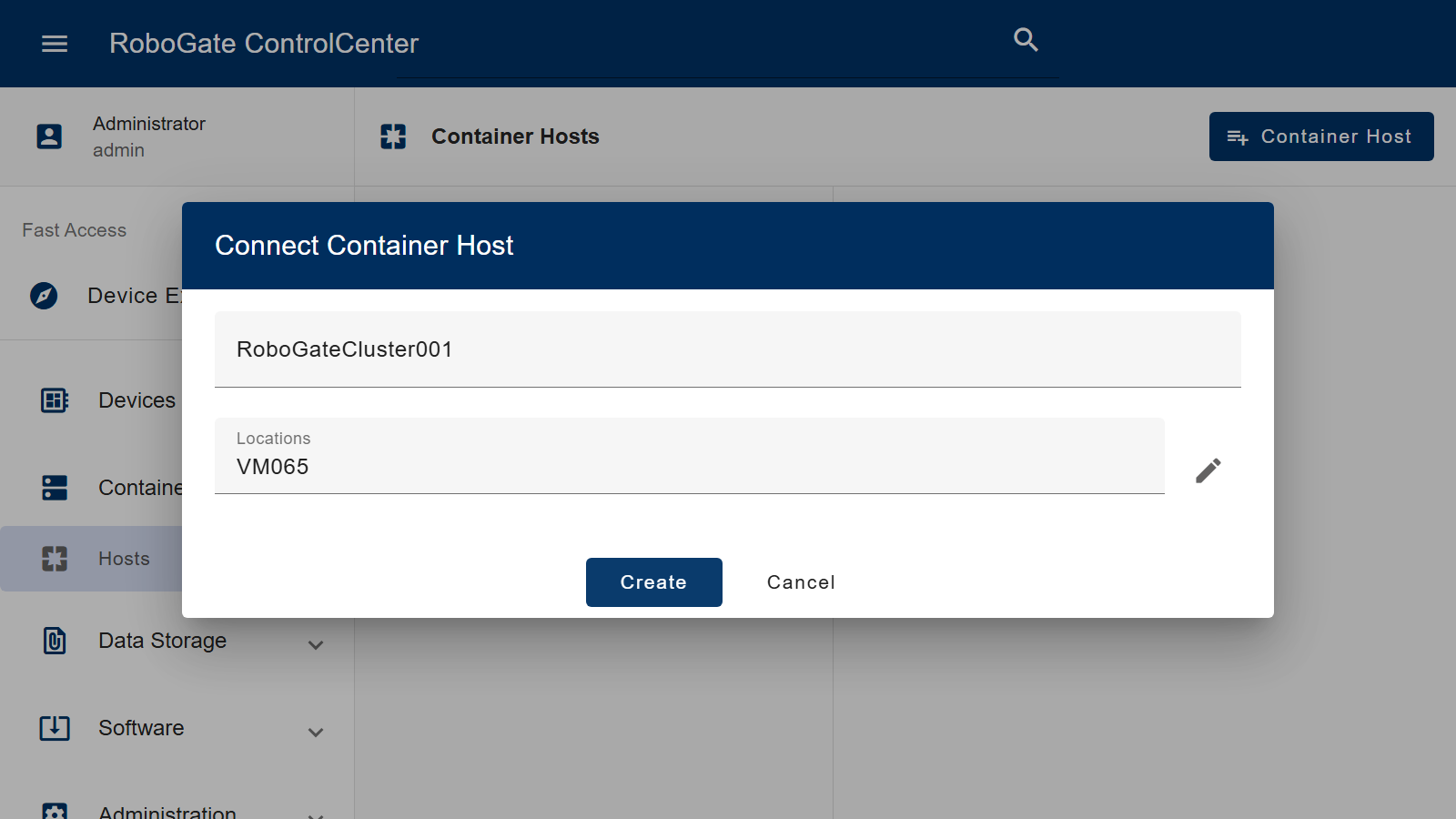
To connect a new host, click the "Connect New" button in the horizontal menu bar. You can then set a name and optionally a location for the new host (Figure 1).
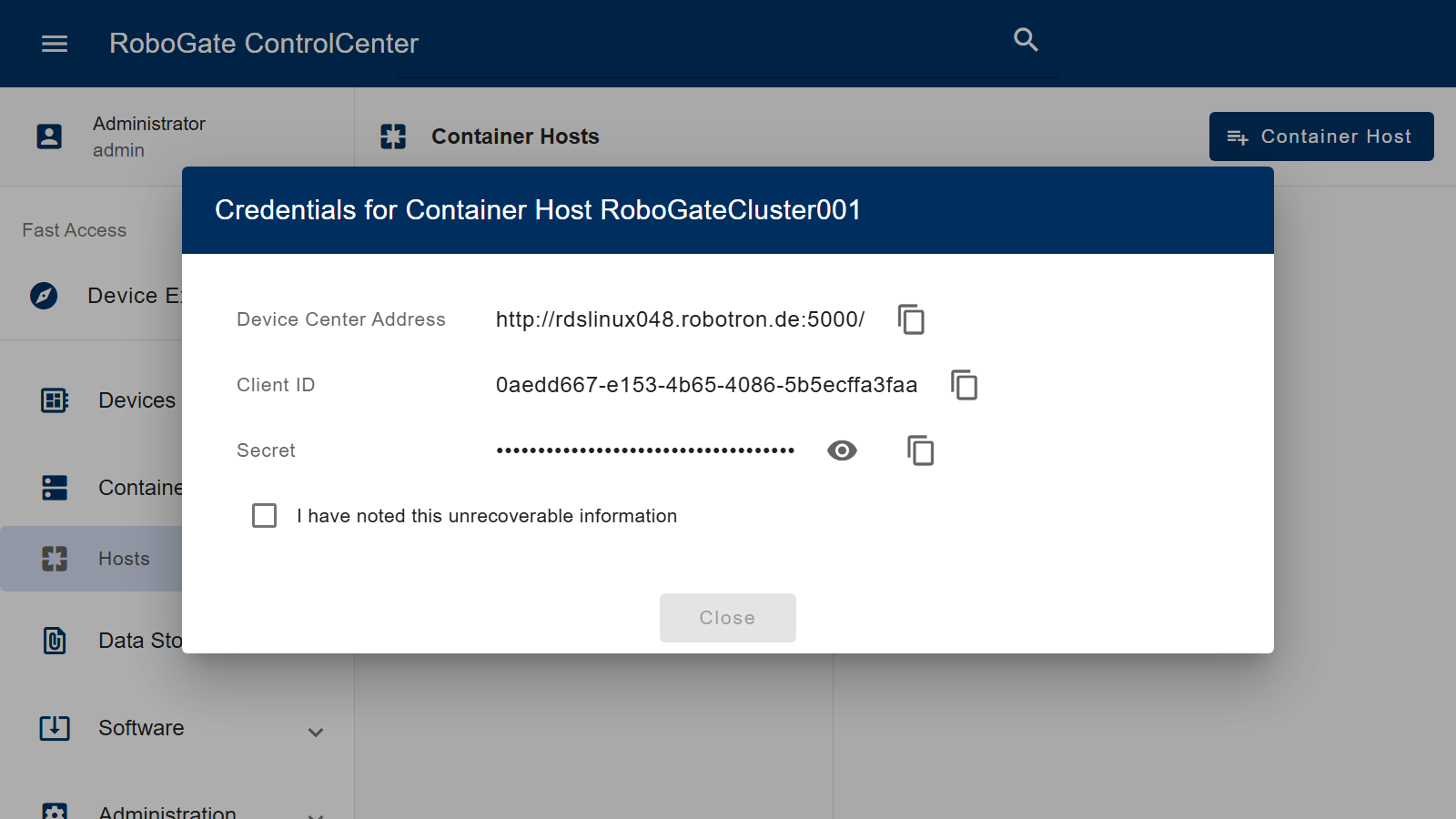
After clicking the "Create" button, the host is created and the required credentials are displayed in a new popup (Figure 2). Confirm copying the credentials.
Warning: This information cannot be viewed or restored afterwards!
Then check the setup guide for the ClusterControl to complete the connection of the host to the ControlCenter. Afterwards, a checkmark instead of a red cross will be displayed behind the name in the host list.
Manage Hosts
With the ControlCenter you can create new containers on hosts or start, restart, stop, and delete running containers. Hovering over devices highlights them and allows you to jump to the Explorer for the selected device. Changes to the properties of a host should always be made in the ControlCenter and not in the ContainerManager.
Create a Container
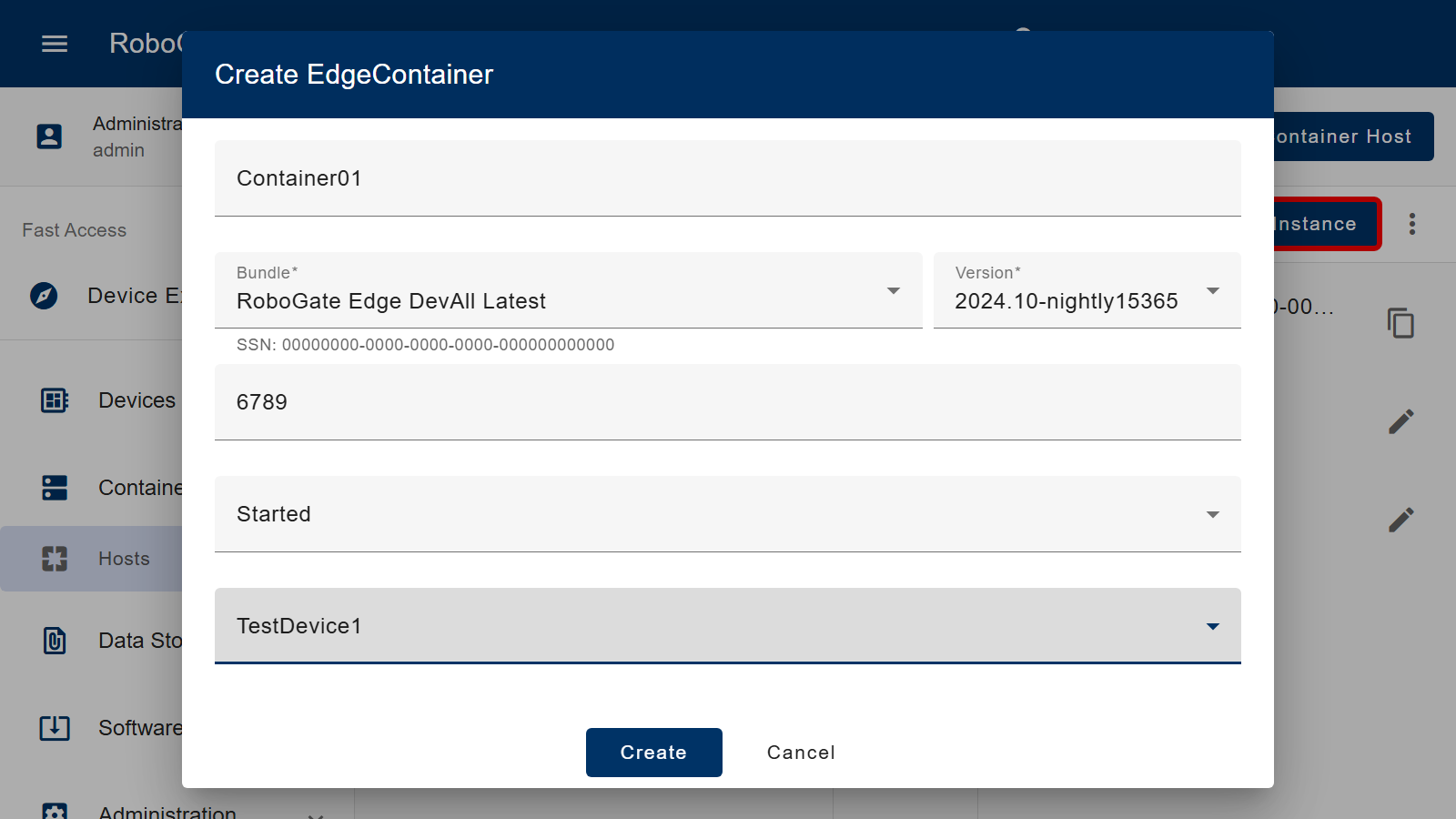
First select the host in the host list. Then click the "+" button in the menu bar of the "Host Details" (Figure 3). Set a name, select the desired software version, and configure the host port at which the web interface should be locally available. In addition, the startup behavior after creation can be defined by changing the "Initial State". By default, the container is started. It is recommended to assign a device by selecting it from the "Device" dropdown list.
Warning: If the port is already in use, the next available port is automatically selected.
Start / Restart / Stop a Container
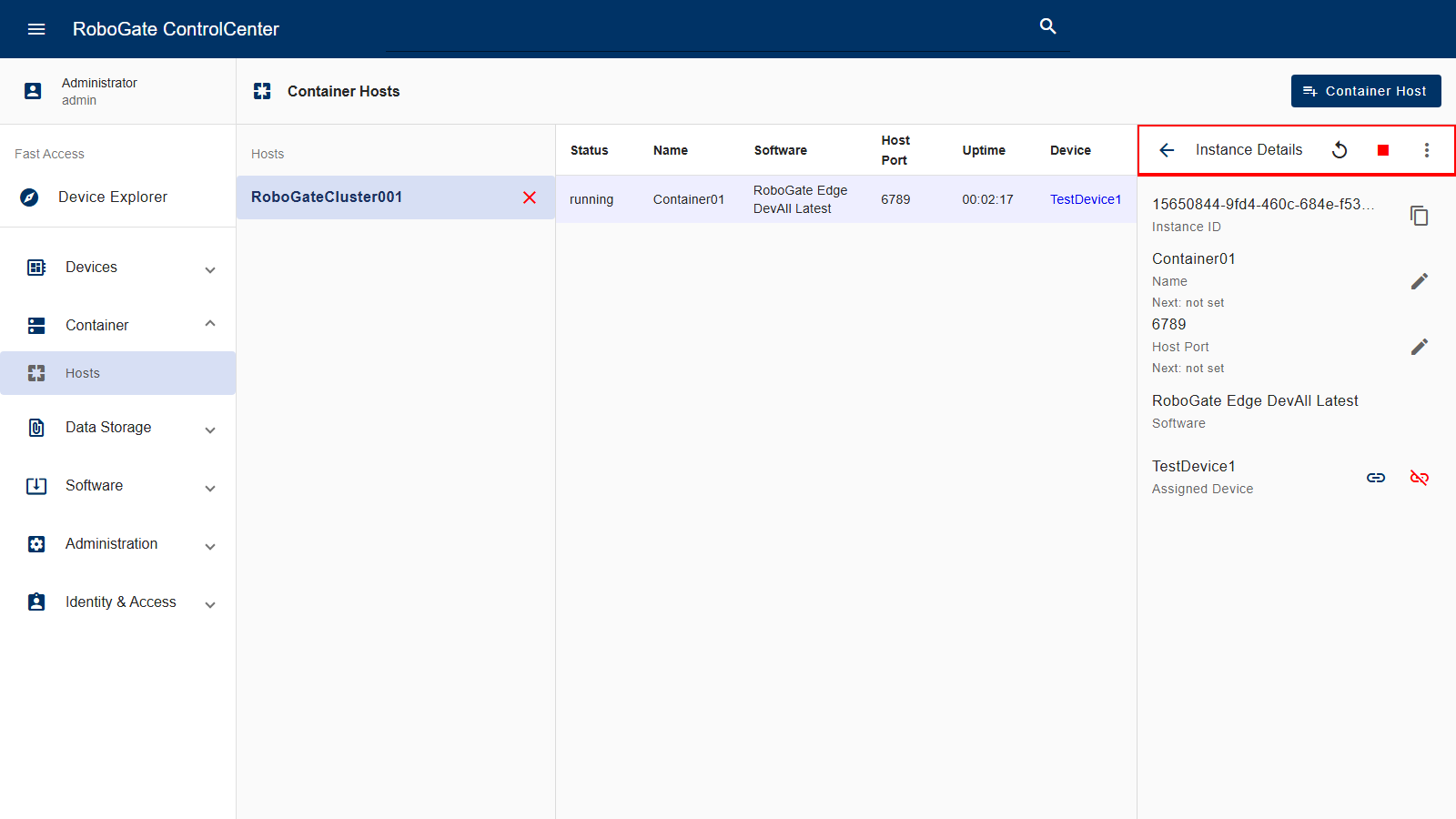
The lifecycle management of container instances can be accessed in the "Instance Details" menu bar after selecting an instance from the instance list of the selected host (Figure 4). Here you can:
 Start
 Restart
 Stop
Delete a Container
In the three-dot menu of the "Instance Details" you have access to a submenu containing the delete option for the selected instance.
Link an Instance to a Device
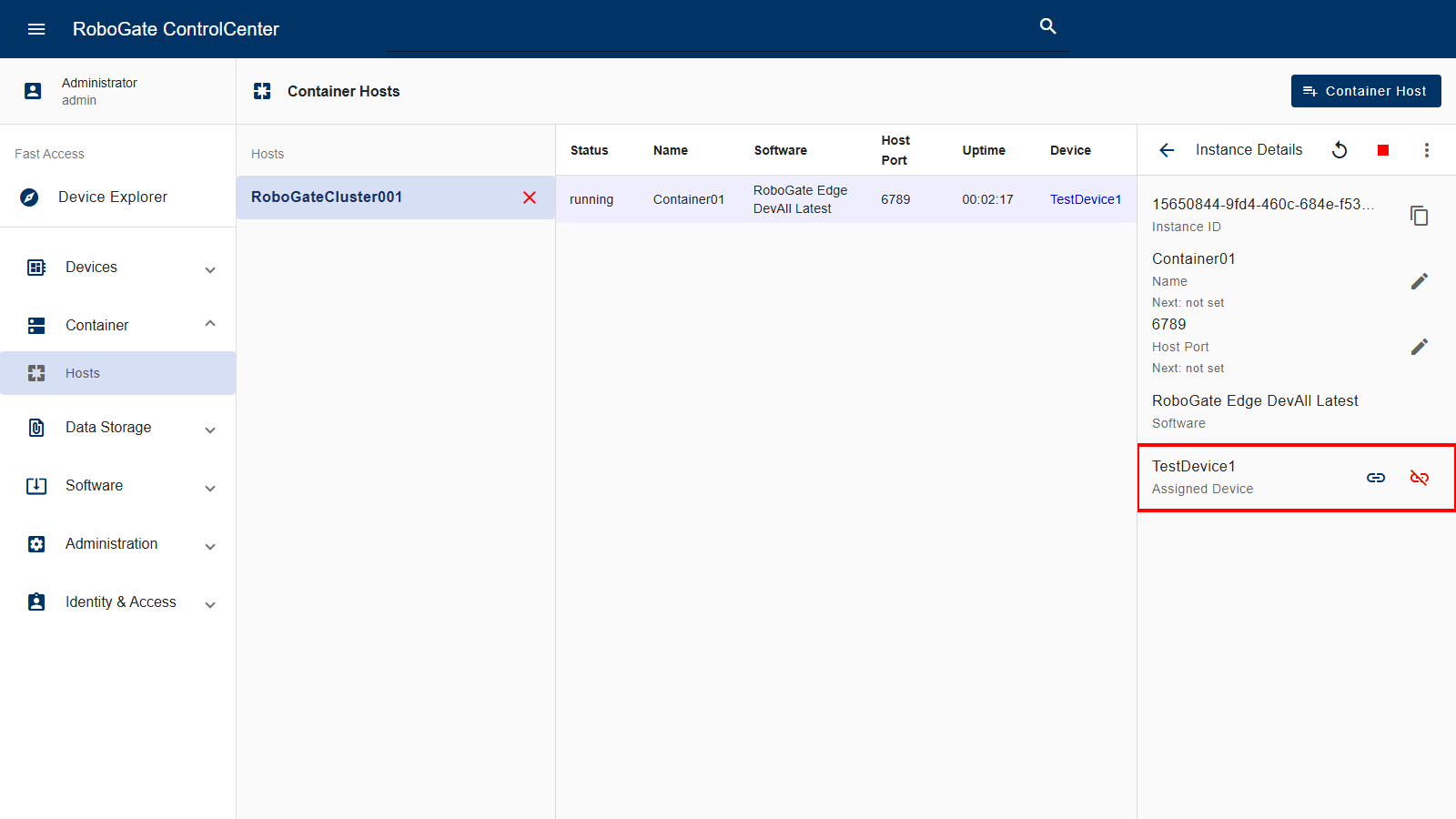
In the "Instance Details" there is an "Assigned Device" section (Figure 5). By clicking the blue link button you can set the assigned device. By clicking the red unlink button you can remove the current assignment. If a device is assigned, the ControlCenter module of the RoboGate Edge is automatically configured to register as that device. A successful enrollment is indicated by the online status of the assigned device in the Device Explorer.
Change Port
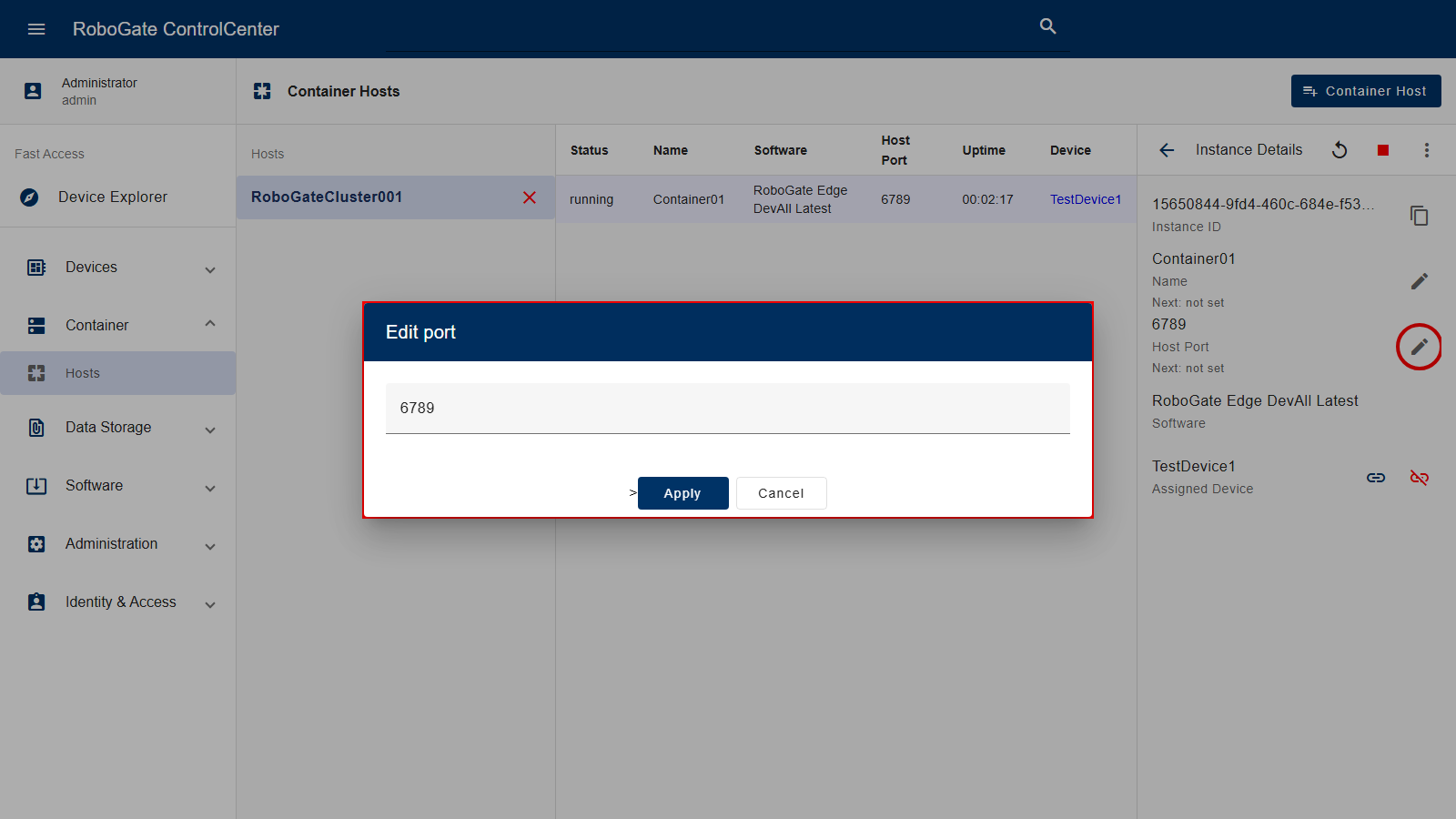
Clicking the pencil icon next to the Host Port allows you to change the port number of the respective device.